
Tasks
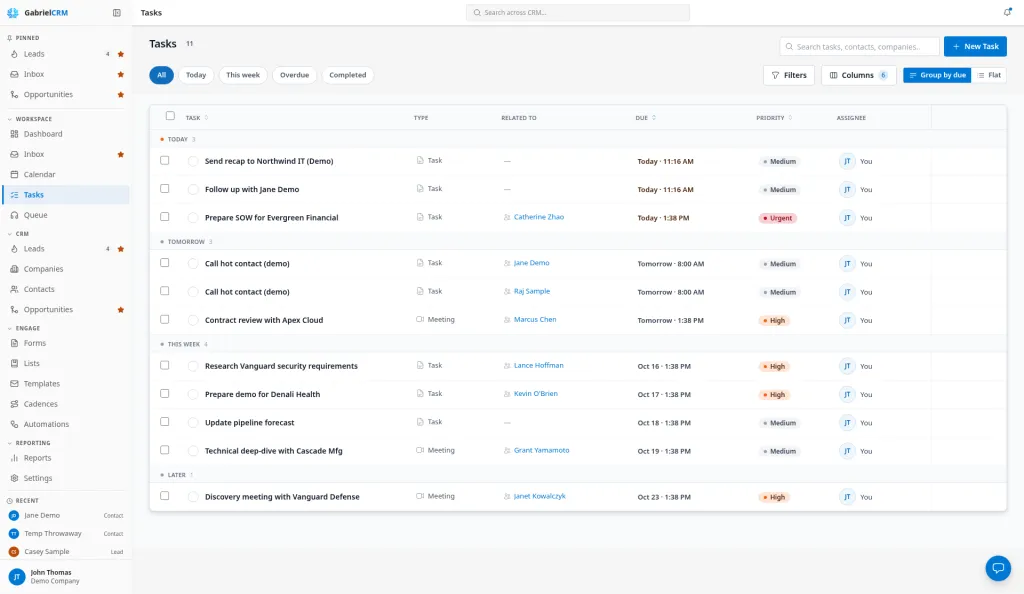
Tasks is your to-do list in Gabriel. It shows every open follow-up, call, email and meeting assigned to you, sorted by when it’s due. You work it each day to stay on top of what you’ve promised.
Open Tasks from the Workspace group in the sidebar. The number beside it is how many of your items are overdue.
Find what’s due
Section titled “Find what’s due”Use the pills along the top:
- All: everything open (the default).
- Today: due today.
- This week: due after today, up to the end of your company’s work week.
- Overdue: due before today and still open.
- Completed: finished in the last 30 days.
With Group by due on, the list is grouped into Overdue, Today, Tomorrow, This week, Later and No due date. Switch to Flat to see one list, then sort by Task, Due or Priority from the column headers.
To narrow the list:
- Type in Search tasks, contacts, companies… to match the title, the description or the related person, company or opportunity.
- Click the filter button to filter by Type (Tasks, Calls, Emails, Meetings), Priority or Assignee. Assignee starts as Me. Pick a teammate or Anyone to see other people’s work.
- Use the column chooser to show, hide or reorder Type, Related to, Due, Priority and Assignee.
Create a task
Section titled “Create a task”- Click New Task.
- Enter a Title. It’s the only required field.
- Set the Due date and Time. They start as today and the current time.
- Optional:
- Priority: Low, Medium (the default), High or Urgent.
- Assigned to: leave it Unassigned to give it to yourself, or pick a teammate. They’re notified.
- Description: notes about what needs doing.
- Linked to: the contact, lead, company or opportunity it’s about.
- Click Create task.
To create a task already linked to a record, open the record and click New task in its Log new bar. See Log activity.
Complete a task
Section titled “Complete a task”Click the circle at the start of the row. The task fades out and a Task completed message appears with Undo for a few seconds.
To reopen a task, go to Completed and click its circle again.
Reschedule, edit or reassign
Section titled “Reschedule, edit or reassign”- Reschedule: hover over a row, click Reschedule task and choose Today, Tomorrow, Next week, Pick a date or Clear due date. The time of day stays the same.
- Edit: click the task’s title or the pencil icon, change it and click Save changes.
- Several at once: tick the boxes on the left. The bar that appears lets you Complete, Reschedule or Reassign them all.
Where tasks come from
Section titled “Where tasks come from”Most tasks you’ll see are ones you or a teammate created. Gabriel also adds some for you:
- Automations. A Create a task step in an automation adds a task for the person it names, due the number of working days the step sets.
- Follow-ups from calls. When you log a call on a contact and tick Create a follow-up task, a “Follow up on call” task is added, due three days later unless you change it.
- Meetings. A meeting booked through a booking link or scheduled in Gabriel appears as a Meeting item for its host, due at the meeting time. Synced meetings with your contacts appear the same way. Each stays open until the meeting is marked Completed or No-show on the Calendar.
Cadence steps don’t appear here. You work them from your Queue. When you finish a cadence task or LinkedIn step, a completed record of it is added and shows under Completed.
How it works
Section titled “How it works”- Overdue means due before today with no outcome recorded. An item is overdue once its due date is before today and it hasn’t been completed or cancelled. That includes meetings, until you record whether they were held or a no-show. A task due earlier today is still under Today on this page. The sidebar count and the Dashboard use the same rule, and count every open item assigned to you.
- Times use your computer’s time zone.
- Cancelled tasks don’t show in any view.
- Who can see tasks. A task linked to a record is visible to anyone who can see that record. A task linked to nothing is visible to the person who created it and the person it’s assigned to.
- Deleting a task can’t be undone. By default only managers and admins can delete tasks.
- Notifications. You’re notified when someone else assigns you a task, when one is due within 24 hours, and once when it becomes overdue. See Notifications.
- Record pages. Contacts, leads and opportunities have a Tasks card showing their own tasks. Click Add there to create one linked to that record.
Best practices
Section titled “Best practices”- Triage overdue first, every morning. Open Overdue and for each item either do it, reschedule it to a real date, or delete it. Overdue items keep the sidebar count up, which hides what’s actually new.
- Always link a task to a record. A linked task shows on the record’s Tasks card and timeline, so a teammate covering for you can see it. It also counts as activity on that contact.
- Give every follow-up a due date. Tasks with No due date never become overdue, never trigger a reminder and sink to the bottom of the list.
- Set the time you’ll actually do it. New tasks start at the current time. The due time is what decides when you’re reminded, so a task left at the default gives you no warning.
- Mark meetings Completed or No-show on the Calendar. Meetings stay on your list, and count as overdue, until their outcome is recorded.
- Use priority sparingly. If everything is High, sorting by priority tells you nothing. Keep Urgent for things that must happen today.
- Managers: review a rep’s list by setting Assignee to their name. Look for piles of overdue items. They usually mean too many leads, or tasks that should be closed.
Troubleshooting
Section titled “Troubleshooting”A task I created isn’t in the list. Check the Assignee filter. It starts as Me, so a task you assigned to someone else only shows under their name or Anyone.
The sidebar count doesn’t match the Overdue view. The count includes meetings waiting for an outcome and items of every type. Set Type to all types and Assignee to Me to see the same items.
“This task is unavailable or you no longer have access.” The task was deleted, or it’s linked to a record you can no longer see.