
Send email to a list
You can send one email to everyone on a list: an event invitation, a product update, a renewal reminder. It goes out from your company’s own verified email domain, with your company’s physical address and an unsubscribe link at the bottom, and each person gets their own copy with their name and details filled in.
By default only managers and admins can send to a list. An admin can give other roles access under Settings > Roles & Permissions (the Send one email to everyone on a list permission).
Before you start
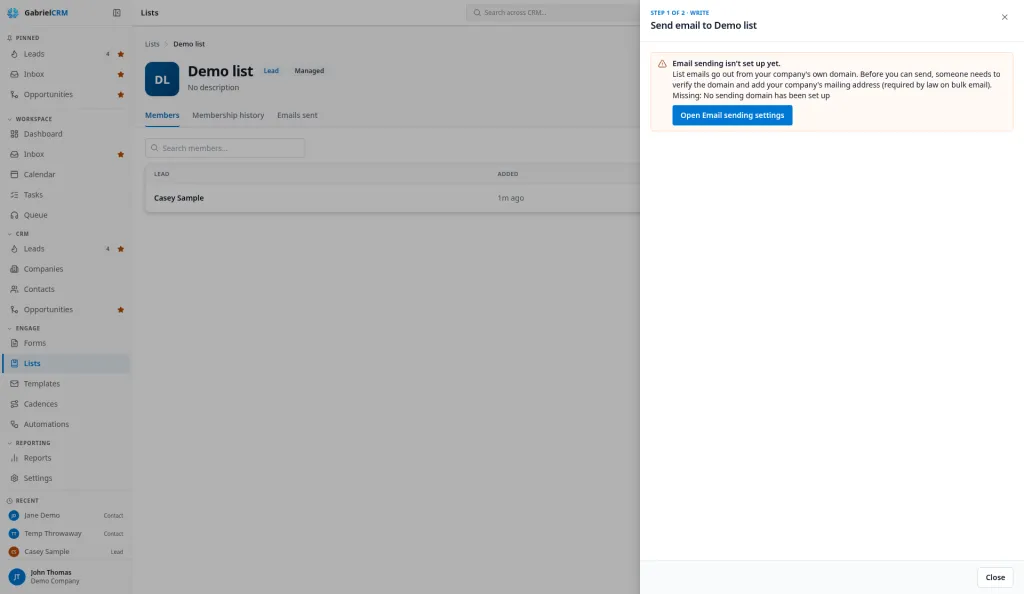
Section titled “Before you start”An admin sets up Email sending once: a verified sending domain, a from address on it, and your company’s physical address for the footer. Until that’s done, Send email says what is missing instead of letting you write.
Send an email
Section titled “Send an email”- Open Lists from the Engage group in the sidebar and open a list.
- Click Send email.
- Check the From address (your company’s sending address) and the Reply-to address, where replies will go. Reply-to starts as your own email address; change it if replies should go somewhere else.
- Click Use a template to start from a saved email template, or write the email yourself. You can change the subject and message for this send; the template itself isn’t changed.
- Use Insert field beside the Subject and in the Message toolbar to add the person’s first name, company and so on.
- Click Next: review. You’ll see:
- the email exactly as one recipient will get it. Use Previous and Next to look at other people’s copies.
- Will receive: how many people will get it, and how many are skipped and why. Click See the … skipped for their names.
- a warning if some people have no value for a field you used, such as a first name. Their copy leaves it blank.
- Click Send to …, then Send now.
A sent email can’t be recalled. It goes out in the background, so you can close the page. A few hundred people usually takes a few minutes; a few thousand can take an hour or more.
Who is skipped
Section titled “Who is skipped”Gabriel never emails someone who:
- has no email address,
- has unsubscribed,
- is marked Do not contact or Do not email.
An address that bounces permanently is unsubscribed automatically, so it’s skipped from then on. Consent is checked again as each copy goes out, so someone who unsubscribes after you click send isn’t emailed.
You only send to the people on the list that you can see yourself.
See what happened
Section titled “See what happened”Each list has an Emails sent tab, shown to people who can send to the list. It lists every email sent to the list, when, and who sent it. Click one to see how many were Sent, Delivered, Bounced, Unsubscribed, Clicked and Skipped, and filter the people by All, Clicked, Bounced, Unsubscribed, Skipped or Failed. The email also appears on each person’s record.
Gabriel doesn’t track opens. Image blocking and mail scanners make open counts unreliable, so Gabriel counts clicks instead.
How it works
Section titled “How it works”- At most 5,000 people per send. A bigger list is refused, not cut short. Split it into smaller lists and send to each.
- The audience is fixed when you click send. People added to the list afterwards don’t get that email.
- It doesn’t change Last contacted. That date is for one-to-one emails, calls and meetings, so a bulk send doesn’t push a whole list down your reps’ call priorities.
- The footer is added for you. Every copy gets your physical address and an unsubscribe link, so you don’t need to add your own.
Best practices
Section titled “Best practices”- Send from a list built for the purpose. A dynamic list with a clear rule (“Customer tier is Gold”) and Do not email is no makes the Will receive count match your intent before you write a word.
- Flip through several previews before you send. Previous and Next show real people’s copies. A missing first name or an odd company name is far easier to fix in the editor than to apologize for.
- Write around missing fields. If the review warns that many people have no first name, change “Hi {{contact.firstName}},” to a greeting that reads well without it, or fill in the records first.
- Set Reply-to to a person or shared inbox someone reads. Replies go there, not to the sending address, and a watched address turns replies into conversations.
- Keep one call to action with a real link. Gabriel counts clicks, not opens, so a clear link is how you’ll know the email worked.
- Start small on a new sending domain. Mailbox providers watch new domains closely. Send to a few hundred engaged people first, check the bounce count on Emails sent, then go wider.
- Watch bounces and unsubscribes after each send. A high bounce count means stale addresses; clean them up before the next send, because repeated bounces hurt delivery for every email your company sends from that domain.
- Don’t email the same list twice in a week. Frequent sends to the same people are the fastest way to collect unsubscribes and spam complaints.
Troubleshooting
Section titled “Troubleshooting”“Email sending isn’t set up yet.” An admin needs to finish Settings > Email sending. The message names what’s missing.
“A list email goes to at most 5,000 people.” Split the list, for example with a rule on Owner, and send to each part.
“Nobody on this list can be emailed.” Everyone on the list is skipped. Check the skipped reasons on the review step.
Send email is missing. Your role can’t send to this list. Ask an admin.