
Picklists
Picklists are the dropdown choices people pick from on records, such as a company’s industry or a lead’s source. Keeping them short and consistent makes records easier to fill in and reports easier to read.
Go to Settings > Picklists. Only administrators see it.
The picklists
Section titled “The picklists”| Tab | Picklist | Where it’s used |
|---|---|---|
| Companies | Company Types | A company’s type, such as Customer, Partner or Vendor |
| Companies | Industries | A company’s industry. Leads use the same list |
| Companies | Customer Tiers | A company’s tier, such as Gold, Silver or Bronze |
| Contacts | Contact Roles | The role a contact plays at a company, such as Decision Maker or Influencer |
| Contacts | Salutations | Dr., Rev. and similar. Leads use the same list |
| Leads | Lead Sources | Where a lead came from, such as Website, Referral or Cold Call. Companies and forms use the same list |
| Opportunities | Loss Reasons | Why a deal was lost, asked when a deal moves to a lost stage. Starts with Price, Lost to competitor, No budget / no decision, Timing, Product fit, Went silent and Other |
Each list’s heading shows how many values are active.
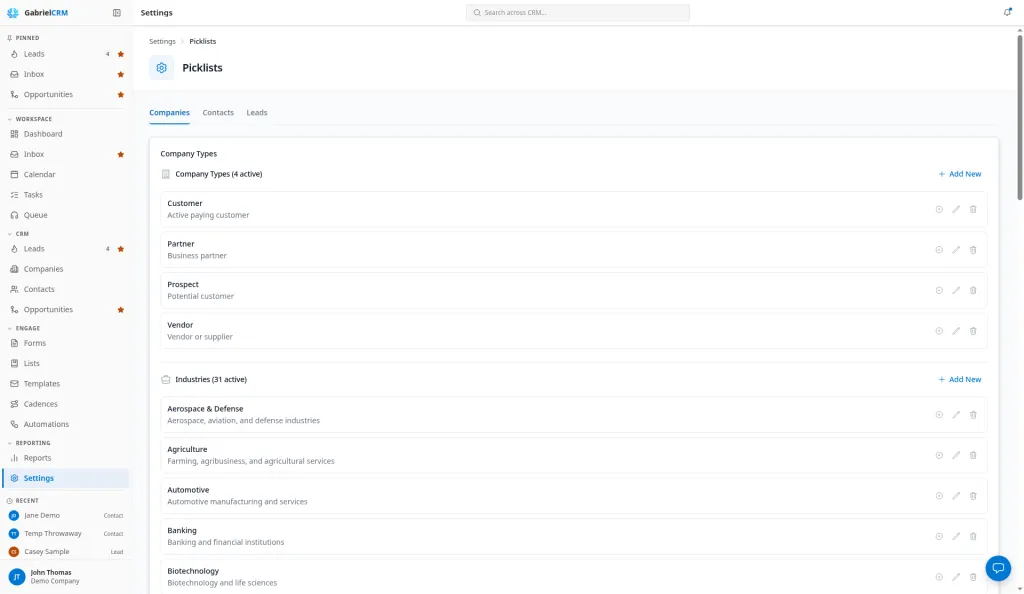
Add a value
Section titled “Add a value”- Open the tab and find the list.
- Click Add New.
- Enter a Name, and if you like a Description and a Display Order.
- Click Create.
Values are listed by Display Order, lowest first, then by name. Values without an order come after the numbered ones. Two values in the same list can’t have the same name.
Edit a value
Section titled “Edit a value”- Click Edit (the pencil) on the value.
- Change the Name, Description or Display Order.
- Click Update.
Turn a value off or remove it
Section titled “Turn a value off or remove it”- Deactivate (the circled X): the value stays on records that already use it, but it’s no longer offered as a choice. It shows as Inactive in the list. Click Activate to offer it again.
- Delete (the trash can), then Delete to confirm: if any record uses the value, Gabriel deactivates it instead of deleting it. An unused value is deleted.
Set the primary contact role
Section titled “Set the primary contact role”One contact role is the Primary role: a company’s primary contact is whoever holds it. To change it, click Make primary on another active role.
The primary role can’t be deactivated or deleted. Make another role primary first.
How it works
Section titled “How it works”- Removing a value never empties a field. A value in use is only deactivated, so existing companies, contacts and lost deals keep it.
- Leads keep the exact source and industry text they were saved with. Renaming a lead source or industry changes the choice for new leads, but leads saved before keep the old name. A lead whose value was removed still shows it.
- Reports group by the saved value. The Lead funnel’s Conversion by Source groups leads by the exact source name on each lead.
- Lead statuses aren’t a picklist. New, Contacted, Engaged, Qualified, Disqualified and Converted are fixed.
- Opportunity stages are set under Pipeline and stages, not here.
Best practices
Section titled “Best practices”- Set up Lead Sources before you import or launch forms. Source is how you measure which channels pay off, and it can’t be filled in after the fact without editing each lead.
- Add, don’t rename, when a value’s meaning changes. Renaming a lead source splits the Lead funnel report into old and new names. Add the new value and deactivate the old one instead.
- Keep each list under about 15 values. Long lists get picked from carelessly. Merge near-duplicates such as “Web” and “Website” into one.
- Use Display Order to put the common choices first. Give your top three values orders 1, 2 and 3 so reps don’t scroll.
- Deactivate rather than delete old values. Deactivated values stay on old records and in reports, so history still reads correctly.
- Make the primary contact role the person you sell to. Usually that’s “Decision Maker”. Company pages and anything that looks for a company’s primary contact use this role.
Troubleshooting
Section titled “Troubleshooting”“A … with this name already exists.” The list already has that name, possibly as an inactive value. Find it and click Activate instead.
“This is the primary contact role. Choose another primary role first.” Click Make primary on another role, then deactivate or delete this one.