
Companies
A company is a business you sell to or already serve. Its page brings together its people, deals, activity, addresses and documents. Companies are created when you convert a lead, when you add one directly, or when you import them.
Open Companies from the CRM group in the sidebar.
Add a company
Section titled “Add a company”- On Companies, click New Company.
- Enter the Company name. It’s the only required field.
- Add the Website, Phone and Industry if you have them.
- Pick an Owner. If you leave it as Unassigned, you become the owner.
- Under Address, add the Street, City, State / Province, Postal code and Country. If you enter a city, state or ZIP, you also need a street. The address is saved as the company’s primary address.
- Click Create company.
You can also create a company while adding a contact: type a name in the contact’s Company box and choose Create company.
Import companies
Section titled “Import companies”Click Import to upload a CSV file. A row counts as an existing company when it has the same domain, or else the same name, and you choose to skip it or update the company. See Import your data for the file format and required columns. Companies and their contacts can also come from Autotask; see Autotask integration.
Find companies
Section titled “Find companies”The list is searched, filtered and sorted across every company you can see, not just the page on screen.
- Search by name, domain or industry.
- Quick filters: All, one pill for each of your first four company types (for example Customers and Prospects), Active, Inactive and Assigned to me.
- Filter adds Industry, Customer Tier, Company Type, Status, Company Size (1–10 up to 1,000+ employees), ICP fit, Owner and Tags. Click Clear all to start over. ICP fit is the company’s verdict against your Ideal Customer Profile.
- Sort by clicking a column header.
- Columns: choose which columns show, and drag their edges to resize them. The available columns are Company, Industry, Location, Size, Tier, ICP fit, Owner, Contacts, Opportunities and Status. Gabriel remembers your choice in this browser.
- Table or Card view, and Show 10, 20, 50 or 100 per page.
Each row’s menu has Edit, Add note, Email, Call (when the company has a phone number), New opportunity and Refresh logo (when it has a website).
Tick rows to Export them or Delete them. Export at the top of the page exports every company that matches your current filters.
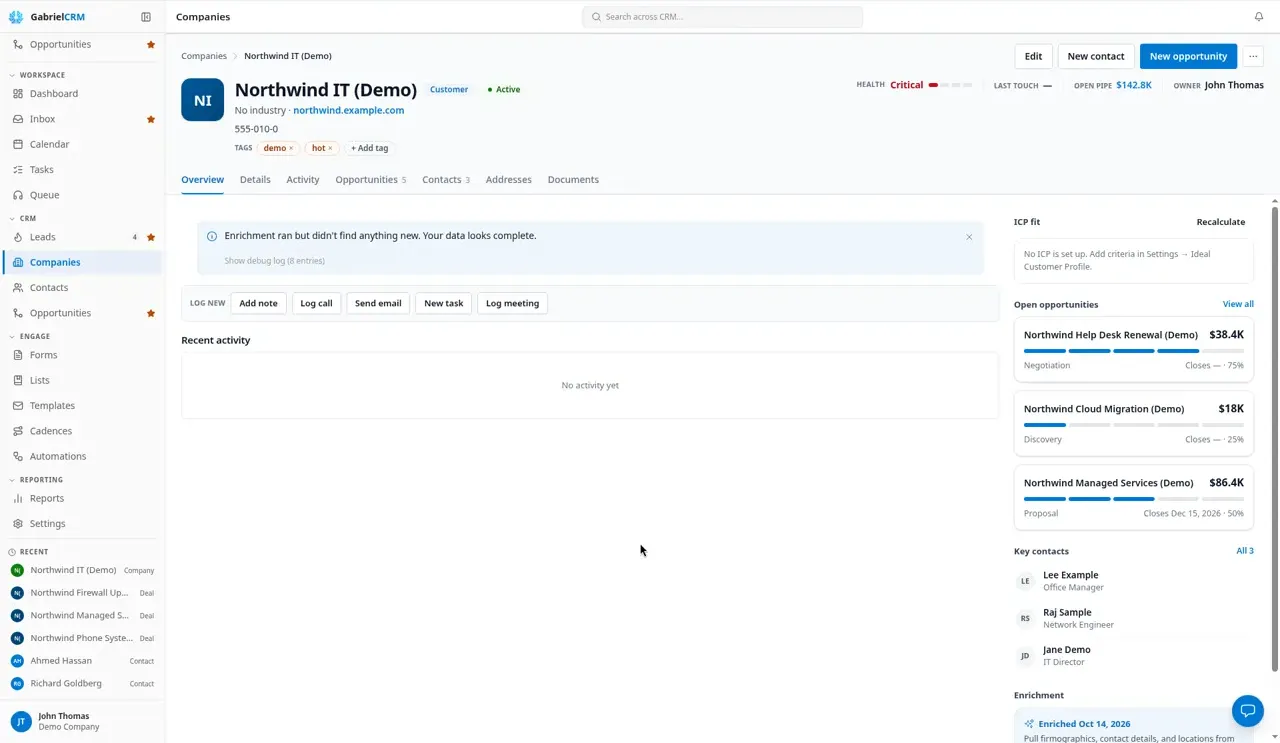
The company page
Section titled “The company page”The header shows the company’s logo, type, status and tier, its industry, location and website, and its tags. On the right:
- Last touch: when anything was last logged against the company.
- Open pipe: the total of its open opportunities. Click it to open the Opportunities tab.
- Owner.
At the top right are Edit, New contact, New opportunity and … (more actions).
| Tab | What’s on it |
|---|---|
| Overview | Log new, Recent activity, Open opportunities, ICP fit, Key contacts, Enrichment and, if the company came from leads, Lead origins |
| Details | Every field, grouped into About, Contact info, Classification, Ownership and Tags |
| Activity | Everything logged against the company |
| Opportunities | The company’s deals |
| Contacts | The people who work there |
| Addresses | Head office and other locations |
| Documents | The company’s SharePoint or Google Drive folder, when your admin has turned documents on |
Log activity
Section titled “Log activity”Under Log new on the Overview tab, click Add note, Log call, Send email, New task or Log meeting, or Book meeting to schedule one. What you log shows under Recent activity and on the Activity tab. See Log activity.
Edit details
Section titled “Edit details”- Click Edit, or open the Details tab.
- Change any field. Use Search fields to jump to one.
- Click Save changes, or Discard to undo your edits.
Details has two people fields: the Owner, who is responsible for the account, and an optional Account manager.
Work with the company’s contacts
Section titled “Work with the company’s contacts”On the Contacts tab, click New contact to add someone already linked to the company. Click a person to open their row, then use Open contact, Log activity, Send email or Set as primary. The primary contact is marked Primary here and under Key contacts.
Delete on this tab only deactivates the person. To delete a contact, open it; see Deleted contacts.
Addresses
Section titled “Addresses”On the Addresses tab, click Add address to add a location, or edit or delete an existing one. The primary address is the company’s location on the list and in the header.
Gabriel finds a company’s logo from its website. To use a different one, hover over the logo at the top of the page and click Upload logo (an image under 5 MB), or Fetch logo from web to look again.
Enrich a company
Section titled “Enrich a company”Gabriel can fill in missing details from public sources. Under Enrichment on the Overview tab, click Enrich now (or Enrich company from …). When suggestions are ready, click Review suggestions to accept or ignore each one. Nothing changes until you accept it.
More actions
Section titled “More actions”From … you can Send email (when the company has an email address), Share booking link, Push to Autotask or Sync to Autotask if your company uses Autotask, and Delete company.
Deactivate or delete a company
Section titled “Deactivate or delete a company”- Open … and click Delete company, or tick companies on the list and click Delete.
- Gabriel lists the company’s contacts, opportunities and locations.
- Choose:
- Deactivate (recommended): the company and all its contacts are marked inactive and leave any cadences. Nothing is deleted, and you can set the Status back to Active later.
- Permanently delete: removes the company, its locations and notes at once. Its contacts go to Deleted contacts, where you can restore them for 15 days.
Managers and admins can deactivate companies. Only admins can permanently delete them by default, and only when nothing else still points at the company or its contacts.
How it works
Section titled “How it works”- Everyone can see every company. What you can change or delete depends on your role.
- Company types drive the pills. The list’s quick filters use your first four company types from Settings > Picklists.
- Winning a deal makes the company a customer. When an opportunity reaches a won stage, Gabriel sets the company’s type to Customer, if you have a company type with that name.
Best practices
Section titled “Best practices”- Always add the website. Gabriel uses it to find the logo and to enrich the company, and fills in the Domain from it.
- Deactivate rather than delete. Deactivating keeps every call, email and deal for reporting, and can be undone. Permanent deletion removes the contacts too, with no recycle bin.
- Keep company types to the few you actually use. Only the first four become list pills, and documents folders are filed by company type, so a short list keeps both tidy.
- Set an owner on every company. Assigned to me and the owner filter are how reps find their accounts; an unowned company falls through the cracks.
- Mark a primary contact. It’s the person shown first under Key contacts, so anyone opening the account knows who to call.
- Review enrichment suggestions before accepting them. Public data can be out of date; accept the fields you can confirm.
Troubleshooting
Section titled “Troubleshooting”“This company can’t be permanently deleted because other records still reference it or its contacts.” Activities, emails, deals or other records still point at the company or one of its people. Reassign or delete those, or deactivate the company instead. The converted lead a company was created from doesn’t count.
A city, state or ZIP won’t save. Add a street address, or clear the other address fields.