
Calling report
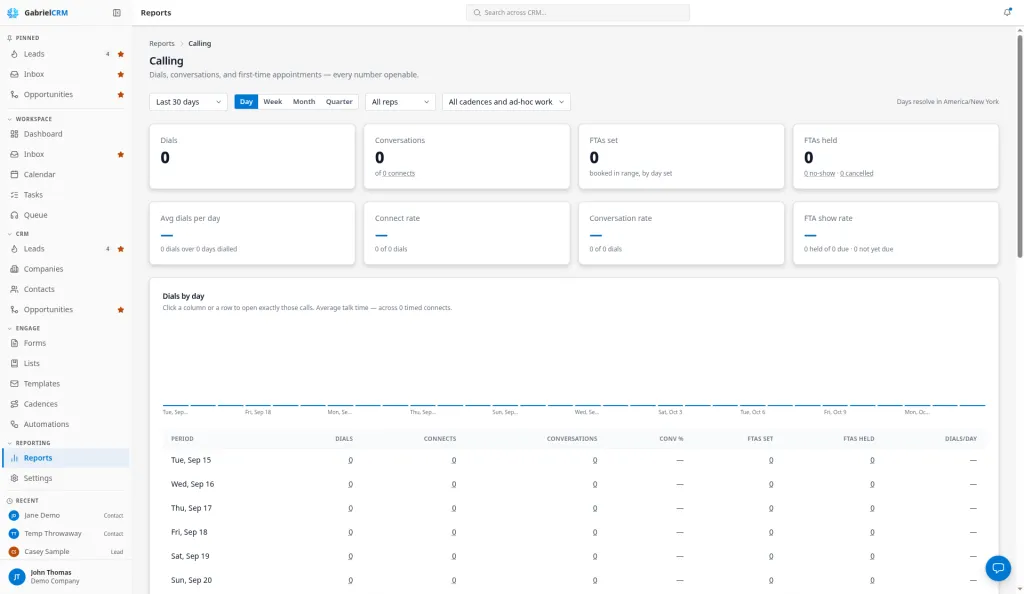
The Calling report shows how much calling your team did and what came of it: dials, connects, conversations, and the first meetings those calls produced. Every number on it can be clicked to open the exact calls or meetings it counts.
Go to Reports and click Calling under Activity.
If your role can see all contacts, the report covers the whole team. Otherwise it shows your own calls and the meetings you booked. See Reports.
What each number means
Section titled “What each number means”| Number | What it counts |
|---|---|
| Dials | Outbound calls started in the range by anyone in scope. Inbound calls aren’t counted |
| Connects | Dials whose connection result counts as a connect: Reached Gatekeeper or Connected |
| Conversations | Dials where you reached the person you called: Connected |
| FTAs set | First-time appointments booked in the range, counted on the day they were booked |
| FTAs held | First-time appointments scheduled in the range and marked held, counted on the meeting day |
| Avg dials per day | Dials divided by the days on which at least one dial was made |
| Connect rate | Connects as a share of dials |
| Conversation rate | Conversations as a share of dials |
| FTA show rate | Of the first-time appointments set in the range that have already come due, the share that were held |
A first-time appointment (FTA) is a meeting of the Intro call type booked by someone on your team. Other meeting types don’t count as FTAs.
The connection result is what the rep picks when they finish a call: No Answer, Busy, Left Voicemail, Reached Gatekeeper, Not in Service, Wrong Number or Connected. A gatekeeper is a connect but not a conversation.
Under Dials and Conversations you see the change against the period just before, of the same length (for example, “+12 vs prior period”).
Choose the range and grouping
Section titled “Choose the range and grouping”Across the top of the report:
- Range: Last 7 days, Last 30 days (the default), Last 90 days or Last 12 months. Every range ends today.
- Grain: Day, Week, Month or Quarter. This sets how the chart and the period table group the range. Weeks start on Monday.
- Who (only if your role sees all contacts): All reps, or one rep.
- Which cadence (only if your company has cadences): All cadences and ad-hoc work (the default), or one cadence. Picking a cadence counts only calls made working that cadence’s steps, and only the meetings that cadence earned.
Days are counted in your own time zone, or your company’s if you haven’t set one. The report says which, for example Days resolve in America/New York.
Read the sections
Section titled “Read the sections”- Dials by day (or week, month, quarter): a column per period and a table with Dials, Connects, Conversations, Conv %, FTAs set, FTAs held and Dials/day for each, plus a Total row. The line above it gives the average talk time across connects that recorded a length.
- Where calls land: every dial broken down by connection result. Not recorded counts calls saved without one.
- What came of them: the outcome of each conversation, such as a meeting booked or not interested. Outcomes only exist where someone was reached, so this is out of conversations, not dials.
- Best time to call: connect rate by hour of day for the last 30 days, whatever range you picked above, and across all cadences. Hollow bars have fewer than 20 dials, too few to trust.
- By rep (team view only): one row per rep with Dials, Connects, Connect %, Conversations, Meetings, Talk time, Days dialled, Dials/day and Where they lose people, then a Team row.
The Meetings column on By rep counts every meeting the rep booked in the range, of any type, credited to whoever booked it. A rep who booked meetings without dialing still gets a row. Reps with no calls and no meetings in the range are left out.
Where they lose people gives one reading per rep, checked in this order:
| Reading | When it shows |
|---|---|
| Too few dials to rate | Fewer than 10 dials |
| Dialling plenty, rarely connecting | Under 10% of dials connect |
| Reaching people, not getting past the gatekeeper | At least 10 connects, and under half of them are conversations |
| Getting through, not booking | At least 10 conversations and no meetings |
| Healthy across the board | None of the above |
Open the calls behind a number
Section titled “Open the calls behind a number”Click any number, bar or row to open the list behind it: Calls for call figures, Meetings for FTA figures. The list carries the same range, rep and cadence as the report, so its total matches the number you clicked.
On a Calls list you can switch between All dials, Connects and Conversations, tick Has recording, and clear a connection result or outcome filter. On a Meetings list you can switch between Set in range, Scheduled in range and Set in range and come due, and filter by status: Scheduled, Confirmed, Held, No-show or Cancelled. Lists show 25 rows a page. Click a row to open the lead or contact.
How it works
Section titled “How it works”- A rate shows a dash when fewer than 10 dials are behind it. The show rate shows a dash when no first-time appointments have come due yet.
- FTAs set and FTAs held use different dates, so one meeting can appear in two different rows of the period table. Dividing held by set within a row isn’t a show rate; use FTA show rate.
- Appointments set in the range but not yet due are left out of the show rate and shown as “not yet due”.
- Nothing marks a past meeting as held on its own, so FTAs held depends on reps updating their meetings.
- The Team row’s percentages are worked out from the team’s totals, not averaged across reps.
Best practices
Section titled “Best practices”- Managers: start the week here, on Last 7 days by Day. Look for days with no dials before you look at rates. A gap is usually a schedule problem, not a skill problem.
- Coach from Where they lose people, one rep at a time. “Not getting past the gatekeeper” calls for a different conversation than “Getting through, not booking”. The reading names the earliest problem in the funnel, so fix that one first.
- Insist on a connection result for every call. Calls saved without one land in Not recorded and can never count as connects or conversations, which drags every rate down.
- Use Best time to call to plan call blocks. Move dialing into the hours with solid bars and the highest connect rate. Ignore hollow bars until they fill in.
- Compare cadences with the Which cadence filter. Run the same range for each cadence to see which one produces conversations and first meetings, not just dials.
- Book first meetings as Intro call. Only that meeting type counts toward FTAs, so a first meeting booked as another type is missing from this report.
- Judge the show rate over 30 days or more. On a 7-day range most meetings set that week haven’t come due yet, so the sample is small.
Troubleshooting
Section titled “Troubleshooting”I don’t see the Who control. Your role doesn’t see all contacts, so the report covers your own calls only. Ask your admin if you need team numbers.
The Which cadence control is missing. Your company has no cadences yet.
FTAs held is lower than expected. Past meetings that nobody updated still count as scheduled. Click FTAs set, switch to Scheduled in range, and update the meetings that took place.