
Single Sign-On
Single sign-on (SSO) lets your users sign in to Gabriel with the Microsoft 365 or Google Workspace account they already use for work. When it’s on, password sign-in is turned off for everyone at your company, so your identity provider’s rules (multi-factor sign-in, password policy, turning off a leaver’s account) apply to Gabriel too.
Go to Settings > Single Sign-On. Only administrators can change it.
Before you start
Section titled “Before you start”- Make sure you can sign in to the Microsoft or Google account that matches your Gabriel email address. Once SSO is on, your password stops working too.
- For Microsoft, find your Tenant ID in the Azure portal under Azure Active Directory (Microsoft Entra ID) > Overview.
- For Google, know your primary Google Workspace domain, such as acme.com.
Turn on single sign-on
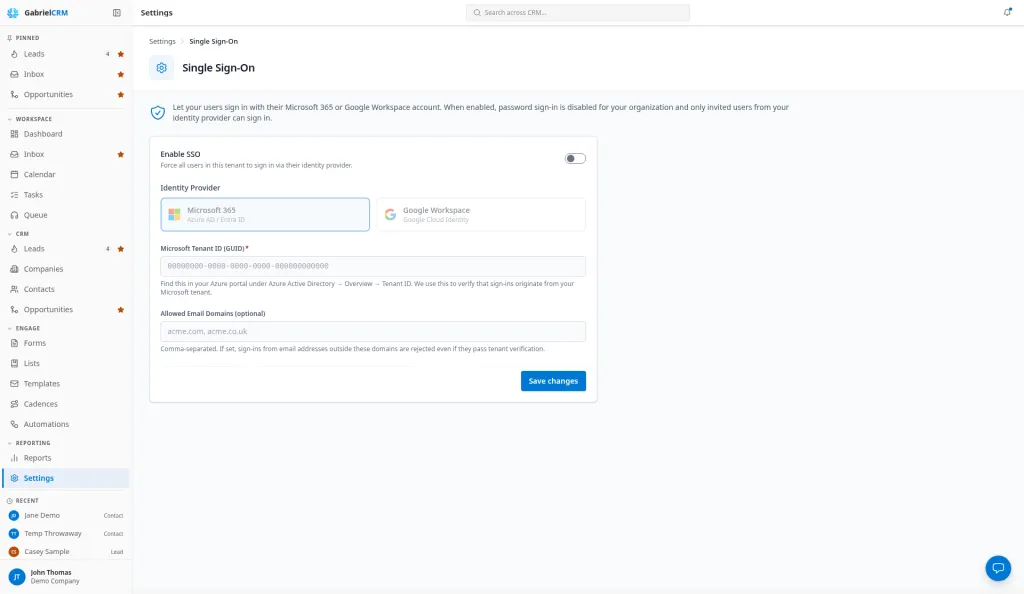
Section titled “Turn on single sign-on”- Turn on Enable SSO.
- Under Identity Provider, choose Microsoft 365 or Google Workspace.
- Enter the details for your provider:
- Microsoft 365: the Microsoft Tenant ID (GUID).
- Google Workspace: the Google Workspace Domain.
- Optional: under Allowed Email Domains (optional), list the email domains your users sign in with, separated by commas, such as acme.com, acme.net.
- Click Save changes.
Turn off single sign-on
Section titled “Turn off single sign-on”Turn off Enable SSO and click Save changes. People sign in with their Gabriel password again. Anyone who has forgotten theirs uses Forgot your password? on the sign-in page.
How it works
Section titled “How it works”- Only people you’ve added can sign in. SSO doesn’t create accounts. A person needs an active Gabriel user, which you create by inviting them. New people accept their invitation first, then sign in with SSO.
- Gabriel checks where the sign-in came from. For Microsoft, the sign-in must come from your Microsoft tenant. For Google, from your Workspace domain.
- Allowed Email Domains add a second check: a sign-in from an address outside those domains is refused, even if it passes the first check.
- Deactivated users can’t sign in, through SSO or otherwise.
- Signing in looks the same for users: they enter their email on the Gabriel sign-in page and are sent to Microsoft or Google. See Sign in.
Best practices
Section titled “Best practices”- Test with your own account first. Confirm you can sign in to Microsoft or Google with the same address you use in Gabriel before you save. A mismatch locks you out along with everyone else.
- Set Allowed Email Domains. It stops a personal or guest account in your Microsoft tenant from being used to sign in, even if someone with that address were invited.
- Offboard in your identity provider and in Gabriel. Disabling someone in Microsoft or Google stops their sign-in, but they still count as a paid seat until you deactivate them in Gabriel.
- Tell your team before you switch. Their saved passwords stop working the moment you save, so send a heads-up first.
Troubleshooting
Section titled “Troubleshooting”“Single sign-on is not available for this account.” The email they typed doesn’t match an active Gabriel user (an invitation they haven’t accepted counts as not active), or SSO settings are incomplete. Check their status on Settings > Team.
“No matching account found. Please ask your administrator to invite you first.” The Microsoft or Google account they signed in with doesn’t match a Gabriel user at your company. Have them sign in with the address you invited, or invite that address.
“Your email domain is not allowed for this organization.” Their address isn’t in Allowed Email Domains. Add the domain, or have them sign in with their work address.
“This account uses single sign-on.” The person tried to sign in with a password. They should use their Microsoft or Google account.