
Tags
A tag is a short label you put on a record, such as “VIP”, “Event 2026” or “Competitor X”. Tags let you group records across owners and stages, find them again with a filter, and start automations when a tag is added or removed.
You can tag leads, contacts and companies. Opportunities don’t have tags. Anyone who can edit a record can add or remove its tags. Managers and admins manage the full list of tags under Settings > Tags.
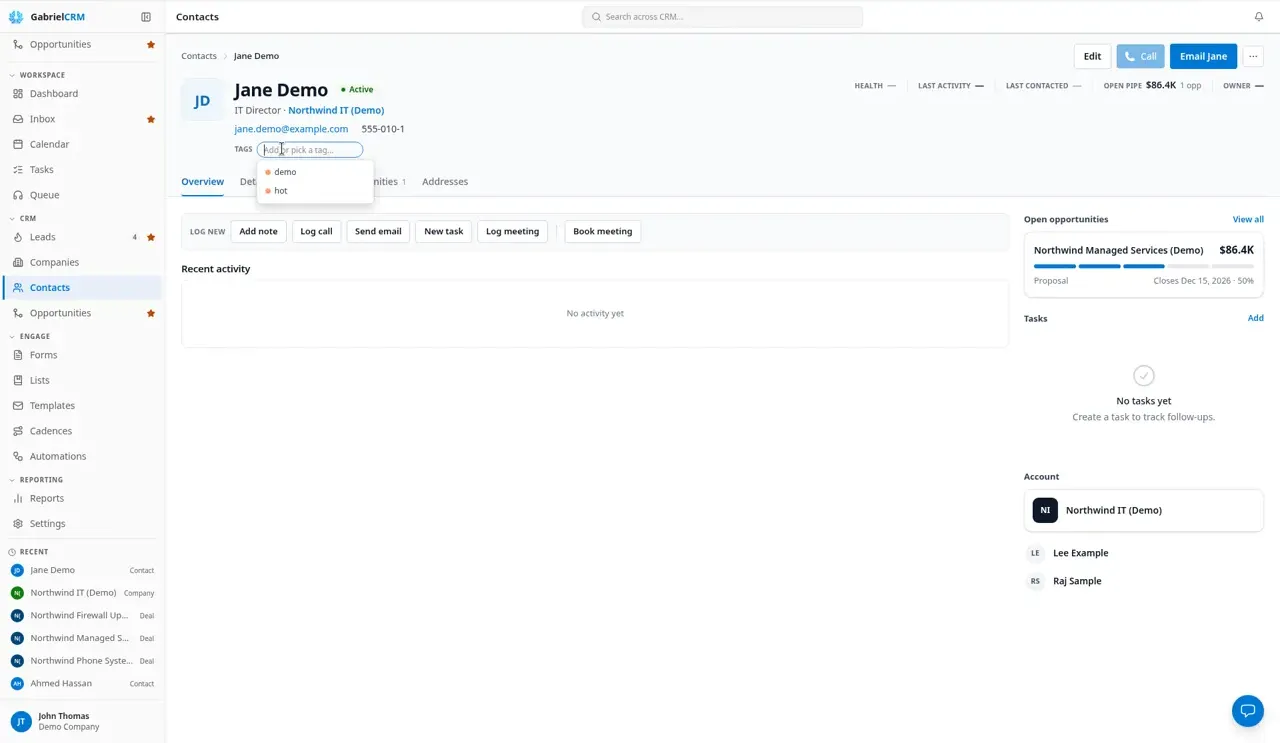
Add a tag to a record
Section titled “Add a tag to a record”- Open the lead, contact or company.
- Under its name, click + Add tag.
- Start typing. Pick an existing tag from the list, or finish typing a new one.
- Press Enter or type a comma to add it.
The tag saves straight away; a new tag is created as you add it. To remove one, click the × on it.
You can also add and remove tags in the Tags section of the Details tab on a contact or company. Changes there are saved with Save changes.
Tag records in bulk
Section titled “Tag records in bulk”There’s no bulk tag action on the lists. To tag many records at once:
- Import them with a Tags (comma-separated) column. When you update existing contacts from an import, mapped tags replace their tags.
- Build an automation with the trigger Run by hand and the Add a tag or Remove a tag action. Then tick leads or contacts on their list and click Run automation.
Find records by tag
Section titled “Find records by tag”On Leads, Contacts or Companies:
- Click the filter button.
- Under Tags, type a tag and press Enter. Add more tags the same way.
- Apply the filter.
Records with any of the tags you entered are shown. The tag must be typed exactly as it’s spelled on the records, including capital letters.
The Contacts table has a Tags column that shows the first two tags on each contact.
Use tags in lists
Section titled “Use tags in lists”When you build a list from rules, contact lists can use Tags and Company tags, and lead lists can use Tags, with has any of, has all of, has none of, is empty or is not empty.
Start an automation from a tag
Section titled “Start an automation from a tag”In an automation, choose the trigger A tag is added or removed, then set:
- On a: Lead, Contact or Company.
- Tag: the tag to watch. Capital letters don’t matter here.
- When it is: Added or Removed.
The automation runs whenever someone adds or removes that tag on a record. Tags added or removed by another automation also start it, up to five in a row, so one tag can hand a record on to the next step without looping forever. Changing only a tag’s capitals doesn’t count as a change.
Automations can also check a tag in a condition (is or is not). For an opportunity, the condition looks at the company’s tags.
How it works
Section titled “How it works”- Tag names are shared across your company. Everyone picks from the same list, and the list ignores capitals and extra spaces, so “VIP” and “vip” are one tag in Settings > Tags.
- Filters are exact. The list filter and list rules match the spelling on the record, capitals included.
- Renaming, merging or deleting a tag in Settings updates every record that has it, but doesn’t start tag automations.
- Limits: a tag can be up to 100 characters, and a lead or company can hold up to 100 tags.
Best practices
Section titled “Best practices”- Agree a short tag list before people start tagging. Because anyone can create a tag by typing it, a team without a list ends up with “VIP”, “vip customer” and “V.I.P.”. Pick from the suggestions instead of typing a new one.
- Use one spelling, with the same capitals. Filters and list rules match exactly, so “Webinar” won’t find records tagged “webinar”.
- Use tags for things that cut across your fields. Use Company type, Status or Lead source for what they cover; tags are for campaigns, events, interests and one-off groupings that no field holds.
- Name tags with a prefix for each purpose, for example “Event: Expo 2026” or “Interest: Backup”. They sort together and are easy to spot in filters.
- Use a tag to start an automation instead of running it by hand. A rule on A tag is added or removed means a rep only has to tag a record for the follow-up to happen, the same way every time.
- Remove campaign tags when the campaign ends. A tag automation can do it, or a manager can delete the tag in Settings, so old tags don’t pile up in the suggestions.