
Calendar
The Calendar puts everything with a time on it in one place: meetings you book in Gabriel, the events on your connected Outlook or Google calendar, and the tasks you have due. Scheduling a meeting from here sends the invite from your own calendar and files the meeting on every attendee’s timeline.
Open Calendar from the Workspace group in the sidebar. It shows your own calendar only: meetings you host and your own synced events, not your teammates’.
Move around the calendar
Section titled “Move around the calendar”- Pick Day, Week or Month. Week is the default (Day on a phone-sized window), and weeks start on Monday.
- Click Today to jump back, or the arrows to move a day, week or month at a time. Click the date title to pick any date. In Month, click a day’s number to open that day.
- The red line marks the current time. Times show in your computer’s time zone.
In Day view, the panel on the right lists what’s due that day and, for today or earlier, how many calls and emails were logged.
Choose what shows
Section titled “Choose what shows”Use the Show list beside the calendar (the Calendars button on smaller screens) to turn layers on and off. Gabriel remembers your choices on this computer.
- Gabriel meetings: meetings booked in Gabriel, in blue.
- Outlook or Google: events from your connected calendar, in purple or green. If the calendar isn’t connected, the row has a Connect link.
- Tasks due: your open tasks on their due date. Overdue tasks sit on today in red.
- Logged activity: calls, emails and other activity already logged. Off to start.
Schedule a meeting
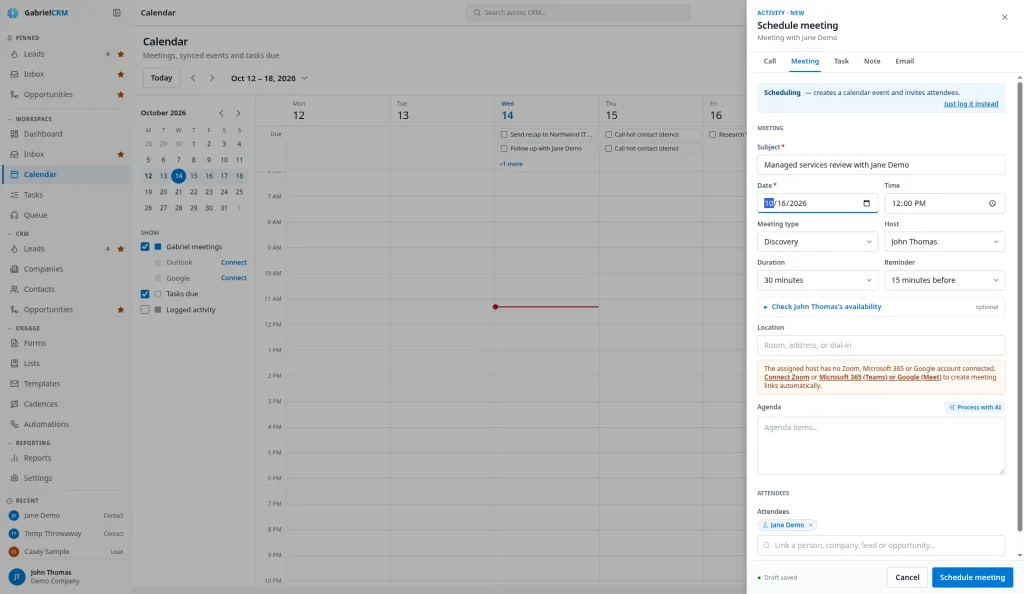
Section titled “Schedule a meeting”- Click New meeting, or click an empty time slot to fill in its date and time.
- Enter a Subject.
- Under Attendees, link each contact or lead you’re meeting. You can also link a company and an opportunity.
- Check the Date, Time and Duration (30 minutes to start).
- Pick the Meeting type and the Host. The host is you unless you change it.
- Optional: open Check host’s availability and pick an open slot.
- Under Location, choose a video link (Zoom, Microsoft Teams or Google Meet, whichever the host has connected) or No video — in person, and add a room or address if you need one.
- Optionally add an Agenda.
- Click Schedule & invite (or Schedule meeting when there’s no video link).
The meeting is added to the host’s Outlook or Google calendar with every linked contact and lead as an attendee, and their calendar sends the invite.
To record a meeting that already happened, click a time slot in the past or Just log it instead on the form. A logged meeting goes on the timeline only, with no calendar event or invite. See Log activity.
Work with a meeting
Section titled “Work with a meeting”Click a Gabriel meeting to open its details: time and length, the video link with Join meeting, the attendee, and anything they shared when booking.
- Reschedule: pick a New date, New time and Duration, then click Reschedule. The calendar event moves and attendees get an updated invite.
- Cancel meeting: add a reason if you want, then click Confirm cancel. The event is removed from the host’s calendar and attendees get a cancellation.
- Edit meeting: change the title, type, description or location. To change the time, use Reschedule.
Record how it went
Section titled “Record how it went”After a meeting’s end time, its status shows Awaiting outcome and the details ask How did this meeting go?
- Click Completed or No-show.
- If it was completed, add Outcome notes and click Save notes.
Statuses you’ll see: Scheduled, Awaiting outcome, Completed, No-show and Cancelled.
Synced Outlook and Google events
Section titled “Synced Outlook and Google events”Synced events, and the Linked to section on them, only appear once you’ve connected Outlook or Google under Settings > Email & Calendar. See Email & Calendar.
Click a synced event to see the organizer, attendees and description, open it with Open in Outlook or Open in Google Calendar, and join its online meeting. Attendees who are contacts link to their record; other outside attendees have an Add as contact button. To change a synced event, change it in Outlook or Google.
Link a synced meeting to records
Section titled “Link a synced meeting to records”A meeting booked in Outlook or Google doesn’t belong to any record until you say so. The event’s panel has a Linked to section for that.
- Click the synced event on the Calendar.
- Under Linked to, add the contacts, companies and opportunities the meeting is about.
Each change saves straight away. The meeting then shows on the timeline of every contact, company and opportunity it’s linked to. Remove a link the same way to take it off that record’s timeline.
When a synced event includes one of your contacts, Gabriel logs it on that contact’s timeline. How often events sync and how far they reach is covered in Email & Calendar.
How it works
Section titled “How it works”- One invite, from the host’s calendar. Gabriel creates the event on the host’s primary connected calendar and Outlook or Google sends the invite. If the host has no calendar connected, the meeting is saved but no invite goes out, and Gabriel tells you so.
- Attendees need an email address. A contact or lead without one is booked but not invited, and you’re told who was left out.
- Every attendee’s timeline gets the meeting as a Meeting Scheduled entry. Up to 25 additional contacts and leads can be invited to one meeting.
- Teammates aren’t attendees. A meeting has one host from your team. To bring a colleague, invite them from Outlook or Google.
- No duplicates. Meetings you book also appear in Outlook or Google, but the calendar shows only the Gabriel copy.
- Cancelled meetings are hidden from the grid but stay on the timelines, marked cancelled.
- Completing a meeting marks the timeline entry complete and counts as contact with the attendee for their last-contacted date.
- Only upcoming meetings can be rescheduled or cancelled. Once a meeting is marked Completed or No-show, its outcome can’t be changed.
Best practices
Section titled “Best practices”- Book meetings in Gabriel, not straight in Outlook or Google. A meeting booked in Gabriel is linked to every attendee and the deal, shows on the dashboard and gets an outcome. One booked in Outlook is only logged on contacts it can match by email.
- Link the opportunity when the meeting is about a deal. A meeting booked against a deal counts as work on it, on the day you book it and again on the day it happens, so the deal doesn’t show as stalled on the dashboard.
- Record the outcome the same day. Completed meetings count toward the contact’s last-contacted date; unmarked ones don’t, and they stay open on your Tasks list.
- Write outcome notes with a next step, then create the follow-up task from the contact’s record so it lands on your Tasks list.
- Use Reschedule instead of cancelling and rebooking. Reschedule keeps the meeting’s history and sends attendees an updated invite rather than a cancellation and a new invite.
- Turn on Tasks due when you plan your week. Seeing tasks next to meetings shows which days are already full before you book more.
- Managers booking for a rep: set the rep as Host. The invite goes out from the host’s calendar, so the rep’s calendar must be connected.
Troubleshooting
Section titled “Troubleshooting”The meeting was saved but nobody got an invite. The host has no calendar connected, or the attendees have no email address. Have the host connect their calendar under Settings > Email & Calendar, then book again.
“Outlook calendar is disconnected” (or Google). Microsoft or Google asked you to sign in again. Click Reconnect. Your events show again after the next sync.
“Part of your calendar did not load.” Some events or tasks may be missing. Click Try again.
I can’t find a meeting I logged. Logged meetings aren’t calendar events. Find them on the record’s timeline.