
Complete the welcome steps
The first time you sign in, Gabriel opens a Welcome to Gabriel window with two tabs: Profile and Email. It takes a few minutes and gets your name, photo, signature and mailbox ready before you start working.
Everyone sees it, whatever their role. Every field is optional, but the window opens again on every page you load until you click Done.
Fill in your profile
Section titled “Fill in your profile”-
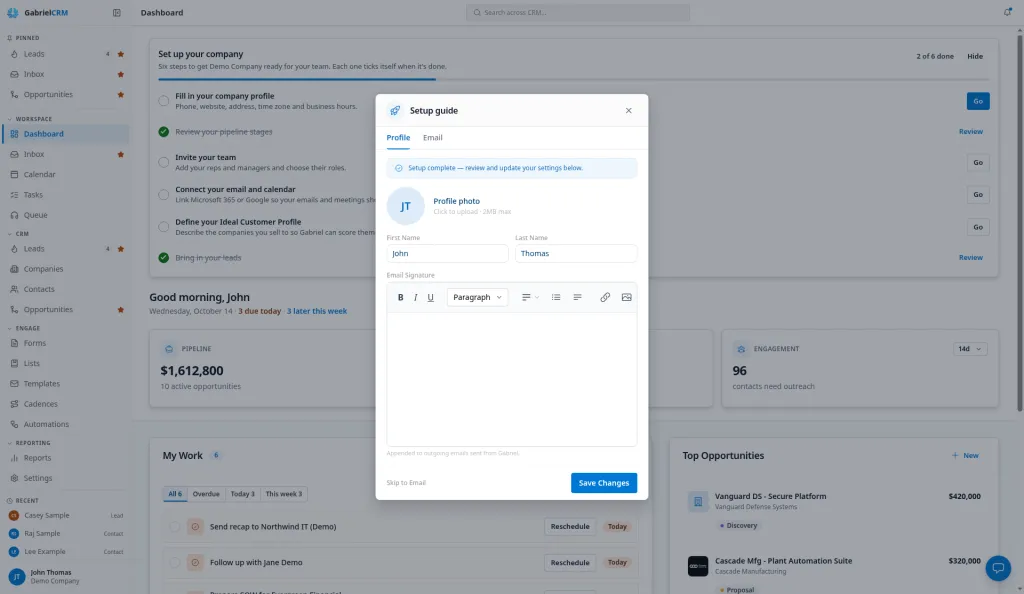
On the Profile tab, check the details Gabriel has filled in for you.
-
Click the photo circle under Profile photo and pick an image file of 2 MB or less (Click to upload · 2MB max). You see a preview straight away; it uploads when you save.
-
Check your First Name and Last Name.
-
Write your Email Signature. Use the toolbar for bold, links and line breaks. It’s Appended to outgoing emails sent from Gabriel.
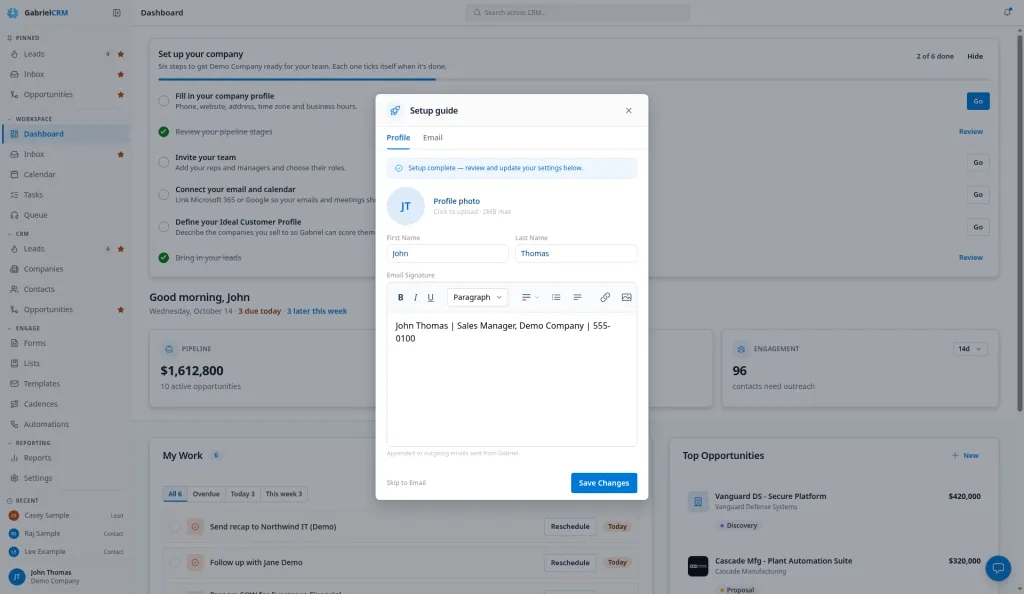
-
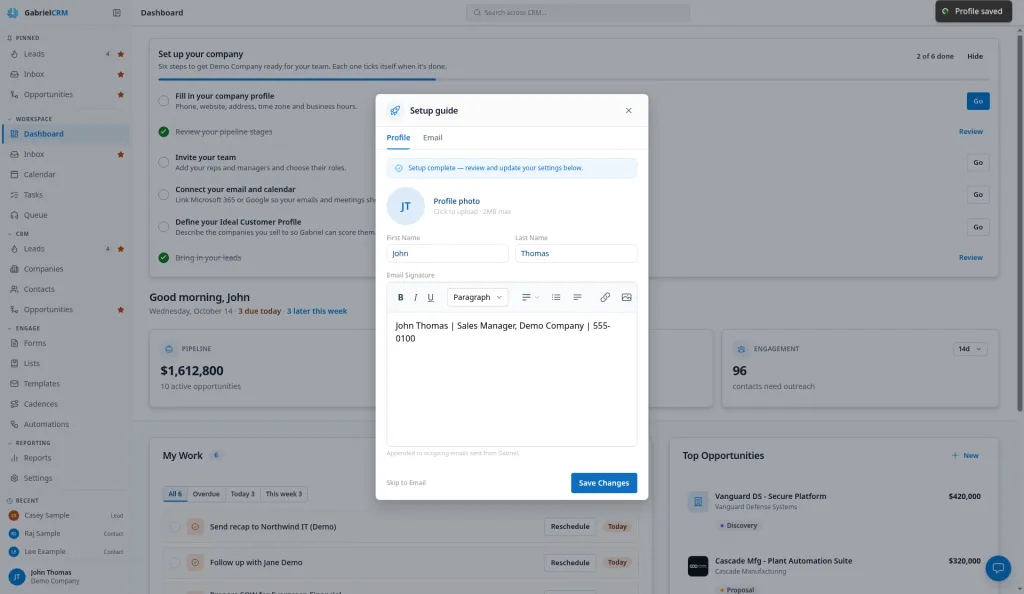
Click Save Changes. A Profile saved message confirms it.
Connect your email and calendar
Section titled “Connect your email and calendar”-
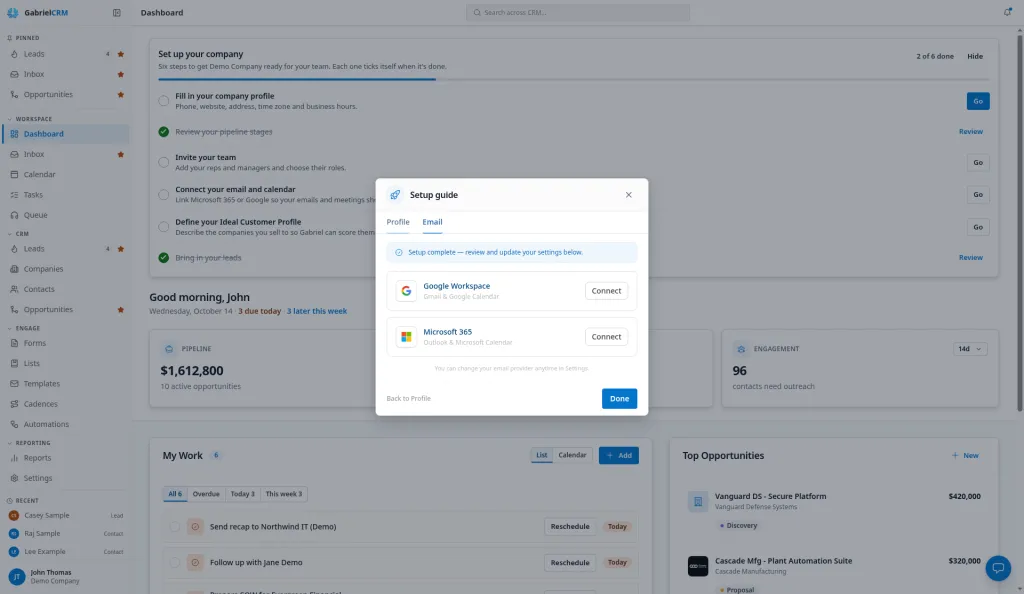
Click Email in the tab bar, or Skip to Email at the bottom of the Profile tab.
-
Click Connect on the card for the account you sell from:
- Google Workspace for Gmail & Google Calendar.
- Microsoft 365 for Outlook & Microsoft Calendar.
-
Sign in with your work account on the Google or Microsoft page that opens and allow Gabriel access.
-
Back in Gabriel, the window opens on the Email tab again. The connected card turns green and shows your email address.
-
Click Done.
You can connect only one provider here, or none at all. You can change your email provider anytime in Settings.
Google or Microsoft
Section titled “Google or Microsoft”Choose the one that holds your work mailbox and calendar. Google Workspace connects Gmail and Google Calendar; Microsoft 365 connects Outlook and Microsoft Calendar.
After you click Connect, Gabriel sends you to Google’s or Microsoft’s own sign-in page. What you see there depends on your provider and your company’s settings; your company’s IT admin may need to approve Gabriel first. When you finish, you come back to the Email tab. To manage the connection later, go to Email & Calendar.
What happens if you skip
Section titled “What happens if you skip”- Skip to Email and Back to Profile only switch tabs. They save nothing, but the edits you’ve typed stay in the form while the window is open.
- Done saves any profile edits you haven’t saved yet, then finishes. You don’t have to click Save Changes first.
- Until you click Done, the window opens again on every page you load. You can’t close it by clicking outside it or pressing Escape.
- Skipping the email connection is fine. Click Done with nothing connected and connect later in Settings > Email & Calendar.
Open it again later
Section titled “Open it again later”-
Click your name at the bottom of the sidebar.
-
Choose Setup Guide.
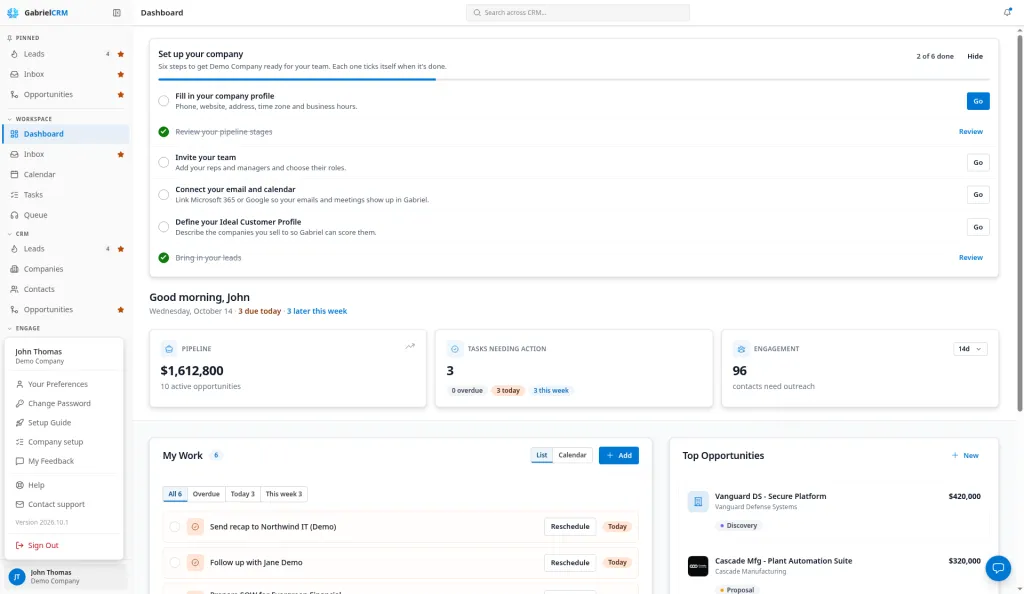
The window opens as Setup guide on the Profile tab, with the banner Setup complete — review and update your settings below. This time you can close it with the close button, and Done simply closes it.
For admins
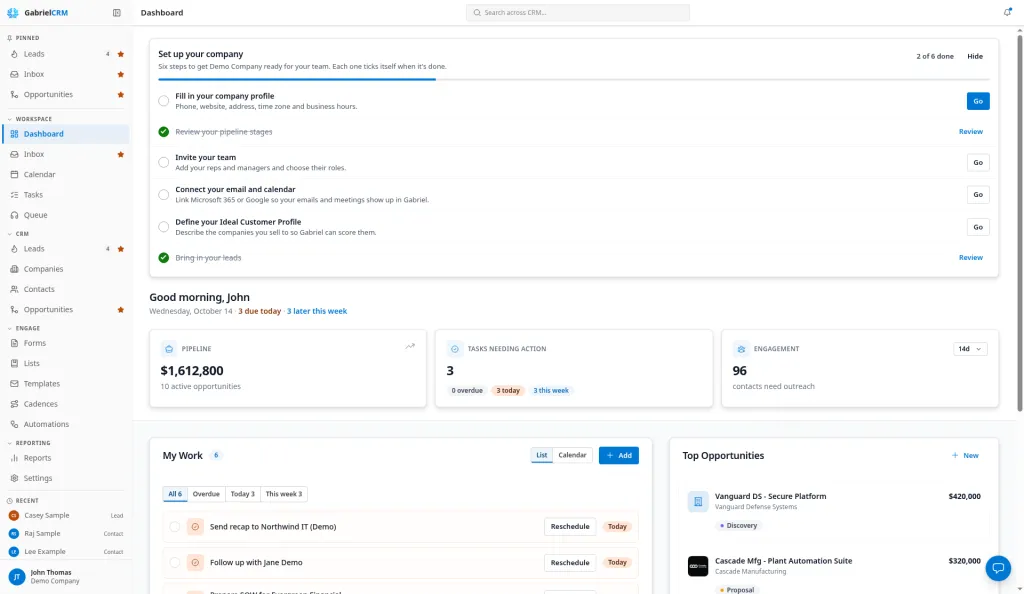
Section titled “For admins”Connecting your email here also ticks Connect your email and calendar on the Set up your company card on your Dashboard. That step ticks for each admin based on their own connection. See Admin setup checklist.
Best practices
Section titled “Best practices”- Connect the mailbox you actually sell from. Emails and meetings only show on your records from the account you connect.
- Write your signature here on day one. It’s added to every email you send from Gabriel, so a missing one shows on your first message.
- Use a clear headshot. Your photo appears beside your name across the app, which helps colleagues see who owns a record.
- Click Done even if you skip steps. Otherwise the window keeps opening on every page; you can finish the rest later from Setup Guide.
Troubleshooting
Section titled “Troubleshooting”“Please select an image file”. The file you picked isn’t an image. Choose a JPG, PNG or GIF.
“Image must be under 2MB”. Resize or crop the photo and pick it again.
Clicking Done took me back to Profile. Your unsaved profile edits couldn’t be saved, so Gabriel stopped before finishing. Read the message, fix the problem, then click Done again.
“Failed to connect Google” or “Failed to connect Microsoft”. Click Connect again. If it keeps failing, ask your IT admin whether Gabriel is allowed for your account.
The welcome window keeps reappearing. You haven’t clicked Done yet. Open the Email tab and click Done. If you see “Failed to complete setup”, try again.