
AI
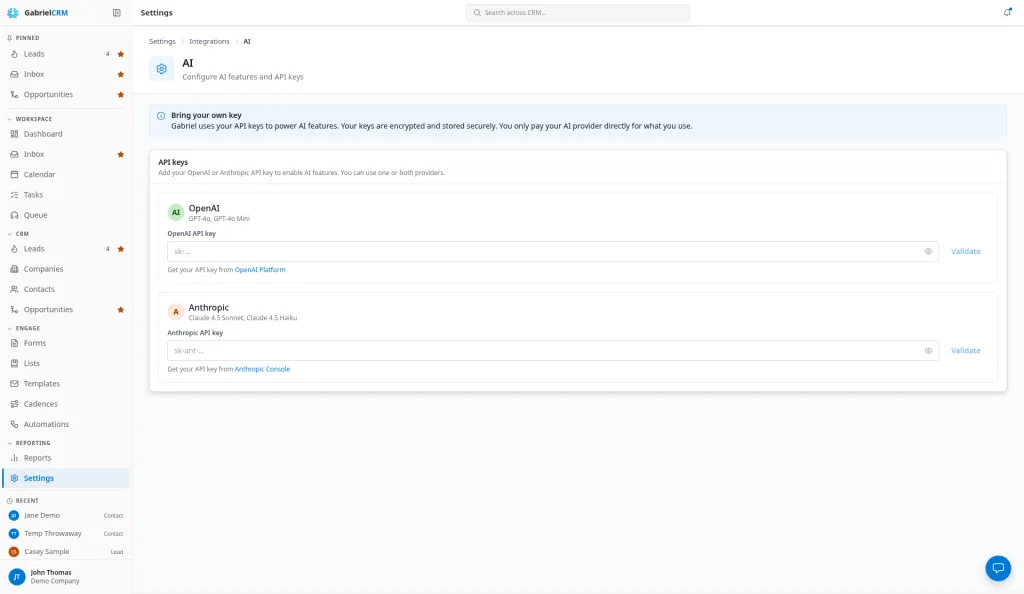
Gabriel’s AI features run on your own AI provider account. You add an OpenAI or Anthropic API key, and you pay the provider directly for what you use. Gabriel stores the key encrypted and never shows it again.
Go to Settings > Integrations and click AI. Only administrators can open it. Until a key is saved, the page shows only your API keys. After that it has two tabs:
- Keys & preferences: API keys and Preferences.
- Usage: what AI has done with your keys and what it has cost.
When you change a key or preference, a bar appears at the bottom of the screen. Click Save changes there to save the Keys & preferences tab, or Discard to throw its changes away. Usage has nothing to save. While the tab has unsaved changes, a dot shows beside its name. If you try to leave the page with unsaved changes, Gabriel asks first.
What AI does in Gabriel
Section titled “What AI does in Gabriel”With a working key, people whose role allows AI can:
- Draft emails.
- Tidy up and summarize notes.
- Draft cadences and automations with Build with AI.
- Scan business cards into contacts.
- Pull your brand details from a brand guide PDF.
Gabriel also uses AI behind the scenes to filter form submissions (if you turn that on) and to tidy company details during enrichment. Without a key, these features don’t work.
Add an API key
Section titled “Add an API key”- Get an API key from your provider. Each provider under API keys links to the right page: OpenAI Platform or Anthropic Console.
- Paste it into OpenAI API key or Anthropic API key.
- Click Validate to check it. You should see Valid API key.
- Click Save changes in the bar at the bottom of the screen.
The provider then shows Connected. You can add one provider or both.
If Gabriel saves the key but can’t reach the provider to check it, you see Settings saved, but the key could not be verified. Use Test key later to check it.
Check or remove a saved key
Section titled “Check or remove a saved key”- Test key checks that the saved key still works. A key revoked at the provider stops working without warning, so test after any change on their side.
- Remove, then Remove key, deletes the saved key. AI features that use that provider stop until you add a key again. Gabriel can’t show you the saved key, so keep your own copy if you’ll need it.
Choose a provider and model
Section titled “Choose a provider and model”Once a key is saved, Preferences appears beside API keys on the Keys & preferences tab:
- Preferred provider: Auto (use any available), OpenAI or Anthropic.
- Preferred model, once you pick a provider:
- OpenAI: GPT-4o Mini (marked recommended), GPT-4o or GPT-4 Turbo.
- Anthropic: Claude 4.5 Haiku (marked recommended) or Claude 4.5 Sonnet.
- Default uses GPT-4o Mini or Claude 4.5 Haiku.
- Email generation: turn AI email drafting on or off. On by default.
- Form submission filter: use AI to filter out spam and sales pitches from form submissions. Filtered submissions are still recorded but don’t create contacts. Off by default.
Click Save changes.
Watch usage
Section titled “Watch usage”Open the Usage tab. It appears once a key is saved. It shows Operations (all time), and for the last 30 days the Est. cost, Success rate, Last used, and a breakdown By operation and By provider. The cost is Gabriel’s estimate from the provider’s list prices; your provider’s bill is the real figure.
How it works
Section titled “How it works”- Who can use AI is set by the Use permission on the Ai row under Roles and permissions. Every built-in role except Viewer and Billing Contact has it.
- Business card scanning uses each provider’s most capable model, whatever model you prefer, because accuracy matters more there than cost.
- The form filter reads your Business Description under Company to tell real inquiries from sales pitches.
Best practices
Section titled “Best practices”- Start with the recommended model. GPT-4o Mini and Claude 4.5 Haiku are fast and cheap, and handle drafting and summaries well. Move to the more capable model only if drafts aren’t good enough.
- Set a spending limit at your provider. Gabriel estimates cost but can’t cap it. A monthly limit in your OpenAI or Anthropic account protects you from a surprise bill.
- Create a separate key for Gabriel. It shows Gabriel’s usage on its own at the provider, and you can revoke it without breaking anything else.
- Write your Business Description before turning on the form filter. The filter compares each submission with it, so a vague description lets more sales pitches through.
- Check filtered form submissions for the first few weeks. Filtered submissions are still recorded, so review them and make sure no real inquiry was caught.
- Test the key after rotating it. Click Test key whenever someone changes keys at the provider, so reps don’t find out from a failed draft.
Troubleshooting
Section titled “Troubleshooting”An AI feature says the key is invalid or out of credit. Click Test key. If it fails, check the key and your account balance at the provider, then remove the key and add a working one.
Preferences or the Usage tab don’t appear. Save at least one API key first.