
Opportunities and your pipeline
An opportunity is a deal you’re working on with a company. Each one sits in a stage of a pipeline, such as Discovery, Proposal or Negotiation. Each stage has a win probability, which Gabriel uses for weighted totals.
Open Opportunities from the CRM group in the sidebar. Reps see their own deals and their teammates’ deals, and can change only the ones they own or are assigned. Managers and admins see and change every deal.
Create an opportunity
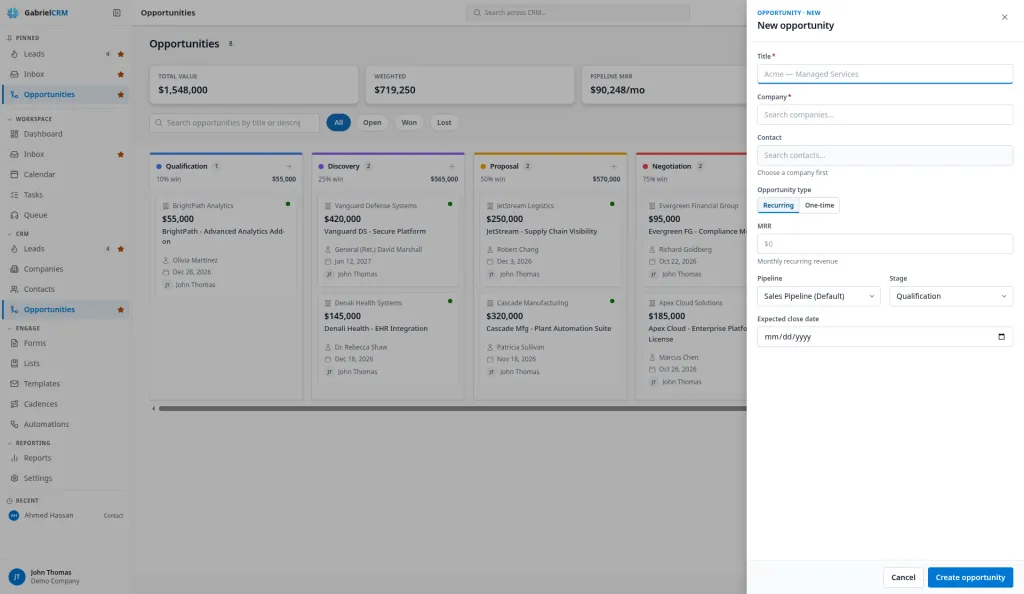
Section titled “Create an opportunity”- Click New Opportunity. You can also click New opportunity on a company’s page, use the + at the top of a board column, or create one while converting a lead.
- Enter a Title, for example “Acme — Managed Services”.
- Pick the Company.
- Optionally pick a Contact. Only people at that company are listed. This becomes the deal’s primary contact; you can add more contacts once the deal is created.
- Choose the Opportunity type:
- Recurring (the default): enter the MRR, the monthly recurring revenue.
- One-time: enter the Value. On the deal itself this type is shown as Fixed.
- Check the Pipeline and Stage. Gabriel picks your default pipeline and its first stage.
- Add an Expected close date if you know it.
- Click Create opportunity.
You become the deal’s owner, and its probability is set from the stage. Managers and admins set up pipelines and stages; see Pipeline and stages.
Amounts
Section titled “Amounts”You enter amounts in US dollars; Gabriel adds the commas as you type. Lists show whole dollars.
For a recurring deal:
- ACV (annual contract value) is the MRR × 12, unless you enter your own.
- Value (total contract value) is the MRR × the Contract term (months) plus any One-time fees. The term starts at 12 months.
Change the ACV, term, one-time fees or value on the Details tab. If you add Line items, they work out the MRR, one-time fees and value for you.
Find and filter deals
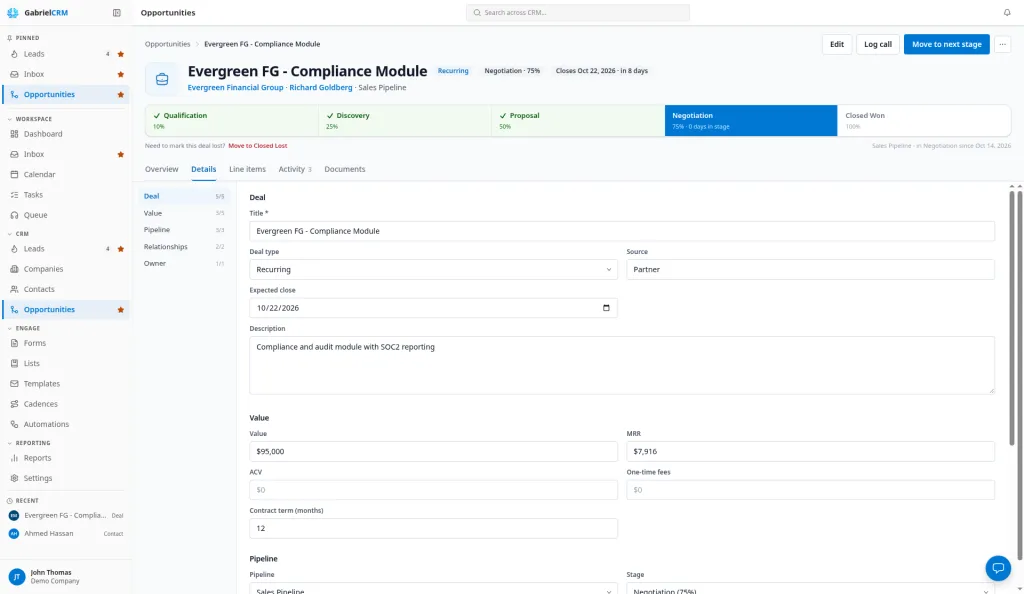
Section titled “Find and filter deals”Switch between two views with Table and Pipeline.
- Search by title or description.
- Quick filters: All, Open, Won and Lost.
- Filter adds Pipeline, Stage, Company, Contact, Min Value, Max Value, Min Probability (%), Max Probability (%), Assigned To and Close Date (Overdue, This Week, This Month or This Quarter).
- Sort by any column except Contact.
- Columns: Company, Contact, Value, Probability, Stage and Close Date show by default; MRR, ACV and Loss Reason can be added.
Above the table are totals for every deal that matches your filters: Total Value, Weighted (each deal’s value × its probability), Pipeline MRR (when any deal is recurring) and Avg Probability.
With no search or filters, deals closed more than 30 days ago are hidden and lost deals are listed last. Click Won or Lost, or add any filter, to see your full history.
Tick deals to Export, Run automation on or Delete them. Each row’s menu has Edit opportunity, Add note, View in pipeline, View company, View contact and Delete.
Pipeline (board)
Section titled “Pipeline (board)”The board shows one pipeline, with a column per stage. Pick which one with the Pipeline filter; otherwise you see your default pipeline.
- Each column shows the number of deals, the stage’s win probability and the total value.
- Each card shows the company, value, title, contact, expected close date and owner. A colored dot shows how close the close date is, and Overdue appears once it has passed.
- Drag a card to another column to move the deal to that stage. Dropping it on a lost column first asks why the deal was lost.
- Click the pencil on a card to edit it.
The board loads up to 1,000 deals. If you have more, narrow it with a search or filter.
Move a deal through its stages
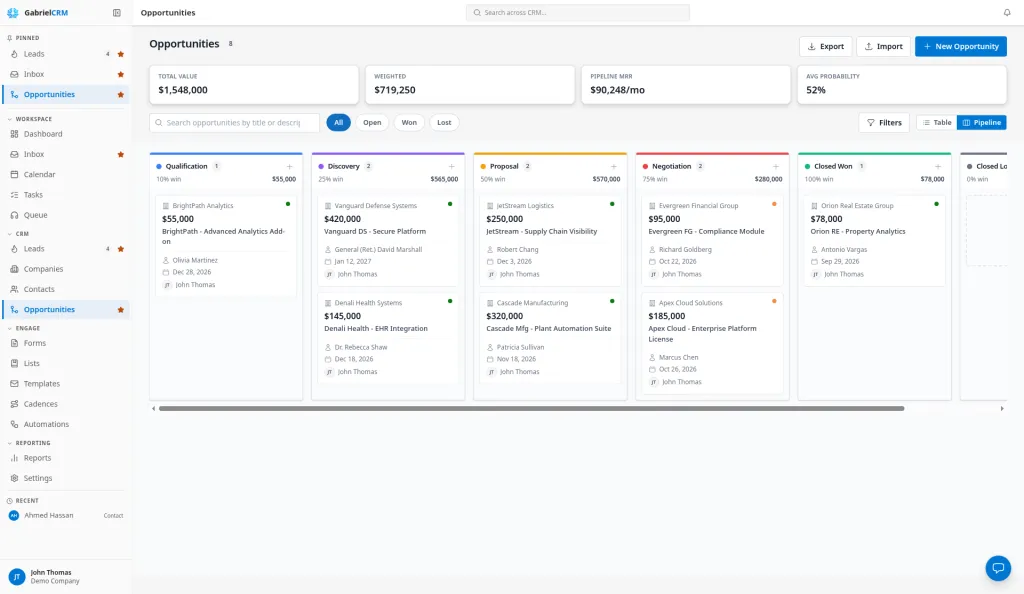
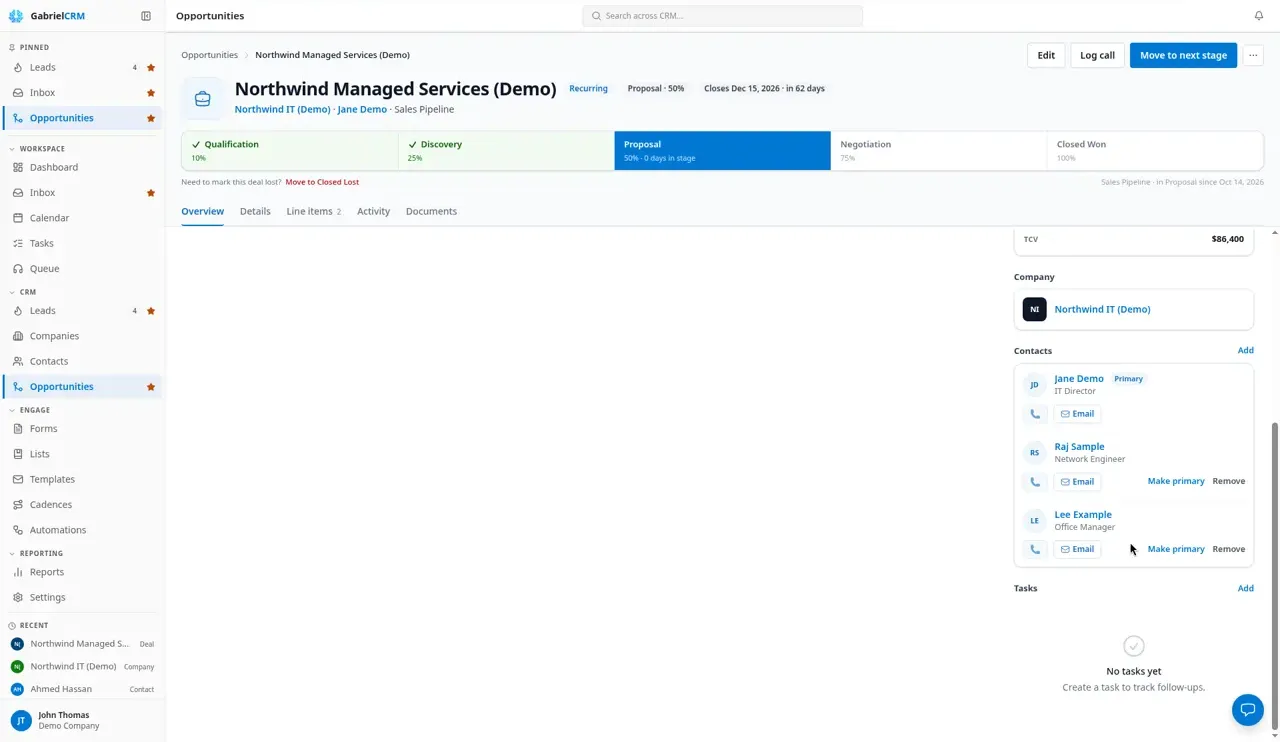
Section titled “Move a deal through its stages”Open the deal. The stage bar at the top shows every stage, with the current one highlighted, its probability and how many days the deal has been in it.
- Click Move to next stage to advance one step.
- Click any stage on the bar to jump to it. Hover first to see what will happen, such as Advance to, Jump to or Move back to.
When a deal changes stage, its probability changes to the new stage’s probability, and the deal’s owner is notified if someone else moved it.
Win or lose a deal
Section titled “Win or lose a deal”- Won: move the deal to your won stage (for example Closed Won) on the stage bar or the board.
- Lost: under the stage bar, click Move to followed by your lost stage (for example Closed Lost), choose … > Mark lost, or drag the card to the lost column. Mark lost only shows on an open deal.
A won deal saves as soon as you click. A lost deal first asks why:
- Choose a Loss reason, such as Price, Lost to competitor or Went silent. It’s required.
- Optionally add a Note about what happened.
- Click Mark lost. Cancel leaves the deal where it was.
The same question comes up whenever a deal moves to a lost stage, including from the Stage field on the Details tab and when you create a deal straight into a lost stage. Moving a lost deal to another lost stage keeps its reason.
A lost deal shows its reason and note under the stage bar. Admins set the list of reasons under Settings > Picklists > Opportunities; see Picklists.
When a deal is won or lost, Gabriel sets its close date to today. When it’s won, Gabriel also sets the company’s type to Customer, if your company has a company type with that name.
Changed your mind? Under the stage bar, a won deal shows Reopen opportunity and a lost one shows Reopen to last stage. Both put the deal back in the last open stage it was in. Reopening a lost deal, or moving it to any open or won stage, clears its loss reason and note.
The opportunity page
Section titled “The opportunity page”| Tab | What’s on it |
|---|---|
| Overview | Log new, Recent activity, Deal economics, Line items, the Company, Contacts and Tasks |
| Details | The deal’s fields, grouped into Deal, Value, Pipeline, Relationships and Owner |
| Line items | The products and services in the deal |
| Activity | Everything logged against the deal |
| Documents | The deal’s folder inside the company’s documents folder, when your admin has turned documents on |
Log new works as on any record; see Log activity. From … (more actions) you can Mark lost an open deal, Send email to the contact, Book meeting, Share booking link, Run automation, push the deal to Autotask if that’s connected (see Autotask integration), and Delete opportunity.
Add more contacts to an opportunity
Section titled “Add more contacts to an opportunity”A deal can have more than one contact, such as the decision maker and the person who signs. Every contact on a deal must work at the deal’s company.
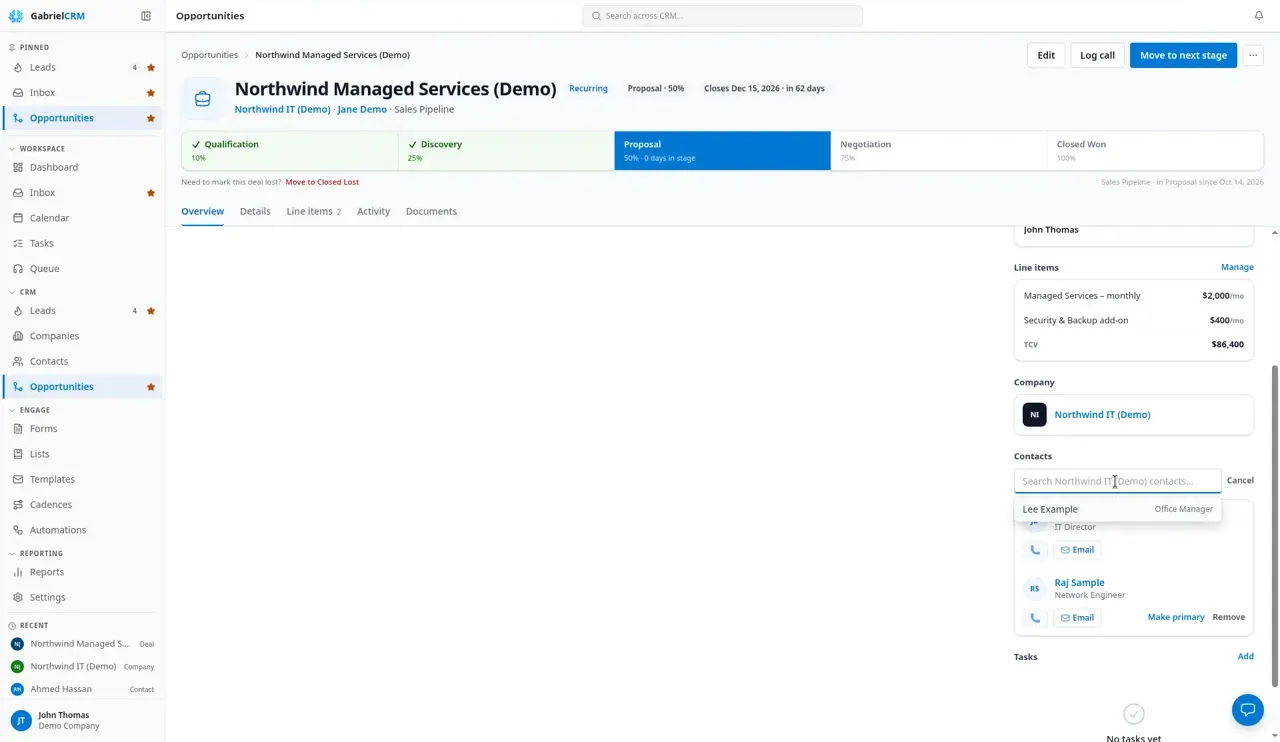
- Open the deal and stay on the Overview tab.
- In the Contacts card, click Add.
- Search the company’s contacts and pick one.
The primary contact is listed first with a Primary badge, followed by the others. Next to another contact:
- Make primary makes them the primary contact. The old primary stays on the deal as an additional contact.
- Remove takes them off the deal.
You can also change the primary contact on the Details tab. You need permission to edit the deal to add, remove or change contacts.
Edit a deal
Section titled “Edit a deal”- Click Edit, or open the Details tab.
- Change the fields you need, such as Expected close, Stage, Primary contact or Owner.
- Click Save changes.
The Primary contact is optional, so you can create a deal before you know who to talk to, but it must be someone at the deal’s company. If the contact is deleted, the deal stays with its company.
Line items
Section titled “Line items”- On the Line items tab, click Add line item.
- Enter a Description, Qty, Unit price and, if you want margin, Unit cost and Disc %.
- Set whether it’s recurring (monthly, quarterly or annual) or a one-time charge.
Gabriel totals the lines into the deal’s MRR, one-time fees, ACV and Deal value (TCV), and shows the gross margin. To use a different deal value, click Override value; Reset to line-item total goes back.
Delete an opportunity
Section titled “Delete an opportunity”Click … > Delete opportunity, or tick deals on the list and click Delete. Managers and admins can delete deals by default.
How it works
Section titled “How it works”- Won and lost come from the stage’s outcome, not its name. Each stage is set to Open, Won or Lost in Pipeline and stages.
- Only people are asked for a loss reason. An automation that moves a deal to a lost stage, and a deal imported into a lost stage, have no reason. Their deals show No reason recorded, as do deals lost before loss reasons existed.
- A converted lead’s deal can’t start lost. Lost stages aren’t offered when you convert a lead.
- Stalled deals. An open deal is stalled when it has had no call, email, task, note or meeting logged against it, and no stage change, for 7 days, or the number of days your admin set. Stalled deals show on the Dashboard under Stalled Opportunities.
- Time in stage. An automation can act when An opportunity sits in a stage for a number of days.
Best practices
Section titled “Best practices”- Put a close date on every open deal. The Overdue tag, the card’s color and the Close Date filters all run on it, and a deal without one never shows up as slipping.
- Review overdue deals every week. Filter Close Date > Overdue and either move the date, advance the stage or mark the deal lost. Stale dates make every forecast wrong.
- Mark deals lost instead of leaving them open. Lost deals drop out of Open totals and, after 30 days, out of the default list, so your pipeline shows only live deals.
- Create deals in an open stage and move them to won. Gabriel sets the close date and updates the company to Customer when a deal moves into the won stage, not when it’s created there.
- Log every touch against the deal. Calls, emails and notes on the deal keep it off the stalled list and give the next person the full story.
- Managers: set stage probabilities from your real win rates. Weighted totals multiply each deal by its probability, so realistic stage percentages give a realistic forecast.
- Use line items for anything with more than one product. The deal’s value, MRR and ACV then stay in step with what you’re actually selling.
- Keep one pipeline per sales motion. The board shows one pipeline at a time, so separate pipelines for, say, new business and renewals keep each board readable.
Troubleshooting
Section titled “Troubleshooting”“Contact must belong to the selected company.” The contact works at a different company. Pick someone from the deal’s company, or change the contact’s company first.
“Choose a loss reason to close this deal as lost.” A deal can only move to a lost stage with a reason. Pick one in the dialog. If the list is empty, ask an admin to add reasons under Settings > Picklists > Opportunities.
You can’t drag a card or click the stage bar. You can view the deal but not change it, usually because it belongs to another rep.
An old won or lost deal is missing from the list. Deals closed more than 30 days ago are hidden until you click Won or Lost or add a filter.