
Dashboard
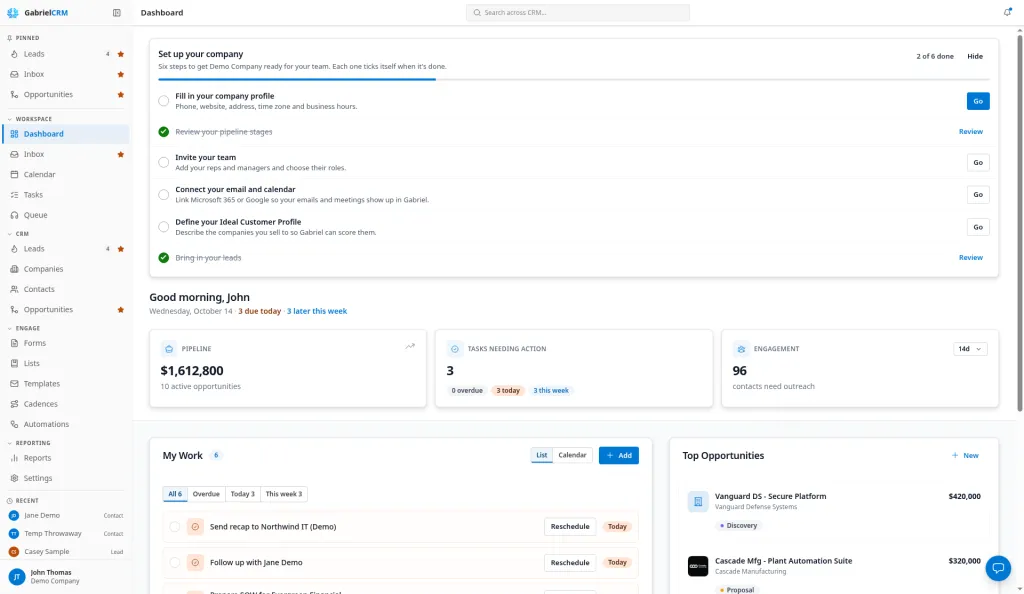
The Dashboard is the first page you see after you sign in. It answers three questions: what needs doing today, how the pipeline looks, and who is going cold. You can complete and reschedule tasks right from it.
Open Dashboard from the Workspace group in the sidebar. Everyone gets the same layout. What the numbers include depends on which records your role lets you see.
Read the top of the page
Section titled “Read the top of the page”The greeting line shows today’s date and links straight to your work: overdue, due today and later this week. Click one to open Tasks filtered to that group.
Below it are three cards:
- Pipeline: the total value of your open opportunities, and how many there are. Click it to open the pipeline view of Opportunities.
- Tasks needing action: tasks that are overdue or due today. The badges split them into overdue, today and this week, and each opens Tasks filtered to that group. The card turns red when anything is overdue.
- Engagement: how many contacts have had no logged activity in the number of days you pick (7d, 14d, 30d, 60d or 90d; 14 to start). Click the number to see who they are.
Admins also see a Set up your company card at the top until they finish or Hide it. See the admin setup checklist.
Work your tasks from the dashboard
Section titled “Work your tasks from the dashboard”The My Work card lists your open tasks and the meetings on your calendar for today and the rest of the work week.
- Pick a filter: All, Overdue, Today or This week.
- Do one of these on a row:
- Click the circle to mark the task complete.
- Click Reschedule and pick Today, Tomorrow or Next week. The task moves to 5:00 PM on that day.
- Click the row to open the task, or the meeting’s details.
- To add a task, click Add.
When tasks are overdue, a red bar shows how many. Click Reschedule all to today to move every overdue task you own to 5:00 PM today, including ones not shown on the page. Overdue meetings don’t move; record their outcome on the Calendar instead.
Switch the card from List to Calendar to see the next seven days, one day per row. Overdue tasks sit on today.
For the full list, with search and completed tasks, click View all in My Work or open Tasks.
Find contacts going cold
Section titled “Find contacts going cold”- On the Engagement card, pick how many days counts as too long.
- Click the number.
- In Contacts needing engagement, contacts nobody has ever reached are marked Never contacted and listed first. The rest show when they were last reached, oldest first.
- Click a contact to open their record and reach out.
The panel lists up to 50 contacts at a time.
Spot stalled deals
Section titled “Spot stalled deals”When any open opportunity has gone quiet, a Stalled Opportunities card appears with the longest-idle deals first (up to 10). Each shows its value and how many days since anyone touched it. Click View all n stalled at the bottom of the card to see every stalled deal on the Opportunities page.
Top Opportunities lists your five largest open deals by value, with their stage. Click New to create an opportunity.
How it works
Section titled “How it works”- Your tasks only. My Work, Tasks needing action and the greeting count tasks and meetings assigned to you, whatever your role.
- Pipeline, Top Opportunities and Stalled Opportunities follow the opportunities your role can see. Admins and managers usually see the whole company’s deals; reps see their team’s.
- Engagement follows the contacts your role can see. By default every role can see every contact, so the count usually covers the whole company, not only your own contacts.
- An open opportunity is one in a stage that isn’t won or lost, or with no stage set.
- Days use your time zone. “Today” and “this week” use the time zone in your preferences, or your company’s if you haven’t set one. “This week” runs from tomorrow to the last day of your company’s work week (Monday to Friday unless an admin changed it).
- Overdue means due before today with no outcome recorded. An item is overdue once its due date is before today and it hasn’t been completed or cancelled. That includes meetings, until you record whether they were held or a no-show. The overdue numbers here match the sidebar count and the Overdue view on Tasks.
- Meetings appear in My Work on the day they’re scheduled.
- Engagement counts any activity on the contact. A contact counts as reached when a call, email, meeting or task is added to their record, an email with them is sent or synced, or they submit one of your forms. Notes don’t count.
- A deal is stalled when it’s open and nothing has happened on it for the number of days your admin set (7 to start): no call, email, task, note or meeting logged against it, and no stage change. Admins change this under Settings > Pipeline & Sales Stages, in Stalled deals > Days with no activity (1 to 365).
Best practices
Section titled “Best practices”- Start every day on the overdue link. Clear or reschedule overdue tasks first. They keep counting against Tasks needing action until you do, and a red card hides the work that is actually due today.
- Use Reschedule all to today only after a real review. It moves every overdue task you own at once. Click Review first and delete or complete the tasks that no longer matter, or they come back overdue tomorrow.
- Log activity on the record, not just in your head. The Engagement and Stalled Opportunities cards only know what’s logged in Gabriel. A call you didn’t log leaves the contact on the cold list and the deal marked stalled. See Log activity.
- Managers: run your weekly pipeline review from Stalled Opportunities. Open the full stalled list and ask the owner of each deal for a next step. Every stalled deal either gets an activity logged or gets closed lost.
- Admins: set the stalled threshold to match your sales cycle. Seven days suits fast, transactional sales. For longer cycles, 14 to 30 days stops healthy deals from crowding the card.
- Pick an engagement window that matches how often you should be in touch. For active accounts, try 30 days. For your whole database, try 90 days. Work the Never contacted contacts first.
Troubleshooting
Section titled “Troubleshooting”The page says “Unable to load dashboard”. Click Try Again. If it keeps happening, your role may not include viewing the dashboard. Ask your admin to check your role under Settings > Roles & Permissions.
A task I finished still shows. Tasks leave the dashboard when they’re marked complete. If you did the work but didn’t tick the task, click the circle on its row.
My Engagement number is much bigger than my own contact list. The card counts every contact your role can see, which is usually every contact in the company.