
Lists
A list is a named group of leads or of contacts: “Trade show 2026 booth visits”, “Healthcare contacts in Ohio”, “Leads not contacted in 30 days”. A list holds one kind of record only, leads or contacts, never companies or deals.
Open Lists from the Engage group in the sidebar.
Every role except Viewer and Billing Contact can create lists and add people to them by default. Sales reps see and change the lists they created; managers and admins see and change every list. Deleting a list and emailing one take a manager or admin by default.
Two kinds of list
Section titled “Two kinds of list”Choose the kind when you create the list. It can’t be changed later.
- Add people yourself (shown as Managed): you decide who is on it. People are added by hand, from the Contacts page, or by an automation, and stay until someone removes them.
- Match rules (shown as Dynamic): the list always holds whoever matches its rules right now, and updates itself as records change. Nobody is added or removed by hand.
Create a list
Section titled “Create a list”- Click New List.
- Enter a Name and, if you like, a Description.
- Choose the Record type: leads or contacts.
- Under Membership, choose Add people yourself or Match rules.
- For a rules list, build the rules (below).
- Pick a Colour to spot the list quickly, or leave it blank.
- Click Save list.
Build rules for a dynamic list
Section titled “Build rules for a dynamic list”- Under How the rules combine, choose All rules or Any rule.
- For each rule, pick a field, a condition and a value. Click Add rule for more, up to 25.
- Watch the count under the rules: it shows how many records match right now and names a few of them.
You can filter on the person’s own fields (name, email, phones, Job title, Lead source, Status, Owner, Tags, Lead score, ICP fit, Do not email, Created, Last contacted and more). Contact lists can also filter on the contact’s company: Company industry, Company type, Customer tier, Company employees, Company annual revenue, Company tags and others.
Conditions depend on the field: is, is not, contains, starts with, is empty, is at least, is at most, is before, is after, is in the last (a number of days), is any of and is none of, and for tags has any of, has all of and has none of.
Add and remove people
Section titled “Add and remove people”On a Managed list:
- From the list, by name: click Add records, leave By name selected, search, and click Add beside each person. Each row then shows Added or Already a member. Click Done when finished.
- From the list, by filter: add everyone who matches some rules in one go (see below).
- From the Contacts page: tick contacts (or select every match), click Add to list on the selection bar, tick one or more lists, and confirm. You can also choose Add to list from a single contact’s row menu.
- By an automation: the Add to a list action adds the lead or contact the automation is running for. See Automations.
To remove someone, hover their row on the Members tab and click Remove. This only takes them off the list; the record isn’t deleted.
Add people by filter
Section titled “Add people by filter”Use this to fill a managed list from rules once, such as every healthcare contact in Ohio, without making the list dynamic.
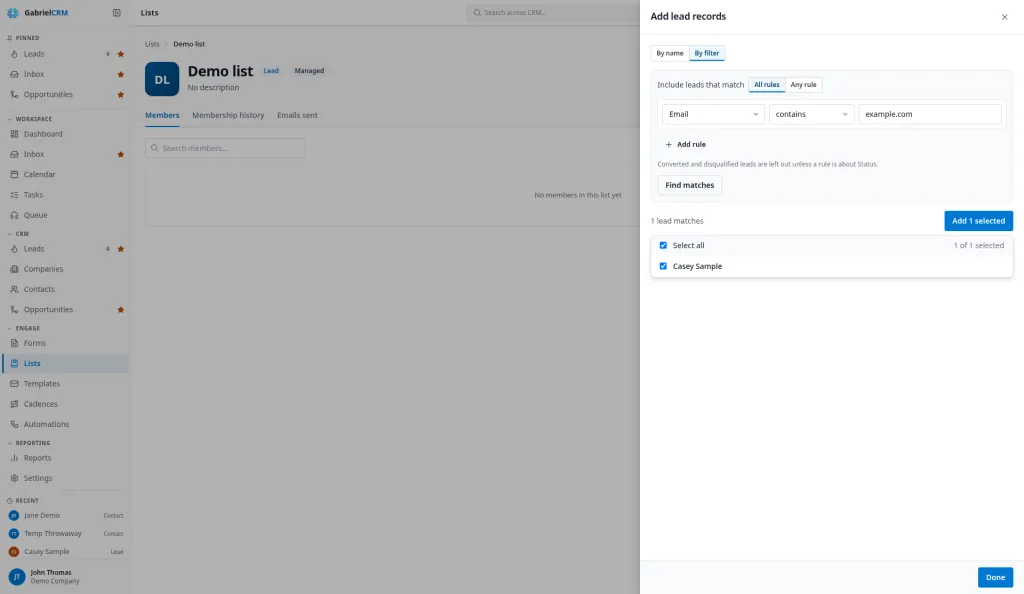
- Open the list and click Add records.
- Under How to find people, choose By filter.
- Build the rules the same way as for a dynamic list: choose All rules or Any rule, then pick a field, a condition and a value for each rule.
- Click Find matches. Gabriel shows how many match, for example “42 contacts match”, and lists them by last name.
- Everyone who isn’t on the list yet starts ticked. Untick anyone you don’t want, or use Select all to tick or untick them all.
- Click Add N selected. The rows you added show Added.
- Click Done.
The rules are only used to find people. They aren’t saved with the list, and people who match them later aren’t added. If you change a rule, the results clear until you click Find matches again.
- Up to 500 at a time. The results show at most 500 people. If more match, you see “showing the first 500; narrow the filters to see the rest”. Add those, then narrow the rules (for example by Created or Owner) to reach the others.
- Only people you can view are found, the same as everywhere else on lists.
- People already on the list show Already a member and can’t be ticked.
- A lead list leaves out converted and disqualified leads unless one of your rules is about Status, as on a dynamic list.
- Someone deleted or reassigned after you clicked Find matches is skipped. A warning says how many couldn’t be added.
Work with a list
Section titled “Work with a list”Open a list to see:
- Members: everyone on the list, with a search box. A managed list shows when each person was Added.
- Membership history (managed lists): every add and removal, newest first.
- Emails sent: every email sent to the list, for people who can send to it. See Send email to a list.
The buttons at the top:
- Edit: change the name, description, color and, for a dynamic list, the rules (Edit rules on the rules card does the same).
- Send email: email everyone on the list.
- Add records: managed lists only.
- … > Contact exports and list tools (contact lists): totals for the list (contacts, opportunities, contacts with opportunities and, for a managed list, growth in the last 30 days), and Export to a CSV file in five layouts: General, Email list, Mailing Labels, Phone List and LinkedIn Outreach. Exporting takes a manager or admin by default.
- … > Delete list: removes the list. The people on it stay in Gabriel.
How it works
Section titled “How it works”- You only see records you’re allowed to see. Members, counts and the rule preview leave out leads and contacts your role can’t view, so two people can see different numbers on the same list.
- Lists don’t give email permission. Being on a list never overrides Do not contact, Do not email or an unsubscribe.
- Automations can only add to managed lists. Add to a list can’t point at a dynamic list, because its members come from its rules.
- Deleting a list affects automations. Any automation whose Add to a list action used it needs a new list chosen.
Best practices
Section titled “Best practices”- Use a dynamic list for anything that should stay current. “Contacts in Healthcare with no activity in 90 days” built from rules never goes stale; a hand-built version is wrong the day after you make it.
- Use a managed list for a moment in time. Event attendees, a webinar sign-up or a one-off campaign should keep exactly who was there, even after their records change.
- Use By filter to snapshot a segment into a managed list. When you want “everyone who matches today” to stay on the list after their records change, such as a campaign’s audience, add them by filter instead of building a dynamic list.
- Tag first, then list by tag. Tag people as you work them (“booth-visit”, “q4-renewal”), then build a dynamic list on Tags has any of. Tags are quick to add on a record, and the list keeps itself up to date.
- Add a “Do not email is no” rule to lists you plan to email. Those people are skipped anyway, but leaving them out makes the member count match who will receive the email.
- Have a form or automation fill campaign lists. An automation on A form is submitted with Add to a list builds your event or offer list as people sign up, with no hand-copying.
- Name lists by purpose and date. “Spring promo, April 2026” tells the next manager what the list was for and whether it’s safe to email again.
- Managers: delete lists nobody uses. Old lists crowd the Add to list and automation pickers, and people end up adding to the wrong one.
Troubleshooting
Section titled “Troubleshooting”I can’t find a list a colleague made. By default, sales reps only see the lists they created. Ask a manager, or have an admin change list access under Settings > Roles & Permissions.
Add records is missing. The list is dynamic. Change its rules instead.
Add to list shows “No lists yet”. You need a managed contact list that you can edit. Dynamic lists and lead lists don’t appear there.
The member count is lower than I expected. The list only shows records you can view, and a dynamic lead list skips converted and disqualified leads unless a rule is about Status.