
Meeting types
A meeting type is a kind of meeting your team books, such as a Discovery Call or a Demo. It sets how long the meeting is, whether it gets a video link, and when it can be booked. Every booking link, scheduling page and booking made from a call uses one.
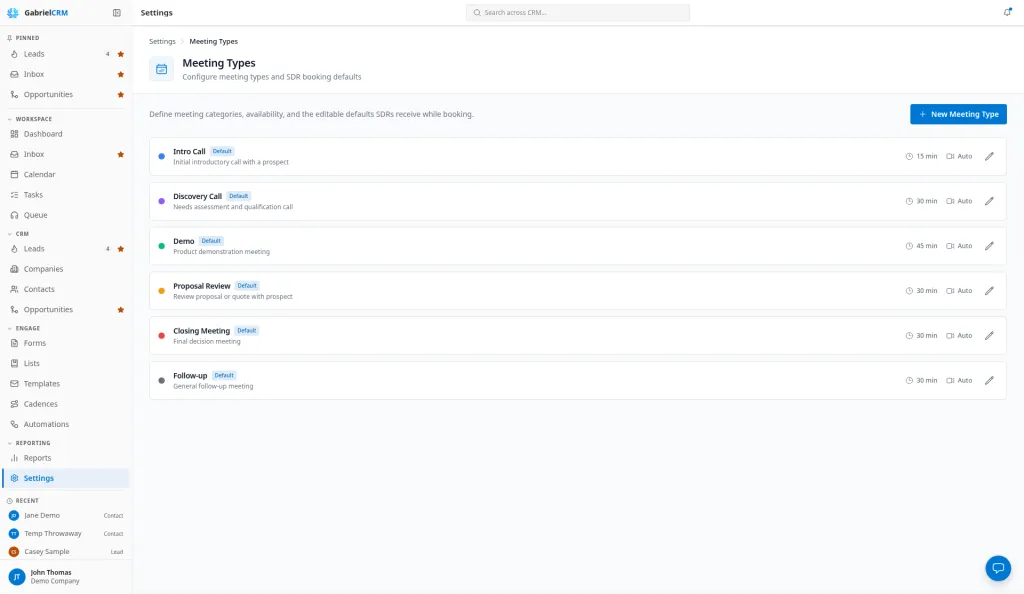
Go to Settings > Meeting Types. You need the Manage organization settings permission, which admins have. Everyone else uses the meeting types you set up here.
Gabriel starts every company with six types: Intro Call (15 minutes), Discovery Call (30), Demo (45), Proposal Review (30), Closing Meeting (30) and Follow-up (30). They’re marked Default. You can edit them but not deactivate them.
Create a meeting type
Section titled “Create a meeting type”- Click New Meeting Type.
- Enter a Name, and a Description if you like. People booking see both.
- Choose a Category (see Categories).
- Pick a Duration: 15, 20, 30, 45, 60, 90 or 120 minutes.
- Pick a Color. It labels the type inside Gabriel.
- Choose the video link (see Video links).
- Set the Availability Settings (see When it can be booked).
- Click Create.
To change a type, click its edit icon, make your changes and click Save changes.
Video links
Section titled “Video links”Auto-create video conference link is on for new types. Choose the provider:
- Auto-detect (use connected provider): uses the host’s Zoom if they’ve connected it, then Microsoft Teams (through their Microsoft 365 connection), then Google Meet (through their Google connection).
- Zoom, Microsoft Teams or Google Meet: always that provider.
The link is made in the host’s own account, so the host has to have that account connected. See Zoom meeting links and Email & Calendar.
Turn the box off for meetings that happen by phone or in person.
When it can be booked
Section titled “When it can be booked”Under Availability Settings:
| Setting | What it does | Default |
|---|---|---|
| Lookahead (days) | How far ahead people can book. 1 to 90 days. | 14 |
| Minimum notice (hours) | How soon a time can be booked. 0 to 168 hours. | 24 |
| Buffer before (min) | Free time kept before each meeting. 0 to 60 minutes. | 0 |
| Buffer after (min) | Free time kept after each meeting. 0 to 60 minutes. | 0 |
| Working hours start / Working hours end | The hours this type can be booked. | 9:00 AM to 5:00 PM |
Categories
Section titled “Categories”Category records what kind of meeting this is, such as Discovery or Demo. Every meeting booked through the type is saved with it, for reporting and automations. Leave it on Default (Intro call) and meetings are saved as intro calls.
Defaults for booking from a call
Section titled “Defaults for booking from a call”Default meeting title and Default attendee agenda fill in the meeting when a rep books this type from the call screen after a call. The rep can edit both before booking.
The title can use {{prospectName}}, {{companyName}} and {{meetingType}}. For example, “Discovery — {{prospectName}} / {{companyName}}” becomes “Discovery — Dana Lee / Northwind”.
Deactivate a meeting type
Section titled “Deactivate a meeting type”- Click the trash icon on the type.
- Click Deactivate.
It stops appearing when people choose a meeting type. Deactivated types are listed under Inactive. Click Reactivate to bring one back.
How it works
Section titled “How it works”- Times offered are where two schedules overlap. A time is only offered if it fits both the meeting type’s working hours and the host’s own availability in My Scheduling. The host’s calendar is checked too, so busy times are never offered.
- Working hours are in the host’s time zone.
- Times are offered every 15 minutes on one-off booking links.
- Scheduling pages can override the type. A rep’s scheduling page can set its own duration, buffers, notice, lookahead, slot interval and video provider, within wider limits than a meeting type’s. Anything it leaves blank comes from the meeting type. See My Scheduling.
- Reminders aren’t set per type. People who book through a booking link or scheduling page get reminder emails about a day before and 2 hours before. See Meeting types and booking links.
Best practices
Section titled “Best practices”- Name types after the step in your sales process. Reps choose a type every time they send a link or book from a call. Names like Discovery Call and Demo make the right choice obvious, and the category keeps your reports accurate.
- Set the category on every type you add. A new type left on Default (Intro call) files every meeting as an intro call, which skews any report or automation that looks at meeting type.
- Add a 10 to 15 minute buffer after long meetings. Buffers default to 0, so without one a 45-minute demo can be booked straight into the next call.
- Keep minimum notice at 24 hours or more for first meetings. It gives the rep time to research the account before the meeting. Lower it only for types you use with existing customers.
- Keep working hours broad and let reps narrow them. The type can only narrow a rep’s own availability. Hours set tightly here override every rep’s schedule, including reps in other time zones.
- Use Auto-detect unless your company standardizes on one tool. A fixed provider fails to make a link for any host who hasn’t connected that account, and the meeting is booked without one.
- Deactivate types you’ve stopped using. Fewer choices means reps pick the right type faster, and a deactivated type can be brought back at any time.
Troubleshooting
Section titled “Troubleshooting”The trash icon is missing. The six starter types can’t be deactivated. Edit them instead.
“A meeting type with this name already exists” Each type needs its own name. Choose another, or reactivate the existing one from Inactive.
Reps say no times are showing. Check that the type’s working hours overlap the rep’s availability in My Scheduling, and that Minimum notice and Lookahead leave room for a booking.
A meeting was booked without a video link. The host hasn’t connected the provider the type uses. Switch the type to Auto-detect, or ask the host to connect it.