
Calls and call outcomes
You can call anyone in Gabriel straight from their record, not only from the Queue. The call runs in your browser through your company’s Twilio account, and when you hang up you log the outcome so the call lands on the record’s timeline with its notes and, if your company records calls, the recording.
Calling from Gabriel needs an admin to set up Twilio calling. You need permission to edit contacts to place and log calls.
Call from a record
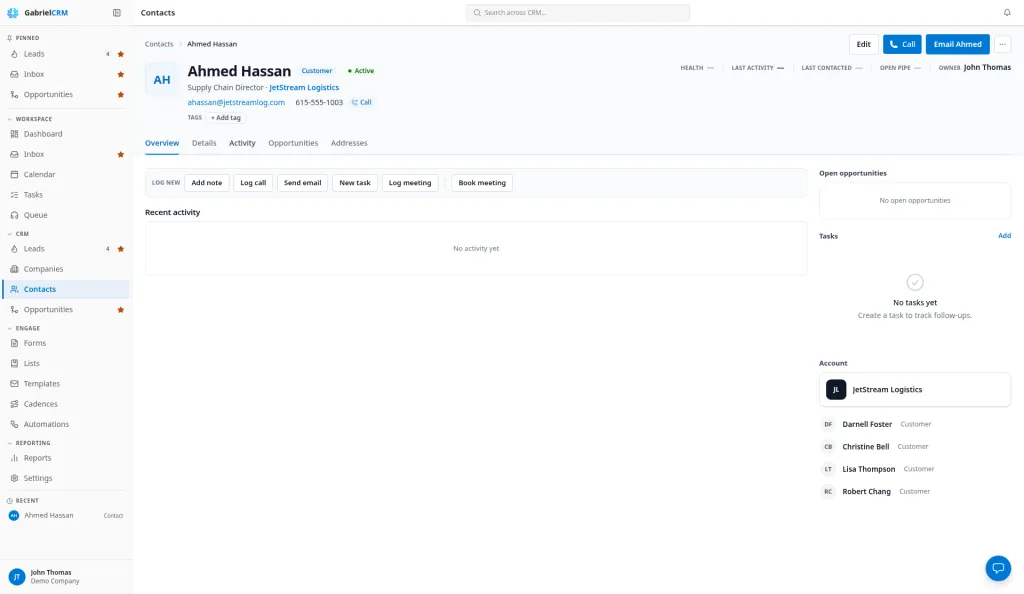
Section titled “Call from a record”A Call button sits next to phone numbers on lead, contact, company and opportunity pages, and a phone icon on each row of the Leads list.
- Click Call next to the number. A call panel opens in the bottom-right corner, so you can still read the record behind it.
- If the record has more than one number, click the number in the panel to choose another line.
- Click Call followed by the person’s first name. Use Mute, Keypad or Hang up while the call is live. On a lead call you can also use Drop VM to leave a recorded voicemail.
- Log the call (see below) and click Log call.
Click the minimize button to fold the panel into a small bar while you talk. Clicking the phone icon on the Leads list dials straight away instead; the panel opens with the wrap-up when the call ends.
If you leave the page during a call, a bar at the bottom of Gabriel keeps showing who you’re talking to, with Mute and Hang up.
Calling a company’s main number logs the call on the company. There’s no Book meeting on a company call, because a meeting needs a person to invite.
Pick a script on a lead call
Section titled “Pick a script on a lead call”When you call a lead, the panel shows a script picker. Choose one of your company’s call scripts and Gabriel remembers your choice in this browser for your next call. Calls on a cadence step always show the script attached to that step instead.
Log the outcome
Section titled “Log the outcome”What you’re asked for depends on who you called.
You log a lead call the same way as a call in the Queue:
- Pick the Result: No answer, Left voicemail, Not in service, Wrong number, Reached gatekeeper or Connected.
- For a gatekeeper, pick what you got. Got direct line saves the number to the lead, as Direct, Mobile or Office, so it’s dialed first next time.
- For a connected call, pick a Sentiment: Book meeting, Interested, Not now, Not interested, Company not a fit, Contact not a fit, Already a customer, Referred or Do not contact.
- Add Notes. They’re required for Interested.
The sentiment is saved in the call’s notes. Some of them also change the lead:
- Book meeting, Interested and Not now move a New or Contacted lead to Engaged. See lead stages.
- Do not contact marks the lead do not contact and do not call.
- Company not a fit sets the lead’s status to disqualified.
Contacts and companies
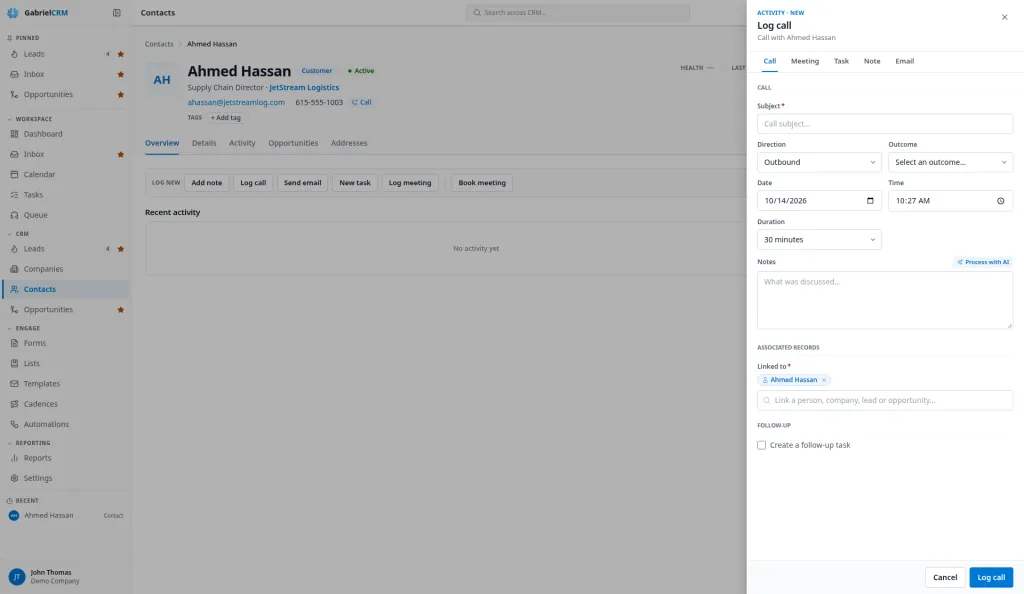
Section titled “Contacts and companies”The outcome is optional, because not every call to a customer needs one.
- If the contact has open deals, choose a Deal to log the call on it, or leave Don’t attach.
- Choose Record an outcome and pick one from Outcome, or choose Just a call to log the duration, notes and recording only.
- On a contact call, you can choose Book meeting under Follow-up to book a meeting on an account executive’s calendar.
- Add Notes and click Log call.
The outcome list is the same for every company:
| Group | Outcomes |
|---|---|
| Connected | Connected |
| Gatekeeper | Reached Gatekeeper |
| Voicemail | Left Voicemail |
| No answer | No Answer, Busy |
| Bad data | Not in Service, Wrong Number |
Book a meeting during the call
Section titled “Book a meeting during the call”On a lead or contact call, click Book meeting while the call is live, pick the Account Executive, Meeting Type, Duration and a time, then click Confirm Booking. The invitation goes out when you save the call. Every field on the booking screen is described in Queue.
Log a call you made on another phone
Section titled “Log a call you made on another phone”On the record, click Log call in the Log new bar and fill in the Direction, Outcome and notes. See Log activity.
Find past calls
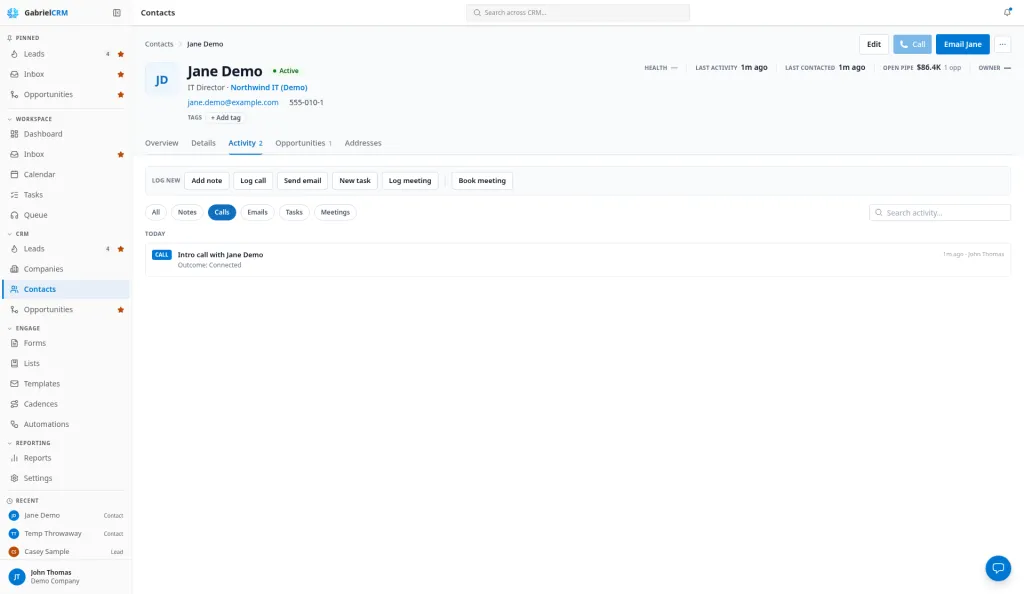
Section titled “Find past calls”- On the record: open the Activity tab and click the Calls filter to see every logged call. Click a recorded call to play it and read the transcript.
- On the Queue’s call desk: the History tab shows this person’s earlier calls, with the result, notes and who made each one.
- On the Queue’s History tab: your own calls for Today, 7 days or 30 days, with playback.
- In Reports: the Calling report shows dials, conversations and results across the team.
Managers and admins can delete a recording with Delete recording. If an admin turns on Allow reps to delete recordings, everyone who can edit contacts can. The call log stays; only the audio and transcript go.
How it works
Section titled “How it works”- Every logged call goes on the timeline of the lead, contact or company, as a completed call with its outcome, notes and duration.
- Logging a call updates the record. It sets the contact’s or lead’s last contacted date, moves a New lead to Contacted, and refreshes the lead’s score.
- A call on a cadence step also moves the cadence. The result and sentiment decide whether the step is done, held or the end of the cadence. The table is in Queue. A call from a record page doesn’t touch any cadence the person is in.
- Recordings are made when your admin has turned on call recording. They start when the call is answered. If your admin chose a consent notice, the person you call hears it as they answer.
- Transcripts appear under the recording a little after the call ends when your admin has turned on transcription.
- Numbers: Gabriel dials 10-digit US and Canadian numbers only. Your calls show your company’s default caller ID number.
- Without Twilio, the Call button opens your computer’s phone app instead. Gabriel can’t see those calls, so log them with Log call.
Best practices
Section titled “Best practices”- Call from the record, not your desk phone. A call placed from Gabriel is logged with its duration and recording and counts in the calling report. A call made elsewhere is only as good as what you type in afterwards.
- Fill in Got direct line every time a gatekeeper gives you one. It writes the number to the record and Gabriel offers it first on the next call, from the record or the Queue.
- Use Company not a fit only when the company is wrong. On a lead it disqualifies the lead. If you just reached the wrong person, choose Contact not a fit and leave the company in play.
- Attach the deal on customer calls. Picking the Deal puts the call on the opportunity’s timeline, so whoever picks up the deal later sees the conversation.
- Write notes for the next caller, not for yourself. The notes show on the call desk’s History tab for anyone who calls this person next, including another rep working the same cadence.
- Managers: listen to recordings in the Queue’s History or on the record before coaching. The transcript sits under the player, so you can find the objection without replaying the whole call.
Troubleshooting
Section titled “Troubleshooting”The Call button opens another phone app. Twilio calling isn’t turned on for your company. Ask an admin to set up Twilio calling.
“isn’t a dialable US number”. The number isn’t 10 digits once formatting is removed. Fix it on the record.
The number shows “Do not call” and nothing dials. The record is marked do not call. Gabriel won’t dial it from the record.
“Finish the open call first”. Only one call panel can be open at a time. Log or close the open one first.
“Discard this call?” when closing. The wrap-up hasn’t been saved. Keep editing to save it, or Discard to close without logging an outcome.