
Build with AI
Build with AI writes a first draft of a cadence or an automation for you. You pick what it’s for, set a few options, and Gabriel opens the draft in the normal builder. Nothing runs until you have reviewed it: a cadence does nothing until you enroll people, and an automation starts switched off.
The Build with AI button is at the top of the Cadences and Automations pages, in the Engage group.
Before you start
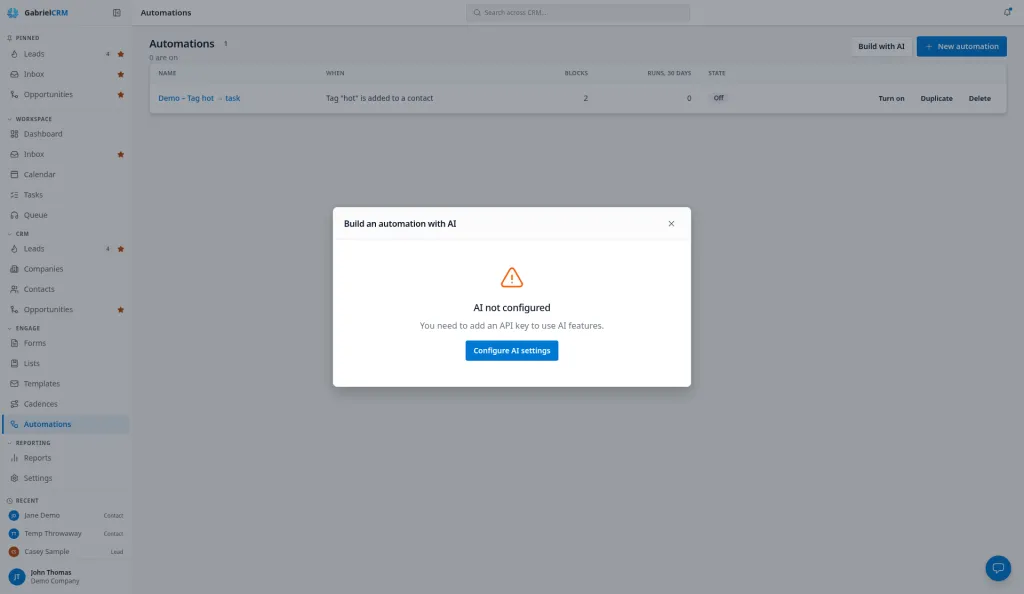
Section titled “Before you start”- Your company needs an AI provider set up under Settings > Integrations > AI. Without one, Build with AI shows AI not configured and a Configure AI settings button instead of the form.
- By default, sales managers, marketing managers and admins can use it. You need permission to use AI plus, for cadences, to manage cadences and call scripts, or, for automations, to manage automations. If you can’t see the button, ask an admin to check Settings > Roles & Permissions.
- Each draft uses your company’s AI key and counts toward the AI usage admins see on the Usage tab of the AI settings page.
What Gabriel sends to the AI
Section titled “What Gabriel sends to the AI”- For a cadence: your company name, the business description from your company profile, your ICP description, and your choices in the dialog.
- For an automation: your company name, your choices in the dialog, and the names of things the draft can refer to: users, teams, pipeline stages, cadences, lists and tags, plus the chosen form’s questions.
It never sends details about individual leads, contacts or deals.
Build a cadence
Section titled “Build a cadence”-
Open Cadences and click Build with AI.
-
Under What is this cadence for?, pick one objective:
Objective What you get Book a first meeting with new outbound leads Call-led, emails between calls, ends with a breakup email Follow up inbound / form leads fast First call the same day, tight early waits Re-engage leads that went quiet Short, a new angle, permission to close the loop Nurture prospects not ready to buy Mostly email, weeks apart, useful content Recover a no-show meeting Rebook within days, call and email Event or webinar follow-up Reference the event, offer the recording -
Choose the Channels: Calls, Email and LinkedIn. Tick at least one. Nurture starts with email only; the others start with all three.
-
Choose a Length:
- Short: 4 to 6 steps over about a week.
- Standard: 7 to 11 steps over about three weeks.
- Long: 11 to 16 steps over about six weeks.
-
Choose the Team that will work the cadence.
-
Optionally, fill in Who is it for, and anything else?, for example “Owners of dental practices with 5 to 30 staff. Mention our 1-hour response guarantee.” Your company profile and ICP are included for you.
-
Click Generate draft. It usually takes 10 to 30 seconds.
The objective decides one setting for you. For Nurture prospects not ready to buy, booking a meeting does not end the cadence. For every other objective, booking a meeting ends it for that person.
What the cadence draft contains
Section titled “What the cadence draft contains”The cadence is created straight away, with nobody in it, and opens on the Build tab with a Drafted by AI banner. Gabriel writes:
- The steps and their timing.
- An email template for each email step, named after the cadence, for example Dental outreach · Step 2 email. They’re shared, so the team’s reps can open them, and you’ll find them under Templates.
- A call script and a voicemail script for each call step, named the same way. You’ll find them under Settings > Call Scripts.
- Instructions for LinkedIn and task steps.
Call scripts only use the merge fields the dialer fills in: first name, company and title.
Read every step, email and script, edit anything that doesn’t sound like you, then enroll people the usual way. If you don’t want the draft, Delete it before anyone is enrolled (or Retire it once they have). Its templates and scripts stay until you delete them.
Build an automation
Section titled “Build an automation”-
Open Automations and click Build with AI.
-
Under What should it do?, pick one objective. Each one fixes what starts the automation and asks only for what that needs:
Objective Starts when You choose Route and follow up a form submission A form is submitted the Form Assign new leads to a team A lead is created the Team to round-robin across Nudge the owner when a deal stalls An opportunity sits in a stage the Stage and After this many days (1 to 365) Put high-fit leads into a cadence A lead becomes an ICP fit the Cadence Tell a manager about big opportunities An opportunity is created Worth at least and Who to tell Monthly nurture email You run it by hand on contacts who opted in the Number of emails, one a month (2 to 12) -
Optionally, fill in Anything else?, for example “If it’s over $20k, also tell the sales manager.”
-
Click Generate draft.
What the automation draft contains
Section titled “What the automation draft contains”The automation opens in the builder unsaved, with a Drafted by AI banner. Gabriel writes the Only if conditions and the blocks. If the draft needs something it couldn’t match to your data, such as a list or a person, that block is outlined and you must set it before you can save.
If the automation sends email, Gabriel also writes those email templates, named after the automation, for example Big deal alert · Email 1. They’re saved straight away and are private to you. You’ll find them under Templates, where you can share them if others need them.
Read every block, fix anything outlined, then click Save. The automation is saved switched off; click Turn on when you’re ready. If you leave without saving, nothing is kept except those email templates.
Best practices
Section titled “Best practices”- Pick the objective that matches the job, not the one that sounds closest. The objective sets the trigger for an automation and the shape of a cadence, and neither can be steered away from it in the free-text box. If no objective fits, build from blank.
- Fill in your company profile and ICP first. A cadence draft is written from your business description and ICP. Without them the emails and scripts are generic, and you’ll rewrite most of them.
- Say who it’s for in one or two concrete sentences. Job titles, company size and one proof point (“1-hour response guarantee”, “200 dental offices served”) shape the copy far more than adjectives like “friendly” or “professional”.
- Read every email and script out loud before you enroll anyone. The draft goes to real prospects in your reps’ names. Fix anything you wouldn’t say on a call; reps can still edit each email, but a bad template is a bad starting point for every one of them.
- Fix wording now, steps never. Once someone is enrolled, the cadence’s steps lock. Change the number of steps, their order and their waits on the Build tab before the first enrollment, while it’s still a draft.
- Test an AI automation like any other. Save it, run a Test run on your own record, then turn it on. A draft that reads correctly can still point at the wrong list or person.
- Delete drafts you don’t keep. Deleting or retiring a cadence, or leaving an automation unsaved, leaves its templates and scripts behind. Clean them out of Templates and Settings > Call Scripts so reps don’t pick them by mistake.
Troubleshooting
Section titled “Troubleshooting”“Couldn’t build a draft from that. Try again, or start from a blank one.” The AI’s answer didn’t make a valid draft, even after one retry, so nothing was created. Your choices are kept; click Generate draft again, or build from blank.
An error about your AI key, credits or rate limits. It comes from your AI provider. An admin can check the key under Settings > Integrations > AI.
I clicked Cancel while it was writing. Cancel closes the window but can’t stop the draft. A cadence is still created, and a message says it’s ready in Cadences. An automation isn’t opened, but any email templates it wrote are in Templates.