
Calling in Gabriel
Gabriel lets you call leads, contacts and companies from your browser, log what happened, and keep recordings and outcomes on the record’s timeline. This page ties the calling articles together.
Calling through Gabriel needs an admin to connect your company’s Twilio account under Settings > Integrations > Twilio. See Twilio calling.
Where you call from
Section titled “Where you call from”- The Queue: work through the call steps of your cadences one after another, with the script, a call desk and the outcome form side by side. See Queue.
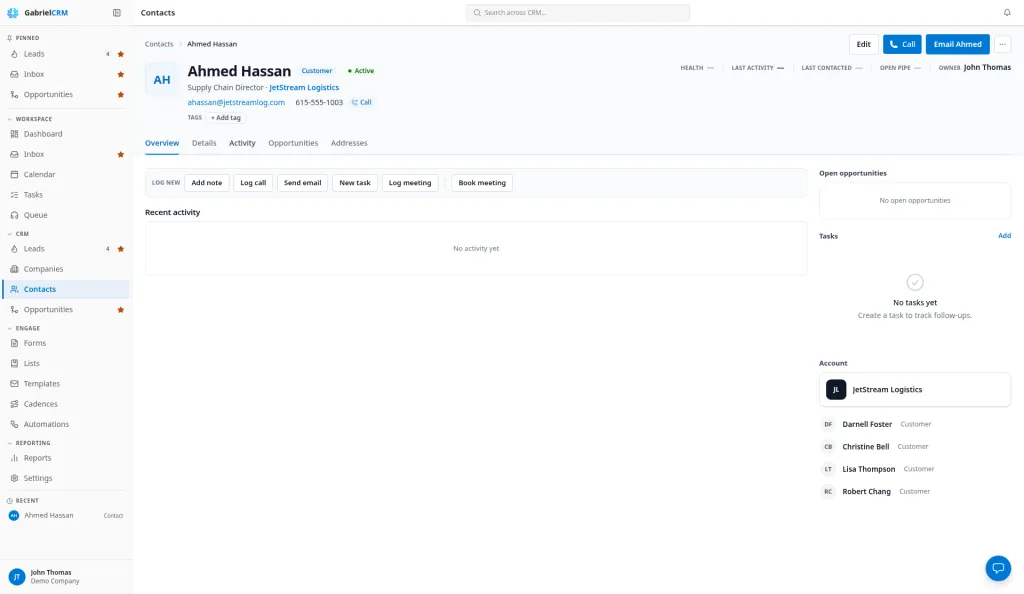
- A record: click Call next to a phone number on a lead, contact, company or opportunity page, or use the phone icon on the Leads list. See Calls and call outcomes.
Without Twilio connected
Section titled “Without Twilio connected”Until Twilio is connected, phone numbers in Gabriel are ordinary phone links. Clicking Call or a number opens your device’s own phone app, or whichever app your computer uses for phone links. The call doesn’t run through Gabriel, so it isn’t recorded and isn’t logged for you. Log it yourself with Log activity.
Set up Drop VM
Section titled “Set up Drop VM”Drop VM plays a recording you made earlier onto a voicemail, so you can hang up and move on. It’s on Queue calls and lead calls, once Twilio is connected.
- Open the Queue and go to its Settings tab.
- Under Voicemail recordings, enter a Name.
- Under Recording, choose an MP3 or WAV file up to two minutes long.
- Click Add recording.
Managers and admins also see Share with the team, which makes the recording available to every rep. During a live call, click Drop VM and pick a recording. Until you add one, Drop VM stays off. See Drop a voicemail.