
Work your leads
A lead is a person you might sell to but haven’t qualified yet. Leads live on their own list, apart from your contacts and companies, until you convert them. Converting creates the real contact, company and, if you want one, opportunity.
Every lead moves through the same stages, from New to Converted. Gabriel moves a lead forward on its own when you reach out and when the lead answers; you decide when it’s Qualified and when to convert it. See How a lead moves through its stages.
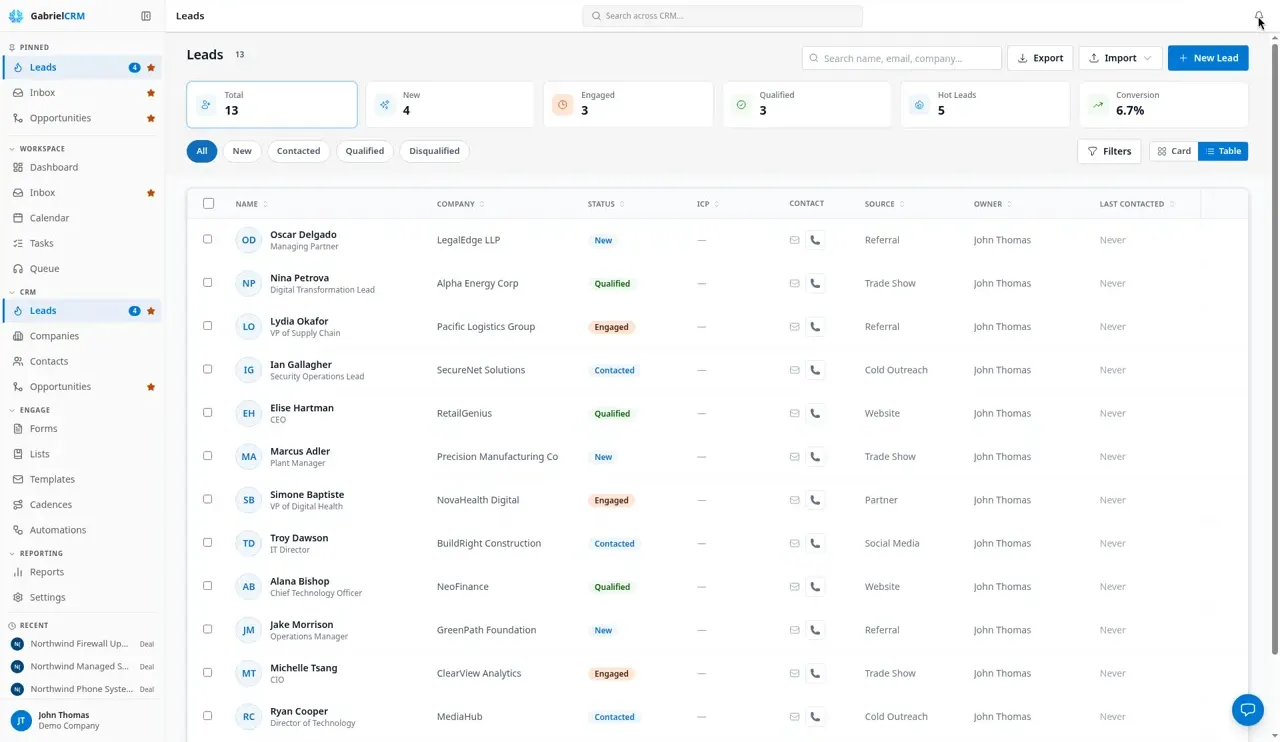
Open Leads from the CRM group in the sidebar. The number next to Leads is how many New leads you can see.
Which leads you see depends on your role. Some roles see every lead in the company; others see only the leads they own or created. Your admin sets this under Settings > Roles & Permissions.
Add a lead
Section titled “Add a lead”- Click New Lead.
- Enter a First name and Last name. Both are required.
- Add whatever else you have: Company name, Website, Email, Phone, Lead source, Owner and the company address.
- Click Create lead.
Every new lead starts as New. Two leads can’t share an email address; if one already uses it, Gabriel says A lead with this email already exists.
Within about a minute, Gabriel fills in the lead’s empty company details, such as website, phone and address, from the email domain and the company’s website. See Lead enrichment.
Import leads
Section titled “Import leads”Click Import and choose how:
- Import from File: upload a CSV file. A row whose email matches an existing lead is skipped, or updates that lead if you tick Update existing records. Imported leads are assigned to you. See Import your data for the file format and column mapping.
- Scan Business Card: take a photo or upload one (10 MB at most), click Extract details, and check what Gabriel read. Under Create as, choose Lead, then click Create Lead. Scanning uses AI, so an admin has to set up AI for your company first.
- Import from Seamless.ai: shown when your company uses Prospecting.
Find leads
Section titled “Find leads”- Search by name, email, company, job title or phone.
- The tiles across the top count Total, New, Working (leads in Contacted or Engaged: being worked but not yet qualified), Qualified and Hot Leads (a lead score of 80 or more), and show your Conversion rate. Click a tile to filter the list to it.
- The pills filter by status: All, New, Contacted, Engaged, Qualified and Disqualified.
- The filter button opens Filter Leads: Status, Assigned To, Contact Info (Has Phone, Has Email), Min Lead Score and Tags. Click Apply to use them.
- Click a column heading to sort by it. Drag a heading’s edge to resize the column.
- Switch between Table and Card view with the toggle on the right. Gabriel remembers your view, your column widths and your page size.
Work several leads at once
Section titled “Work several leads at once”Tick the leads you want. To act on everything that matches your search and filters, not just the page you’re on, click Select all … matching. Then:
- Export the selection as a CSV file.
- Enroll in cadence: see Cadences.
- Run automation: run one of your automations on them now.
- Delete. If some of the leads aren’t yours to delete, Gabriel deletes the rest and tells you how many it skipped.
With nothing ticked, Export at the top downloads every lead that matches the current search and filters.
Use the row menu
Section titled “Use the row menu”Open … at the end of a row for View details, Edit lead, Email, Qualify, Disqualify, Enroll in cadence and Delete. Qualify and Disqualify show only while the lead is still being worked, and Email only when the lead has an email address and isn’t marked Do not email.
How a lead moves through its stages
Section titled “How a lead moves through its stages”The bar under a lead’s name shows where it is: New › Contacted › Engaged › Qualified › Converted. A lead can also be Disqualified.
| Stage | What it means | How a lead gets there |
|---|---|---|
| New | The lead just arrived. Nobody has reached them yet. | Every lead starts here, and a reopened lead returns here. |
| Contacted | You’ve reached out, and the lead hasn’t answered yet. | Automatically, the first time an email is sent to the lead, a call to them is completed (whatever the outcome), or a meeting with them is held. |
| Engaged | The lead has answered. A conversation is going. | Automatically, when the lead emails you, or when a call with them ends with Book meeting, Interested or Not now. |
| Qualified | You’ve confirmed a real opportunity: they fit your Ideal Customer Profile and have a reason to buy, such as a need, a budget, a decision maker and a timeline. | You click Qualify. |
| Converted | Both sides agreed to move forward. The lead is now a contact at a company, with an opportunity if you created one. | You convert the lead. |
| Disqualified | Not a fit, bad data, or no answer after your full outreach. | You click Disqualify and give a reason, or a call logged from the lead’s page ends with Company not a fit. |
Contacted and Engaged follow your email, calls and meetings, so reps don’t update them by hand. Qualified is your judgment, so Gabriel never sets it for you.
Gabriel only moves a lead forward on its own. Your email, calls and meetings move a New lead to Contacted or Engaged, and a Contacted lead to Engaged, but never move a Qualified, Disqualified or Converted lead.
Some details:
- Emails count when Gabriel sees them. An email moves the lead when you send it from Gabriel, or when it’s in a Microsoft or Google mailbox you’ve connected, or when you log it by BCC. A reply counts only when it comes from the lead’s own email address and was sent after the lead was added to Gabriel; an email the lead is just copied on doesn’t.
- Calls count by their outcome. Any completed call moves a New lead to Contacted. A connected call logged with Book meeting, Interested or Not now, from a lead’s page or in a cadence, moves it to Engaged.
- Meetings count as Contacted. A held meeting moves a New lead to Contacted, not Engaged, because Gabriel can’t tell whether the lead attended. If the meeting showed a real opportunity, click Qualify.
- Automations can set any stage. Your company’s automations can also change a lead’s status.
You can’t type a status on the Details tab. It changes only through these actions and your company’s automations.
Qualify, disqualify, reopen
Section titled “Qualify, disqualify, reopen”The buttons at the top of a lead change with its stage:
- Qualify (on New, Contacted or Engaged): add optional notes, such as “Budget confirmed, decision maker on the call”, then click Qualify.
- Disqualify: a Reason is required.
- Convert to prospect (on Qualified): opens the conversion page.
- Unqualify lead, in the … menu of a qualified lead: sends it back to the stage it was qualified from, such as Engaged. A lead qualified before Gabriel recorded stage changes goes back to Contacted if it has been emailed, called or met, otherwise to New.
- Reopen lead (on Disqualified): add an optional reason. The lead goes back to New and its disqualification reason is cleared.
Each of these is recorded on the lead’s timeline with who did it, and the notes or reason you gave.
If your team uses MQL and SQL
Section titled “If your team uses MQL and SQL”Many sales and marketing teams describe their funnel as MQL and SQL. Gabriel’s stages are named for what happens to the lead, but they line up like this:
| Term | What it usually means | In Gabriel |
|---|---|---|
| MQL (marketing-qualified lead) | A lead that looks worth a rep’s time, judged by fit and interest | Not a stage. The Hot Leads tile counts leads with a lead score of 80 or more, which blends ICP fit and activity. To mark MQLs, have an automation tag them. |
| SAL (sales-accepted lead) | A rep has taken the lead and started working it | The lead has an owner and is Contacted |
| SQL (sales-qualified lead) | A rep has confirmed a real opportunity | Qualified |
| Opportunity | A deal in your pipeline | Converted, with an opportunity created |
Gabriel’s stage names can’t be renamed, and reports use them. If your team says MQL and SQL, agree on the mapping above so everyone means the same thing when they click Qualify.
Edit a lead and assign an owner
Section titled “Edit a lead and assign an owner”Click Edit at the top of a lead (or Edit lead in the row menu) to open the Details tab. Fields are grouped under About, Contact, Company / Prospect, Classification and Marketing. Change what you need and click Save changes, or Discard to drop your edits.
- Owner (under Classification) is the rep responsible for the lead. Pick Unassigned to clear it.
- Source is picked from your company’s Lead Sources list. Admins edit that list under Settings > Picklists > Leads.
- Do not email, Do not call and Do not contact (under Marketing) block outreach. A lead marked Do not contact shows a red badge and can’t be enrolled in a cadence.
Add or remove tags right under the lead’s name.
Lead score and ICP fit
Section titled “Lead score and ICP fit”The right side of the Overview tab shows Lead score & ICP fit:
- Lead score runs from 0 to 100. Up to 50 points come from the lead’s own data and recent activity: whether it has an email, phone, company and title, and whether it has been worked in the last week or month. Up to 50 more come from how well it fits your Ideal Customer Profile. Some meeting types also add or remove points when a meeting of that type is booked.
- ICP fit is a verdict such as Strong fit, Partial fit or Needs info, with a Fit score and a Coverage percentage. The ICP column on the list shows the same verdict; hover over it to see why. How each verdict is reached is explained in Ideal Customer Profile.
Click Full breakdown to see every point and every ICP rule. Gabriel rescores a lead when you create or edit it and when activity is logged on it.
Log your work
Section titled “Log your work”From the lead’s Overview or Activity tab, use Log new to Add note, Log call, Send email, New task or Log meeting, or click Book meeting. The … menu also has Send email, Book meeting, Share booking link and Run automation. Everything you log shows under Recent activity and on the Activity tab. See Log activity.
Delete a lead
Section titled “Delete a lead”Open … and click Delete lead, or use Delete on the list.
Best practices
Section titled “Best practices”- Work new leads the same day. The New count in the sidebar is your queue. A lead moves to Contacted on its own the moment you email, call or meet them, so a lead that still says New hasn’t been reached yet.
- Start each day with the Engaged pill. A lead lands in Engaged the moment they reply or say they’re interested, so that list is the people waiting to hear back from you.
- Connect your mailbox. A reply only moves a lead to Engaged when Gabriel sees it. If your Microsoft or Google mailbox isn’t connected, leads who answered you stay at Contacted.
- Always set an owner. Leads can arrive unassigned, for example when someone books a meeting through your scheduling page. A lead with no owner shows up under nobody’s Assigned To filter and is easy to miss.
- Qualify on evidence, and write it down. Qualified means a real opportunity, not just a good fit. Use the notes box when you click Qualify to say what you confirmed. The note lands on the timeline, so whoever picks up the contact after conversion knows why it was qualified.
- Disqualify instead of deleting. A disqualified lead keeps its history and reason, stays out of the default list, and can be reopened if they come back. A deleted lead is gone for good.
- Pick a source every time. Source carries over to the contact and to any opportunity you create when you convert, so reports on where your deals come from are only as good as this field.
- Fill in company size and revenue. CSV imports don’t carry them, and an ICP that checks company size or revenue can’t judge a lead without them. Add Employees and Annual revenue on the Details tab to get a real fit verdict.
- Managers: agree what Qualified means. It’s the one stage your reps set by judgment, and it gates conversion. Write down the questions a lead has to pass, such as need, budget, decision maker and timeline, so Qualified in the Lead funnel report means the same thing for every rep.
- Use Select all matching for clean-up. Without it, a bulk action covers only the page on screen. Filter to exactly the leads you mean first.
Troubleshooting
Section titled “Troubleshooting”A lead disappeared from the list. It was disqualified or converted. Click the Disqualified pill to find disqualified leads. A converted lead is now a contact; search for it under Contacts.
A lead replied but still says Contacted. The reply came from an address other than the lead’s email, or it isn’t in a mailbox connected to Gabriel. Check the lead’s Email on the Details tab, or connect your mailbox.
The convert button says Convert — qualify first. The lead isn’t Qualified yet. Click Qualify first.
Enroll in cadence is greyed out. The lead has already been converted. Enroll the contact instead.