
Automations
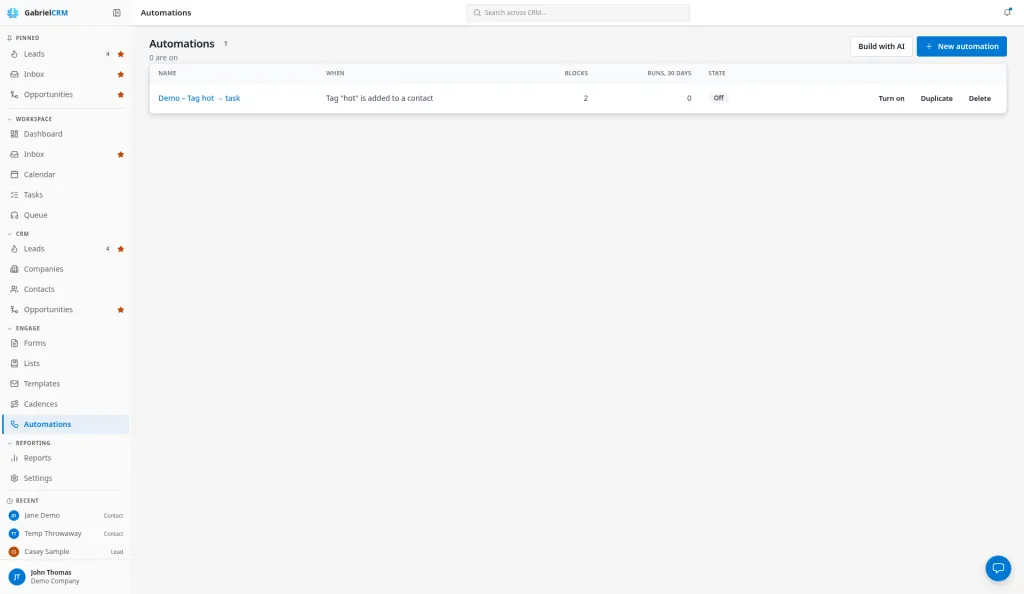
An automation is a rule: when something happens to a record, only if some conditions are true, do a series of steps. Once it’s on, it runs by itself for every record it applies to: assigning owners, creating tasks, tagging, sending email, putting people into cadences. For a sequence of calls and emails a rep works by hand, use a cadence instead; an automation can put someone into one.
Open Automations from the Engage group in the sidebar. By default, sales managers, marketing managers and admins can see, build, turn on and run automations. Reps don’t see the page. An admin can change this under Roles & Permissions.
The list shows each automation’s Name, When it runs, how many Blocks it has, its Runs, 30 days and its State (On or Off), with Turn on or Turn off, Duplicate and Delete on each row.
Build an automation
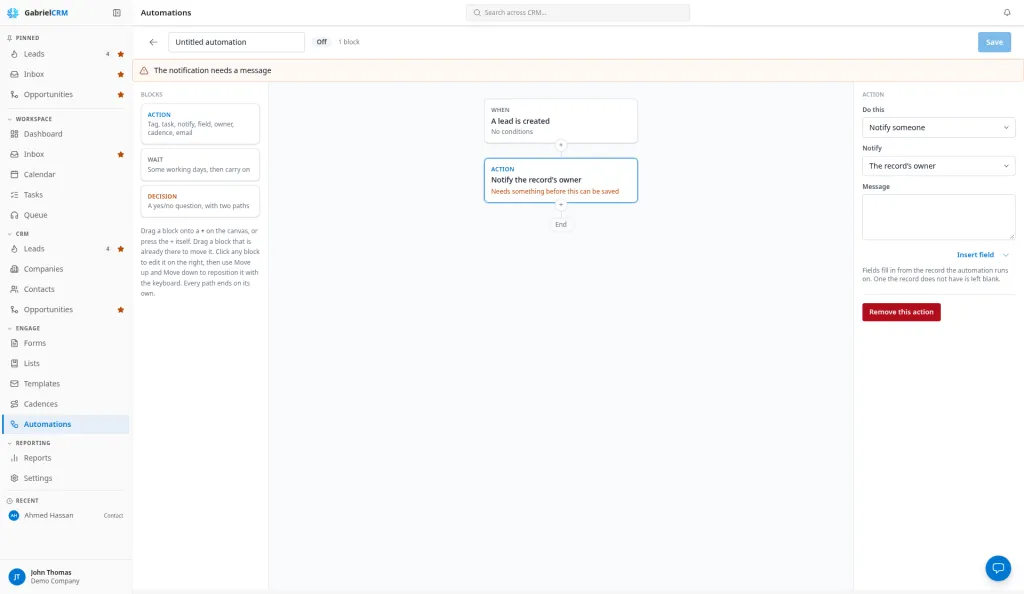
Section titled “Build an automation”- Click New automation. The builder opens with the name Untitled automation; type a better one in the box at the top.
- Click the When box and choose what starts it under This happens. Fill in any choice that trigger needs, such as the stage or the form.
- Under Only if, click Add a condition for each condition the record must meet.
- Under The same record, choose Once ever for a record or Every time it triggers.
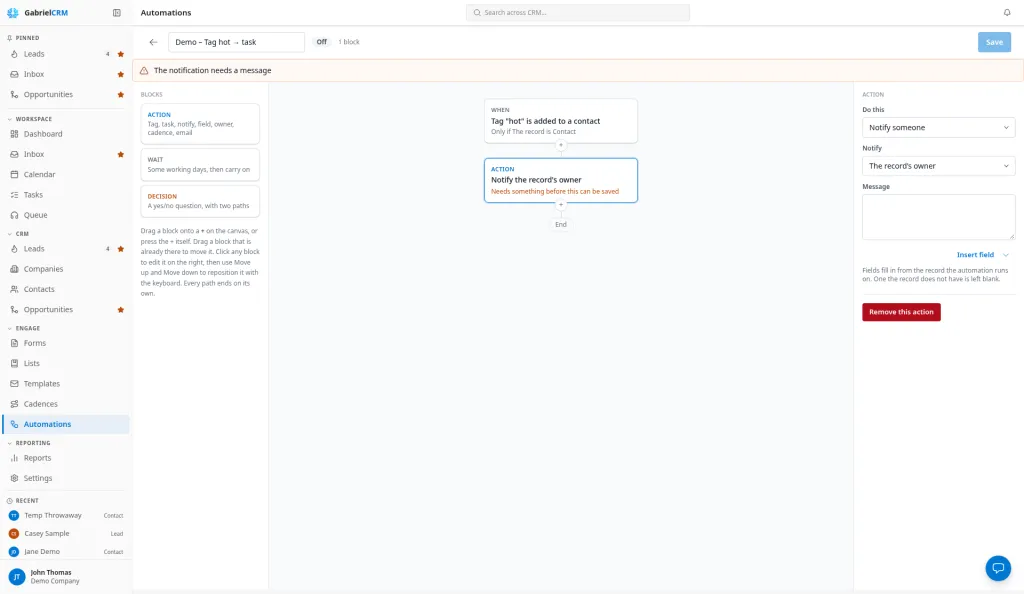
- Drag Action, Wait and Decision blocks from the Blocks palette onto the canvas, or click a + on the canvas to add one there. Click a block to set it up in the panel on the right.
- Click Save. A block outlined on the canvas still needs something; Save stays off until it’s fixed.
- Click Test run to try it on one record (see below).
- Click Turn on.
To start from a draft instead, click Build with AI; see Build with AI. To add an automation for a form, open the form’s Settings tab and click New automation for this form. The trigger is set to that form for you.
The builder needs a laptop-sized screen or larger. On a smaller screen you see a message instead, and the Runs tab still works.
What can start an automation
Section titled “What can start an automation”| Trigger | Runs on | You choose |
|---|---|---|
| A lead is created | the lead | |
| A lead’s status changes | the lead | To status, or Any status |
| A contact is created | the contact | |
| An opportunity is created | the opportunity | |
| An opportunity moves stage | the opportunity | To stage, or Any stage |
| An opportunity sits in a stage | the opportunity | the Stage and For this many days (1 to 365) |
| A field changes on a record | a lead, contact, company or opportunity | On a record type and the Field |
| A tag is added or removed | a lead, contact or company | On a record type, the Tag, and When it is Added or Removed |
| A task is completed | the task’s contact, or its lead | |
| A form is submitted | the lead or contact the submission created or matched | the Form |
| A cadence ends for someone | the lead or contact | the Reason, or Any reason |
| Run by hand | a lead, contact or opportunity you pick | Offered on which record type |
Fields you can watch with A field changes on a record:
- Lead: Lead status, ICP fit, Lead score, Industry, Owner.
- Contact: Source, Owner.
- Company: Company type, ICP fit, Industry, Source, Owner.
- Opportunity: Value, Source, Owner.
Worth knowing:
- An opportunity sits in a stage is checked once a day, early in the morning, and counts calendar days since the deal arrived in the stage. It fires once per stay, and the run waits until your company’s send time before it does anything.
- A task is completed fires for any task linked to a lead or contact, not only tasks an automation created.
- A form is submitted never fires for a form set to save submissions only, because there’s no lead or contact to act on. A submission caught by the spam filter doesn’t start it either, even if it’s marked legitimate later. See Form submissions.
- Changing the trigger clears your Only if conditions. Gabriel asks first.
Only if conditions
Section titled “Only if conditions”A condition compares one field with a value using is, is not, at least, at most, contains or is empty. All conditions must be true for the automation to start; to say “or”, build two automations. You can add up to 20.
What you can check depends on the record:
- Lead: Lead status, Source, Industry, ICP fit, Lead score, Employees, Company type, Owner, Tag.
- Contact: Source, Industry, ICP fit, Lead score, Employees, Company type, Owner, Tag. Industry, employees, company type and ICP fit come from the contact’s company.
- Company: Source, Industry, ICP fit, Employees, Company type, Owner, Tag.
- Opportunity: Source, Industry, Employees, Company type, Stage, Value, Owner, Tag.
- The record: whether it’s a lead or a contact, for triggers that can be either.
- Form answer: any answer on the form, for A form is submitted only.
Conditions are checked the moment the trigger fires. If one is false, the automation doesn’t start, and the Runs tab shows a Did not start row saying which condition failed and what the record had.
Once ever for a record never runs the same automation twice for one record; it’s the default for the “is created” triggers and A form is submitted. Every time it triggers runs again each time, but a record already part-way through isn’t started again until that run ends.
Blocks
Section titled “Blocks”| Block | What it does |
|---|---|
| Action | Does one thing (see below). |
| Wait | Pauses for 0 to 999 working days, weeks or months. Working days skip weekends and your holidays. A wait ends at the Send emails at hour under Settings > Email sending, in your time zone. |
| Decision | Asks a yes or no question and splits into a Yes path and a No path, which never rejoin. |
A Decision can ask Something about the record (any condition, checked as the record is at that moment), Has the opportunity moved to another stage? (for opportunity rules), or Was the task this rule created completed? (put a Create a task block earlier in the same path).
Adding a Decision above existing blocks puts those blocks on its No path. Removing a Decision removes both of its paths and everything on them. A rule can have up to 100 blocks. Use Move up and Move down in the right panel to reorder blocks without dragging.
Actions
Section titled “Actions”| Action | What it does | Works on |
|---|---|---|
| Notify someone | Sends an in-app notification to The record’s owner or a person you pick. Insert field adds details from the record to the Message. | any record |
| Create a task | Creates a task with a Title, For the owner or a person, Due in working days (0 is the same day). | any record |
| Add a tag / Remove a tag | Adds or removes a tag. A tag that doesn’t exist yet is created. | leads, contacts, companies |
| Add to a list | Adds the record to a managed list that holds that kind of record. | leads, contacts |
| Update a field | Sets a field to a value you type, or clears it if To is blank. To change the owner, use Assign an owner. | any record |
| Move to a stage | Moves the opportunity to the Stage you pick. | opportunities |
| Assign an owner | Assigns One person, or A team, round robin, using the same turn order as cadence enrollment. | any record |
| Enroll in a cadence | Puts the person into the Cadence and gives them to the next rep on its team in turn. Never re-enrolls someone who has been through it. | leads, contacts |
| Remove from every cadence | Takes the person out of every cadence they’re in. | leads, contacts |
| Convert the lead to a contact | Converts a qualified lead that has a company. The rest of the run carries on with the new contact. | leads |
| Send an email | Sends a Template from your company’s sending address. | leads, contacts |
When an action can’t be done, for example the cadence was retired or the owner was deactivated, the run logs Needs attention with the reason and carries on to the next block. When an action doesn’t apply, such as tagging an opportunity, it’s logged as Skipped.
Send email from an automation
Section titled “Send email from an automation”Send an email sends from your company’s verified domain, not from anyone’s mailbox. An automation with an email block can’t be turned on until an admin finishes Email sending. Replies go to the Reply-to address set there or, if it’s blank, to the record’s owner.
- Use a shared email template, so other managers can open and maintain it.
- Every email carries your physical address and an unsubscribe link.
- If the person is marked do not contact or do not email, or has unsubscribed, the email isn’t sent and the run ends early.
- A template that uses a custom field an automation can’t fill can’t be used. Gabriel tells you which one when you save or turn the automation on.
Test it
Section titled “Test it”- Save the automation. Test run stays off while you have unsaved changes or no blocks.
- Click Test run.
- Choose the record type under Test on a, if there’s a choice, and search for a record by name.
- Click Start test run.
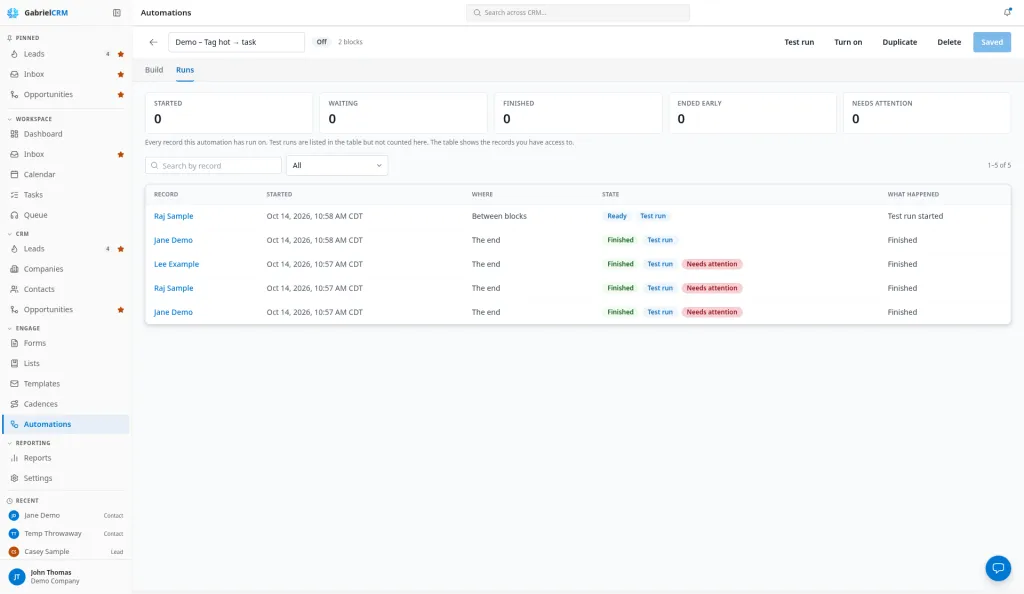
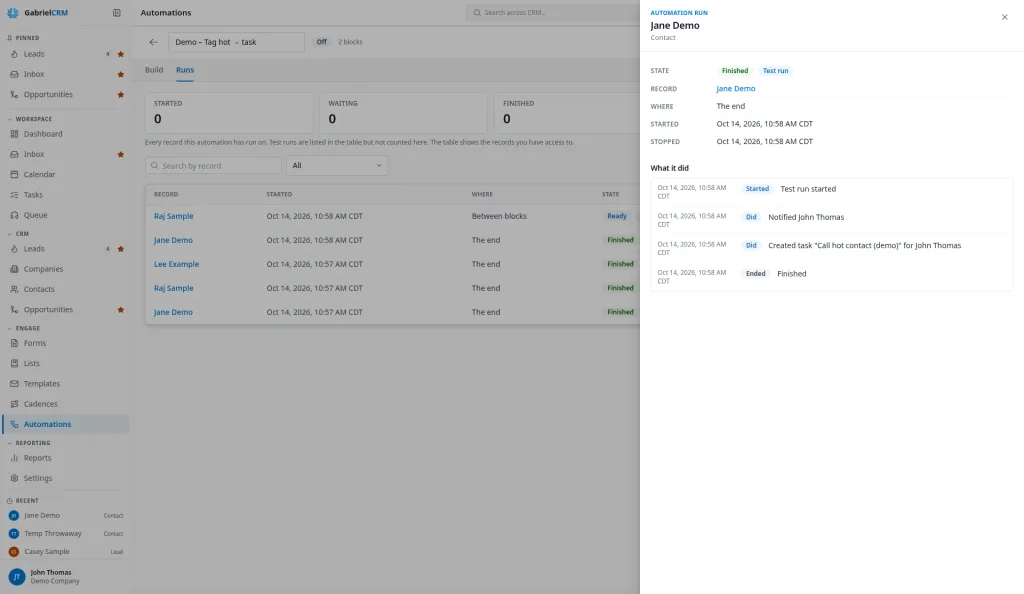
The record goes through the automation once, from the first block, with every Wait cut to about a minute. Everything else is real: emails are sent, tasks are created and fields change. The automation’s conditions still apply. A test works while the automation is off, and leaves it off. Follow it on the Runs tab, where it’s labeled Test run.
Run one by hand
Section titled “Run one by hand”For an automation whose trigger is Run by hand and that is turned on:
- Open a lead, contact or opportunity and click Run automation in its More actions menu, or tick several on a list page and click Run automation in the selection bar.
- Choose the Automation.
- Click Run.
Only automations offered on that record type are listed. Their conditions still apply, and anyone already part-way through is left where they are. The runs start within a minute.
See what happened
Section titled “See what happened”Open an automation and click the Runs tab. The tiles count runs that Started, are Waiting, Finished, Ended early or Need attention. Filter by All, Running, Finished, Ended early, Did not start or Needs attention, or search by record. Click a row to see every block the run went through and what it did.
A run ends early when:
- A condition was false (shown as Did not start).
- Unsubscribed: an email block reached someone who can’t be emailed.
- Became a customer: one of the person’s deals was won. This ends every run on that person’s lead and contact; runs on the opportunity itself carry on.
- The rule changed: the block the run was waiting at was removed.
- The automation was archived: someone deleted it.
Finished and ended runs are kept for 12 months. Did not start rows are kept for 90 days.
Duplicate or delete
Section titled “Duplicate or delete”Duplicate makes a copy that starts off, from the saved version, so you can change it safely.
Delete stops the automation for good. Anyone part-way through stops where they are, and the run history is kept. A deleted automation can’t be turned back on; duplicate it instead.
How it works
Section titled “How it works”- Automations act within a minute. Gabriel checks for runs that are due every minute.
- Imports don’t start automations. Leads, contacts and companies brought in by a file import or an integration import never trigger a rule, so importing 1,000 leads never creates 1,000 tasks.
- Automations don’t start each other, with one exception. A tag an automation adds or removes does start the automations watching for that tag, so a tag can hand a record from one automation to the next. A chain stops after five automations in a row, and the run log says so. A test run never starts a chain.
- A converted lead keeps its runs. When a lead converts, its runs carry on with the new contact.
- Turning off freezes runs. Waiting runs stay where they are and carry on when you turn the automation back on.
- Editing changes runs in flight. Saving an automation that is on changes what every waiting run does next. The builder reminds you before you save.
Best practices
Section titled “Best practices”- Start with one trigger and one action. Turn it on, watch the Runs tab for a day, then add the Wait and Decision blocks. A small rule that works beats a large one you can’t read.
- Test on yourself first. Create a lead with your own email address and use Test run on it. Waits shrink to a minute, so you can watch a three-week rule play out over lunch.
- Name the automation after what it does and when. “Web form lead: assign and call task” tells the next manager more than “Lead rule 2”. Use the description for why it exists; it shows on the list and in the Run automation dialog.
- Use Only if to keep runs clean. Conditions are checked before anything happens, and a failed one leaves a Did not start row that explains itself. A Decision block that does nothing on its No path just makes runs that finish without doing anything.
- Act on a particular value with a condition, not the trigger. For A field changes on a record, watch the field and add an Only if condition for the value you care about.
- Avoid tag loops. If one automation adds a tag that another removes, the record bounces between them until the five-in-a-row limit stops it. Give each hand-off tag one job, and remove it in the automation that acts on it.
- Use a cadence when a person has to do the work. If the steps are calls, personal emails or LinkedIn touches, build a cadence and use Enroll in a cadence here. Automation emails go out from your company domain without a rep reading them.
- Admins: set the send time before the first email automation. Every Wait ends at Send emails at, and the stale-deal check waits for it too. If it isn’t set, it falls back to the start of your business hours, or 9:00 AM.
Troubleshooting
Section titled “Troubleshooting”- “Finish Settings → Email sending before turning on an automation that sends email.” An admin needs to verify your domain and set the from address and physical address under Settings > Email sending.
- “Add at least one block before turning this automation on.” Add an action, save, then turn it on.
- The automation never starts. Check the Runs tab filtered to Did not start: a condition is false. If there are no rows at all, check that the automation is On, and that the records didn’t come in by import.
- Run automation shows nothing to run. The automation’s trigger must be Run by hand, it must be offered on that record type, and it must be on.
- “Automations are paused by the platform operator.” Gabriel support has paused automations for your account. Nothing starts and no run takes a step until they’re turned back on; waiting runs keep their place. Contact support.