
Get an account and sign in
Everyone signs in at the same address, app.gabrielcrm.com. Gabriel works out which company you belong to from your email address, so there is no company code or separate web address to remember.
If a colleague already uses Gabriel, you don’t need a trial. Ask an admin to invite you, then follow Accept an invitation.
Start a free trial
Section titled “Start a free trial”If your company doesn’t use Gabriel yet:
- On the sign-in page, click Create an account.
- Choose how to sign up:
- Continue with Google or Continue with Microsoft: sign in with your work account, then go to step 3.
- Work email: enter your address and click Continue with email.
- On Finish setting up, fill in your details and your Company name. If you signed up with your email, also choose a Password.
- Tick the box to agree to the Terms of Service and Privacy Policy.
- Click Start free trial. No credit card is needed.
- If you signed up with your email, Gabriel shows Check your email. Click the link in the email it sends. You can’t sign in until the address is confirmed. If nothing arrives, click Resend the email.
The person who signs up becomes the company’s first admin. Next, work through the admin setup checklist.
Sign in
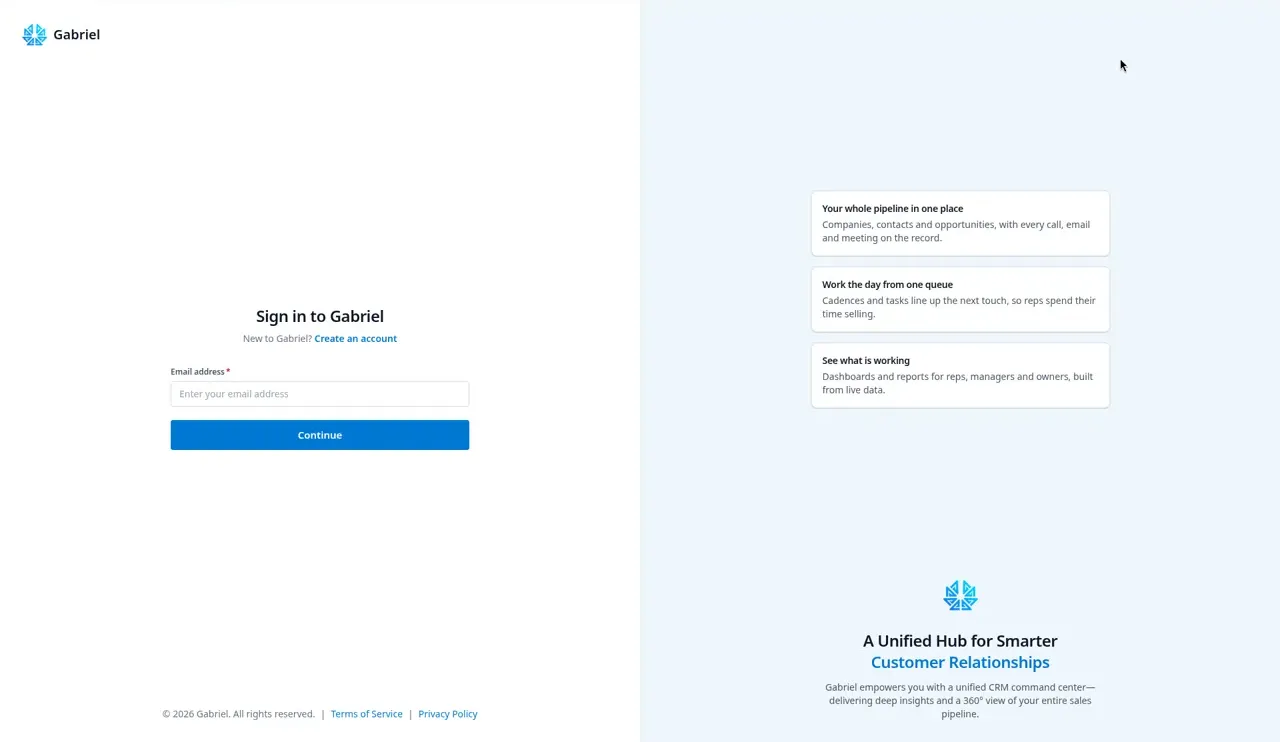
Section titled “Sign in”- Enter your Email address and click Continue.
- What happens next depends on how your company signs in:
- Password: enter your Password and click Sign In.
- Single sign-on: Gabriel sends you to Microsoft or Google to sign in, then brings you back. You don’t see a password box at all.
- Gabriel opens on your Dashboard, or on the page you were trying to reach.
To start again with another address, click Use a different email.
Reset a forgotten password
Section titled “Reset a forgotten password”- On the password step, click Forgot your password?
- Enter your Email address and click Send reset link.
- Open the email and click the link within 1 hour.
- Enter a New password of at least 8 characters, enter it again under Confirm password, and click Reset password.
- Click Continue to sign in and sign in with the new password.
How it works
Section titled “How it works”- Single sign-on replaces passwords for the whole company. When an admin turns it on, password sign-in is refused for everyone and each person is sent to Microsoft or Google instead. Reset your password with them; Gabriel doesn’t hold it. See Single sign-on.
- The reset page never says whether an address has an account. You see Check your email either way, so nobody can use it to find out who uses Gabriel. No email is sent to an address with no account, a deactivated account, an invitation that hasn’t been accepted yet, or a company that uses single sign-on.
- Admins can send you a reset link too. From Settings > Team, an admin can send you a password reset email. That link lasts 24 hours, and your current password keeps working until you use it.
- You stay signed in on that browser while you use Gabriel. Click your name at the bottom of the sidebar and choose Sign Out to leave.
- A deactivated account is signed out straight away, on every device.
- Changing your password signs you out everywhere else. The browser you change it in stays signed in.
Best practices
Section titled “Best practices”- Sign up with your work address. Personal addresses such as Gmail or Outlook.com can’t create a company account, and a personal Google or Microsoft account can’t be used with Continue with Google or Continue with Microsoft.
- Sign up with the Microsoft or Google account you’ll connect for email. You connect the same account later for email and calendar, so using it from the start keeps one identity for everything.
- Admins: test single sign-on with your own account before you turn it on. Once it’s saved, nobody in the company can sign in with a password, you included.
- Bookmark app.gabrielcrm.com, not a page inside it. Gabriel brings you back to the page you asked for after you sign in, so one bookmark works for everything.
- Never forward a reset or invitation link. Anyone with the link can set the password for that account until it expires or is used.
Troubleshooting
Section titled “Troubleshooting”“Please use your work email address.” The address is on the list of personal email providers. Use your company address.
“An account already exists for that address.” You, or an admin, already set this address up. Sign in instead, or click Forgot your password?
Sign-in says your email isn’t confirmed. You haven’t clicked the link from your sign-up email yet. Click Resend email on the sign-in page to get a new one, and check your spam folder.
“Signup is closed.” Gabriel isn’t taking new trial accounts right now. If you were expecting an invitation from a colleague, check your email for it.
The reset link says it’s invalid or expired. Links last 1 hour and work once. Request a new one.
No reset email arrives. Check your spam folder. If you were invited and never accepted, there is no password to reset yet: ask your admin to resend the invitation.