
Import your data
Importing turns a spreadsheet into Gabriel records in one go. It’s how most companies bring in their customer list, prospect lists and open deals when they start, and how you add a purchased or event list later.
You can import leads, contacts, companies and opportunities. Each one is imported separately, from its own page in the CRM group:
- Leads: click Import, then Import from File.
- Companies, Contacts or Opportunities: click Import.
You need permission to create that kind of record. Leads and contacts both need permission to create contacts.
Before you start
Section titled “Before you start”- Save the file as CSV. In Excel, use File > Save As and choose CSV UTF-8. Other formats, such as .xlsx, aren’t accepted.
- Keep it to 10 MB or less. Split a bigger file into several.
- Put column names in the first row, one record per row after that.
- Not sure of the columns? Click Download Template on the import page for a sample file with every column Gabriel understands.
Import a file
Section titled “Import a file”- Open the import page for the record type and click Select CSV File, or drag the file onto the page.
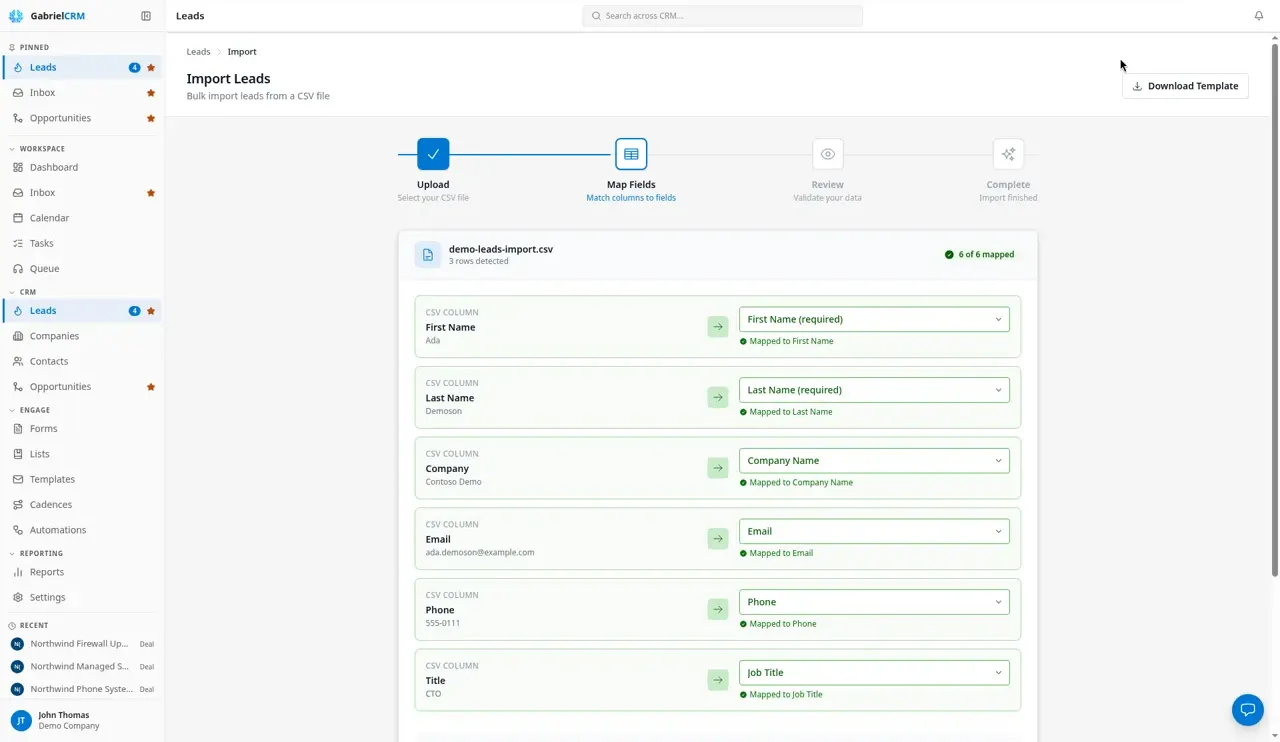
- On Map Fields, check where each column of your file goes. Gabriel matches
common column names for you, such as “E-mail” to Email. For any column:
- Choose the Gabriel field it belongs in, or
- Choose Skip this column to leave it out. Each field can take one column. Fields marked (required) must be mapped before you can go on.
- Choose what happens to duplicates (see the next section).
- Click Continue to Review. Gabriel checks every row and shows Total Rows, Ready to Import, Duplicates and Errors, with the row number and reason for each problem.
- If the problems are in your file, fix them and start again. If not, click Import N Records. Rows with errors are left out.
- Wait while Gabriel imports. The page shows how many rows are done.
- On Import Complete!, check the counts of Created, Updated, Skipped and Errors, and the list of anything not imported. Click View Your Leads (or Contacts, and so on) to see them, or Import More to start another file.
Duplicates
Section titled “Duplicates”Gabriel checks each row against what’s already in your account, and against earlier rows in the same file.
| Importing | A row is a duplicate when | Your choices |
|---|---|---|
| Leads | Its email matches a lead already in your account | Skipped, unless you tick Update existing records |
| Contacts | Its email is already on a contact | Skip the row or Update the existing contact. When skipping, you can tick Create anyway on the review step to add a row as a second contact with the same email. |
| Companies | It has the same domain as an existing company, or else the same name | Skip the row or Update the existing company |
| Opportunities | A deal with the same name already exists at the same company | Skip the row or Update the existing deal |
When you update existing records, filled cells overwrite the record’s values and blank cells leave them alone. Contacts keep their owner, and mapped tags replace the contact’s tags. Companies and deals are only updated where you’re allowed to edit them; the rest are skipped.
Rows without an email are always added as new leads or contacts.
Imported leads aren’t enriched automatically, so map every company column your file has.
What each import needs
Section titled “What each import needs”Leads: First Name and Last Name are required. You can also bring in contact details, the company’s name, website, phone and address, Industry, Lead Source, Notes and Tags (comma-separated).
Contacts: First Name and Last Name are required. Company Name links each contact to your company with that name, and creates the company if there isn’t one.
Companies: Company Name is required. Industry, Company Type, Customer Tier and Source must match values in Settings > Picklists exactly. Owner Email must belong to an active user. The address columns become the company’s primary location.
Opportunities: Deal Name and Company Name are required, and the company must already exist in Gabriel. Contact Email or Contact Name links the deal to one of that company’s existing contacts. Pipeline and Stage must match yours; leave them blank to use your default pipeline and its first open stage. Deal Type (Recurring or Fixed) is Recurring when blank. Dates can be written like 2026-03-31 or 3/31/2026.
How it works
Section titled “How it works”- New records are yours. Leads and contacts you import are assigned to you. Companies and deals are too, unless the row has an Owner Email.
- Imports don’t start automations. Imported records never trigger an automation, so a big import can’t flood your team or your contacts.
- Imported leads start as New. They count toward the Leads badge in the sidebar until someone works them.
- Tags are split on commas. “Event 2026, Hot” becomes two tags.
- Spaces around values are trimmed and blank lines are skipped.
- Each import runs once. After it finishes, start a new import for another file; you can’t run the same one twice.
- The import keeps going if you leave the page, but the summary of what was created and skipped is only shown on the page, so stay until it finishes.
Best practices
Section titled “Best practices”- Import in order: companies, then contacts, then opportunities. Deals can only link to companies and contacts that already exist, and contacts with a Company Name attach to the companies you just brought in instead of creating near-duplicates.
- Set up picklists, pipelines and users first. A company or deal row is rejected if its industry, stage or owner doesn’t already exist in Gabriel. See the admin setup checklist.
- Run a 20-row test first. Import a small slice, open a few records to check every field landed where you expected, then import the rest.
- Include an email for every person you can. Email is how Gabriel spots duplicates. People without one are always created as new records, so the same person imported twice becomes two records.
- Add a tag for the source. A tags column such as “Trade show 2026” lets you find, filter and build a list from exactly this batch later.
- Use Update existing to enrich, not to replace. Blank cells never wipe out data, so a file with just email plus one new column safely fills that field in on records you already have.
- Import leads you’re qualifying; import contacts you’re selling to. Leads are people you haven’t qualified yet. Customers and active prospects belong in contacts under their company.
Troubleshooting
Section titled “Troubleshooting”“Please upload a CSV file”. The file isn’t a .csv. Save it as CSV UTF-8 and try again.
“That file is over the 10MB limit”. Split the file into smaller ones and import each.
Strange characters in names. The file wasn’t saved as UTF-8. In Excel, save it again as CSV UTF-8.
“… does not match one in this account”. An industry, type, tier, source, pipeline or stage in your file isn’t set up in Gabriel. Add the value in Settings, or correct the spelling in your file.
“No active user has the email …”. The Owner Email belongs to nobody, or to someone who hasn’t accepted their invitation yet.
“No company named … exists. Import the company first.” Import your companies before your opportunities.
“… has no contact … Import the contact first.” The deal’s contact isn’t on that company yet. Import contacts, or leave the contact columns blank.