
Set up your profile
Your profile is what colleagues and customers see from you: your name and photo on records and meetings, your signature on every email you write in Gabriel, and your booking link. It takes about ten minutes, and it’s worth doing on your first day, before you send anything.
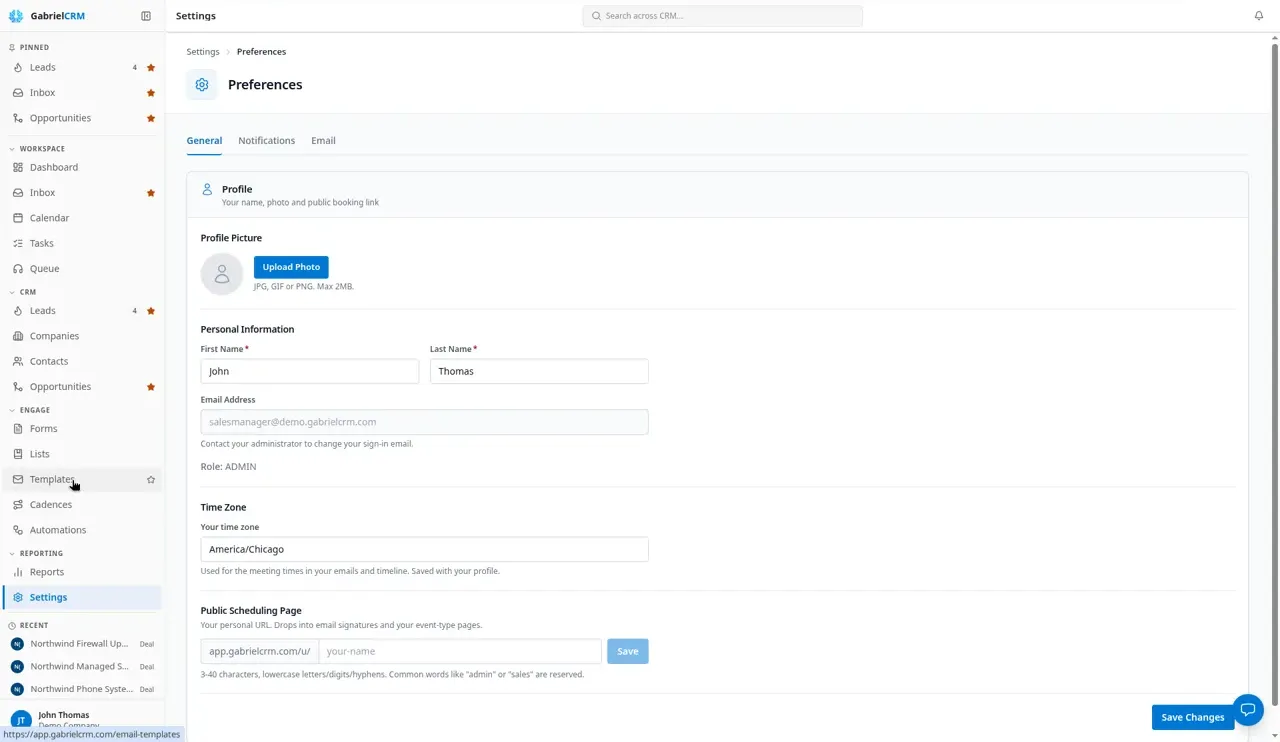
You’ll find everything here under Settings > Your preferences, or by clicking your name at the bottom of the sidebar and choosing Your Preferences. Every user can change their own preferences; no admin rights are needed.
Finish the welcome steps
Section titled “Finish the welcome steps”See Complete the welcome steps for each step of the Welcome to Gabriel window.
Update your profile and time zone
Section titled “Update your profile and time zone”- Go to Settings > Your preferences. The General tab opens.
- Under Profile Picture, click Upload Photo and pick a JPG, GIF or PNG of 2 MB or less. It saves straight away. Remove takes it off.
- Under Personal Information, check your First Name and Last Name.
- Under Time Zone, choose Your time zone.
- Click Save Changes.
Your Email Address is shown but can’t be edited, because it’s the address you sign in with. Ask an admin if it needs to change. Your role is shown below it.
Set your booking link
Section titled “Set your booking link”Further down the General tab, Public Scheduling Page sets the web address people use to book time with you.
- Type the last part of the address, for example jane-smith. Use 3 to 40 lowercase letters, numbers and hyphens.
- Click Save next to it. This field has its own Save button.
Once saved, Gabriel shows the full address as Live at. Common words such as “admin” or “sales” are reserved. See Booking links and My scheduling for the meeting types and hours people can book.
Write your email signature
Section titled “Write your email signature”- Go to Settings > Your preferences and open the Email tab.
- Write your signature in the Email Signature box. Use the toolbar for bold, lists, links and images.
- To add a booking link, click Insert Booking Link (the calendar button). It adds a Book a meeting with me link.
- Click Save Signature. Reset throws away changes you haven’t saved.
When you write an email in Gabriel, your signature is already in the message and you can edit it before you send.
Choose your notifications
Section titled “Choose your notifications”Open the Notifications tab to turn each kind of in-app notification on or off, and to choose whether you get an email when a meeting is booked. Switches save as soon as you flip them. See Notifications.
Change your password
Section titled “Change your password”- Click your name at the bottom of the sidebar and choose Change Password.
- Enter your Current password.
- Enter a New password of at least 8 characters, and repeat it under Confirm new password.
- Click Update password.
If your company signs in with Microsoft or Google single sign-on, change your password with them instead.
Connect your email and calendar
Section titled “Connect your email and calendar”If you skipped it on the welcome screen, connect now from Settings > Email & Calendar. You connect either Microsoft 365 or Google Workspace, not both. This is what puts your emails and meetings on Gabriel’s records, lets you send from your own mailbox, and lets booking links offer your free times. See Email & Calendar.
How it works
Section titled “How it works”- Your time zone controls the times Gabriel writes for you. Meeting times in your emails and on timelines, and due dates in your notifications, use it. Until you save one, Gabriel offers your browser’s time zone.
- The booking link in your signature always points to your default scheduling page. If you haven’t set a Public Scheduling Page address and a default page in My Scheduling, Gabriel warns you and leaves the link out of sent emails until you do.
- Changing your password signs you out on every other device. The one you’re using stays signed in.
- Your preferences only affect you. Nothing on this page changes what colleagues see or receive.
Best practices
Section titled “Best practices”- Set your time zone before you book or log meetings. Gabriel writes meeting times into emails and timelines in your zone, so a wrong zone shows customers the wrong time.
- Keep the signature short and put the booking link in it. Every email you write in Gabriel starts with your signature, so a one-click booking link there turns every reply into a chance to book.
- Claim your booking address on day one. Addresses are first come, first served across all Gabriel customers, so pick a short one built from your name before you need it.
- Upload a clear headshot. Your photo appears beside your name across the app, which helps colleagues spot who owns a record at a glance.
- Connect the mailbox you actually sell from. Emails and meetings only appear on records from the account you connect, so connecting a shared or personal mailbox leaves gaps in every timeline.
- Don’t switch off notifications you act on. Turn off My opportunity changed stage if your manager moves deals for you all day, but keep Task assigned to me and Task overdue on so work handed to you is never missed.
Troubleshooting
Section titled “Troubleshooting”“File size must be less than 2MB”. Resize or crop the photo and upload it again.
“First name and last name are required”. Both name fields need a value before Save Changes works.
The booking address won’t save. It’s taken by someone else, too short or too long, uses spaces or symbols, or is a reserved word. The message under the field says which. Try a different one.
My signature’s booking link is missing from sent emails. Set your Public Scheduling Page address on the General tab and choose a default scheduling page in My Scheduling.