
Find your way around
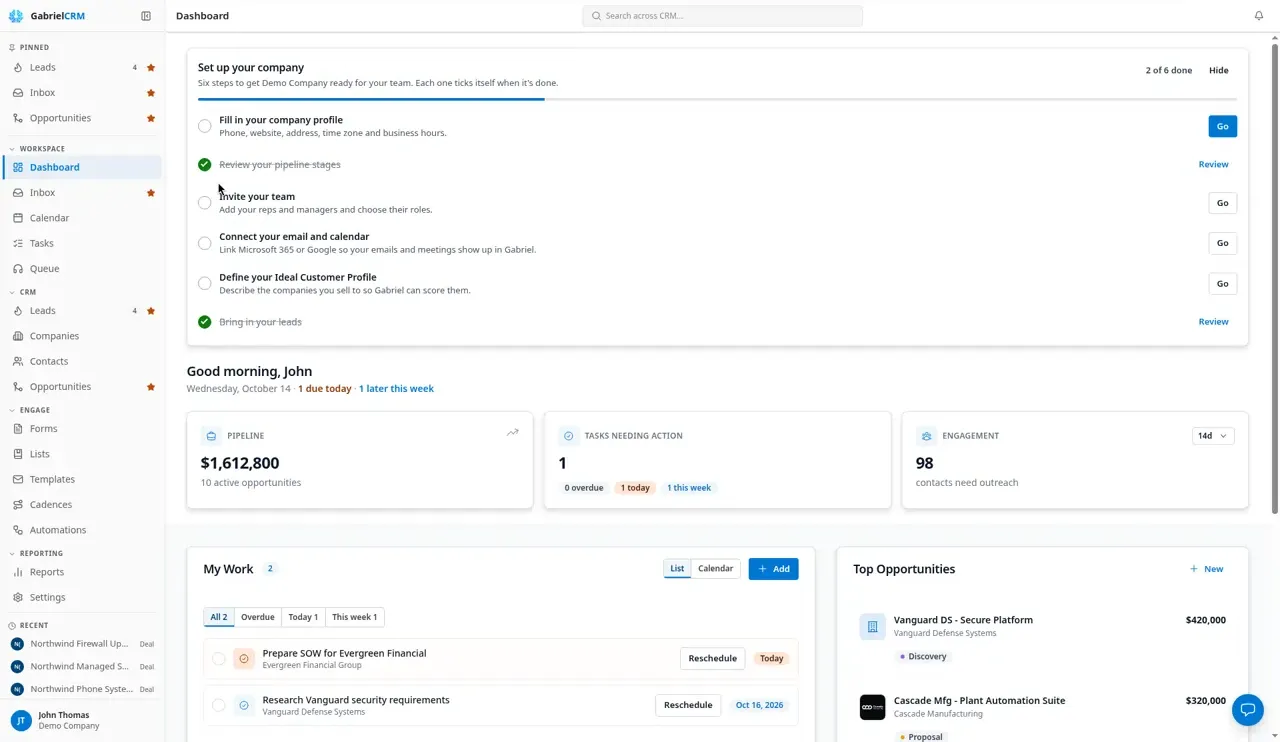
Gabriel has two fixed pieces around every page: the sidebar on the left, where you move between pages, and the top bar, with the page name, search and the notifications bell. This article covers both, plus how the layout changes on a phone.
The sidebar
Section titled “The sidebar”The sidebar has four groups. This help site uses the same names for its sections.
| Group | What’s in it |
|---|---|
| Workspace | Dashboard, Inbox, Calendar, Tasks and Queue: your day-to-day views. Queue opens in its own window so you can keep it beside the rest of the app. |
| CRM | Leads, Companies, Contacts and Opportunities: your records. Prospecting and Inbound also appear here when your account manager has turned them on for your company. |
| Engage | Forms, Pages, Lists, Templates, Cadences and Automations: the tools for reaching people. |
| Reporting | Reports and Settings. |
You only see the pages your role allows. For example, Cadences and Automations only appear if your role can view them, and many Settings tiles are for admins only.
Below the groups, Recent lists the last six leads, contacts, companies and opportunities you opened, newest first. Click one to go straight back to it.
Pin the pages you use most
Section titled “Pin the pages you use most”The Pinned section at the top of the sidebar holds your shortcuts. It starts with Leads, Inbox and Opportunities.
- To pin a page, point at it in the sidebar and click the star (Pin to top).
- To unpin it, click the filled star (Unpin).
Pinned pages stay in their group as well; the pin just adds a shortcut at the top.
Collapse a group
Section titled “Collapse a group”Click a group name, such as Engage, to fold it away. A folded group shows how many pages it holds. Click the name again to open it.
Shrink the sidebar to icons
Section titled “Shrink the sidebar to icons”Click Collapse navigation (the panel button at the top of the sidebar) to shrink it to a narrow strip of icons and give the page more room. Point at an icon to see its name. Click Expand navigation to bring the full sidebar back. Recent is hidden while the sidebar is collapsed.
Badge counts
Section titled “Badge counts”Some sidebar items carry a number:
| Item | The number is |
|---|---|
| Inbox | Unread emails in your connected mailbox |
| Tasks | Your open work due before today, including meetings still waiting for an outcome |
| Leads | Leads you can see that are still in the New status |
Each number matches what you see when you open that page. When the sidebar is collapsed to icons, counts above 9 show as 9+; point at the icon to see the full count.
Search everything
Section titled “Search everything”The search box in the middle of the top bar, Search across CRM, looks through companies, contacts, opportunities, leads, activities and tasks at once.
- Click the search box. Before you type, it shows your recent records.
- Type at least two characters. Results appear as you type, with the best match at the top under Top result and the rest grouped by type.
- Click a result to open it.
Search matches every word you type, so “jane acme” finds Jane at Acme. You only see records your role lets you see.
Notifications
Section titled “Notifications”The bell at the right of the top bar opens the Notifications page. A dot on the bell means you have unread notifications. See Notifications.
Your user menu
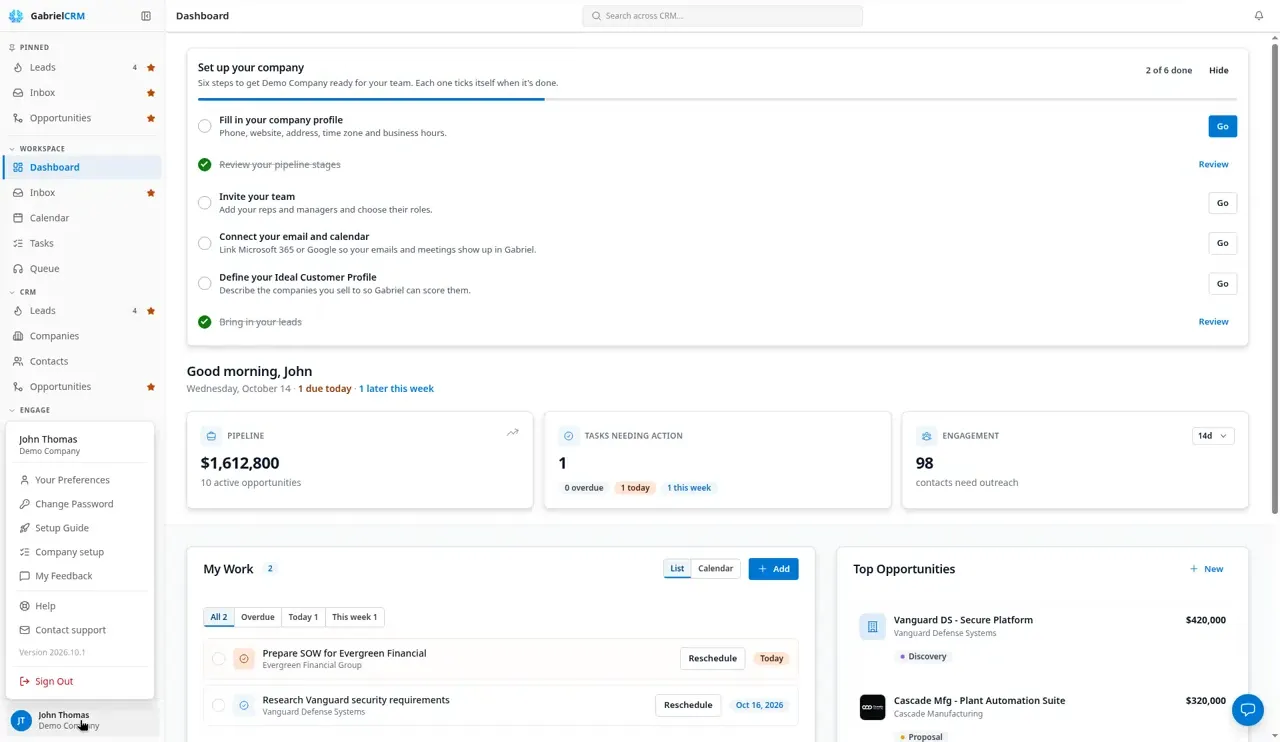
Section titled “Your user menu”Click your name at the bottom of the sidebar for:
- Your Preferences: your profile, notifications and email signature. See Set up your profile.
- Change Password
- Setup Guide: reopens the Welcome to Gabriel steps you saw on your first sign-in.
- Company setup (admins only): brings back the company setup checklist on the Dashboard. See the admin setup checklist.
- My Feedback: feedback you’ve sent the Gabriel team, and any replies.
- Help: opens this help site.
- Contact support: starts an email to Gabriel support.
- Version: the version of Gabriel you’re on, such as Version 2026.10.1. Click it to open the release notes. Tell support this number when you contact them.
- Sign Out
To send feedback, click the round Send feedback button at the bottom right of any page.
On a phone
Section titled “On a phone”On a screen narrower than a tablet, Gabriel switches to a phone layout:
- A bottom bar holds Dashboard, Inbox, Leads, Companies and Opportunities, with their badge counts.
- The menu button at the top left opens the full navigation, including your user menu and Sign Out.
- The search button in the top bar opens search full screen.
- The bell works the same as on a computer.
How it works
Section titled “How it works”- Pins, folded groups and the collapsed sidebar are saved in your browser. They follow you between sign-ins on the same computer, but a different computer or browser starts with the defaults.
- Until you choose, the sidebar size follows your screen. Laptop-sized screens start with the icon strip and larger screens start with the full sidebar. Once you collapse or expand it yourself, Gabriel remembers your choice.
- Badge counts refresh every minute and whenever you move to another page.
- The Queue window is reused. Clicking Queue again brings the open Queue window to the front rather than reloading it, so a call in progress isn’t interrupted. If your browser blocks pop-ups, Queue opens in the main window instead.
Best practices
Section titled “Best practices”- Pin the two or three pages you start your day from. Reps working calls usually want Queue and Tasks at the top; managers often want Opportunities and Reports.
- Treat the Tasks badge as your to-do zero. It only counts your own work due before today, so a number there means something slipped. Clear it before you start new outreach.
- Work new leads until the Leads badge is empty. The count drops as soon as a lead moves out of New, so updating status as you work keeps the number honest for the whole team.
- Use search instead of scrolling lists. Typing a name, email or company in the top bar is faster than filtering a list, and it searches every record type at once.
- Collapse the sidebar on a laptop. The icon strip gives tables and the calendar noticeably more width, and the badges still show on the icons.
- Allow pop-ups for Gabriel. Queue is built to sit in its own window beside the main app while you call.