
Forms
A form collects details from visitors to your website: a contact-us form, a demo request, a discovery questionnaire. Each real submission is matched to an existing lead or contact by email, or creates a new lead, and lands on that person’s timeline. Spam is filtered out first.
Open Forms from the Engage group in the sidebar. Every role except Viewer and Billing Contact can build, publish and unpublish forms by default. Archiving a form takes a manager or admin.
Build a form
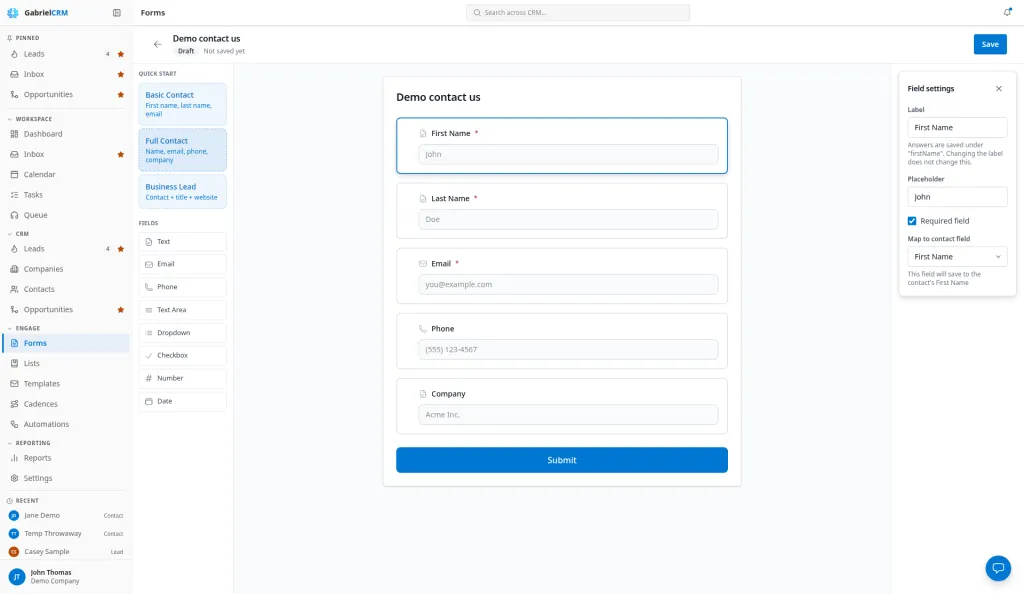
Section titled “Build a form”- Click New form.
- Type a name where it says Name this form. You can’t save without one.
- Add fields from the left panel: click one to add it at the end, or drag it
into place.
- Quick start adds a set: Basic Contact (first name, last name, email), Full Contact (adds phone and company) or Business Lead (adds job title and website).
- Fields adds one: Text, Email, Phone, Text Area, Dropdown, Checkbox, Number or Date.
- Click a field to open Field settings:
- Label and Placeholder: the question, and the hint inside the box.
- Required field: the form won’t submit without it.
- Map to contact field: where the answer is saved on the lead or contact (First Name, Last Name, Email, Phone, Mobile Phone, Job Title, Company Name, Company Website, Industry or LinkedIn URL), or Custom field (not mapped) to keep it with the submission only.
- Options (dropdowns only): click Add option for each choice.
- Drag a field by its handle to reorder it; click the trash icon to remove it.
- Click Save, check it with Preview, then click Publish.
A form needs at least one field to publish. Until then it’s a Draft and accepts no submissions.
Set up what happens after someone submits
Section titled “Set up what happens after someone submits”On the form’s Settings tab, set these, then click Save:
- Basic info, Submit button and Styling: the name, a description under the title, the Button text (default Submit), and the Primary color and Background color.
- Used on pages: a read-only list of the landing pages that show this form. Pages are edited in Pages.
- After submission: Show message with your own Heading and Body (default “Thank you!” and “Your submission has been received.”), or Redirect to URL, an address starting with http:// or https://.
- Spam filter: see Filter spam.
- Submission records: what the form does in your CRM (below).
- Automations that run on this form: each one with its runs in the last 30 days, and New automation for this form.
- Scheduling: see Let visitors book a meeting.
Submission records
Section titled “Submission records”Under CRM records, choose one:
- Match or create a lead or contact (default). Gabriel looks for exactly one contact with the submitted email, then exactly one lead. If there’s neither, it creates a lead with the Lead source you pick (default Website).
- Save a submission only. The answers stay on the form; no record is created or changed, and automations don’t run.
A matched record only gets fields that are empty on it. Gabriel never overwrites details on file, because anyone can type a customer’s email address into a public form.
Put the form on your website
Section titled “Put the form on your website”- On the form, click Embed, or choose Embed code from the form’s … menu on the Forms page.
- Pick a format:
- Script (recommended): the form takes on your website’s fonts and layout.
- iFrame: the form sits in its own frame, apart from your site’s styles, starting 500 pixels tall.
- Direct link: a standalone page to link to or share. It shows your company logo and name above the form, and your privacy policy link below it. To put a form on a full landing page with a hero, sections and your own domain, build a page in Pages and add the form to it.
- Click Copy code and paste it into your website.
The embed always shows the published version, so you never re-copy it. To make the form wait for your website’s cookie consent before it remembers a visitor, see Ask for consent before remembering visitors. To see how many people visit and submit it, open the form’s Analytics tab (see Form analytics).
Report leads to your ad and analytics tools
Section titled “Report leads to your ad and analytics tools”A Script embed can report each submission to the Google Analytics, Google
Ads, Meta, LinkedIn or Tag Manager code your website already loads. It’s off
until you add data-gabriel-conversions="true" to the <script> tag (or to
the form’s <div>):
<script src="…/embed/gabriel-forms.js" defer data-gabriel-conversions="true"></script>Forms on your Gabriel landing pages do this on their own once you set up Tracking & pixels. See that article for the events sent and the Google Ads and LinkedIn conversion options.
Filter spam
Section titled “Filter spam”These checks run on every submission, on every form:
- A hidden field only bots fill in.
- Submitted under 2 seconds or over 24 hours after the page loaded.
- A web address in a name field.
- An address from a known throwaway email service.
- Over 20 submissions an hour to one form from one internet address, over 3 from the same internet address with the same email, or over 60 from one internet address across all your forms. Submissions turned away by these limits don’t count toward them, so a busy office or event network isn’t blocked for the rest of the hour.
- Over 300 submissions to one form in an hour.
The Spam filter setting adds an AI check, which also catches sales pitches: Low (the checks only), Medium (default, the checks plus AI) or High (the checks plus AI, leaning toward blocking). The AI check runs only after an admin adds an AI key and turns on Form submission filter on the Keys & preferences tab of Settings > Integrations > AI. It judges each submission against your Business Description under Settings > Company.
A Filtered submission is saved but creates no lead and runs no automations. The visitor sees the normal thank-you, so spammers can’t tell. Review them in Form submissions.
Let visitors book a meeting
Section titled “Let visitors book a meeting”With scheduling on, the visitor picks a meeting time on the same page after submitting.
- Under Scheduling, tick Enable scheduling.
- Choose a Meeting type (create one under Settings > Meeting Types if the list is empty).
- Under Who takes the meeting?, choose A team or Specific users. Visitors see every time at least one of them is free, and whoever is free gets the meeting.
- Choose a Conference provider, or Use meeting type default. Only providers someone in the pool has connected are offered.
Save a submission only is unavailable while scheduling is on. The timeline entry reads No meeting booked yet until the visitor books, then Meeting booked. Visitors who leave without booking get no reminder.
How it works
Section titled “How it works”- What a submission adds. A completed Form submitted: entry on the person’s timeline, and a note with any unmapped answers. See Form submissions.
- New leads have no owner. Assign them with an automation (see Best practices).
- A name or an email is required. Without either, the visitor sees “Please provide your name or email.”
- Duplicates stop a match. If two contacts (or two leads) share the email, nothing is created and the visitor is asked to contact your team. Clean up the duplicates.
- Changes go live on save. A visitor with the old version open is asked to refresh.
- Forms are never deleted. Unpublish makes a form a draft again. Archive stops submissions and moves it to Archived with its submissions kept; publishing brings it back. Duplicate copies it as a new draft.
Best practices
Section titled “Best practices”- Ask for the fewest fields you can act on. Email plus a name creates a lead; every extra required field costs submissions.
- Map every field that has a home in the CRM. Mapped answers fill the record’s own fields, so they show in filters and dynamic lists. Unmapped answers end up in a note nobody can filter on.
- Use a dropdown for anything you’ll sort by. A “Service needed” dropdown gives clean answers an automation’s Form answer condition can check.
- Set a lead source per form. It’s how reports tell a demo request from a newsletter signup. Add sources under Settings > Picklists, on the Leads tab, first.
- Build a follow-up automation for every published form. A form notifies nobody and its leads have no owner. Copy the speed-to-lead recipe in Automation recipes: round-robin owner, then a call task.
- Write a Business Description before you rely on the AI filter. It’s what keeps real enquiries out of Filtered.
- Test from a few networks, not 10 times from your office. Over 5 submissions an hour from one address are filtered, so heavy testing looks like spam.
- Turn on scheduling for “talk to sales” forms. Visitors book while they’re interested, and the timeline flags who didn’t book.
Troubleshooting
Section titled “Troubleshooting”The form on my website says it’s no longer accepting submissions. The form was unpublished or archived. Open it and click Publish.
A real enquiry didn’t create a lead. Check the Filtered tab under the form’s Submissions and click Mark legitimate. A form set to Save a submission only never creates a lead.
Save a submission only is greyed out. Scheduling is on. Untick Enable scheduling first, then change CRM records.