
Form submissions
Every time someone fills in one of your forms, Gabriel saves a submission: their answers, where they submitted from, and the lead or contact it was matched to. You can review one form’s submissions or every form’s at once, and correct the spam filter when it gets one wrong.
Open Forms from the Engage group in the sidebar. Anyone who can open Forms can read submissions. Marking a submission as spam or legitimate is open to every role except Viewer and Billing Contact by default.
See a form’s submissions
Section titled “See a form’s submissions”- On the Forms page, click the submission count beside a form, or choose Submissions from its … menu.
- The form opens on its Submissions tab, newest first, 50 to a page.
Each row shows:
- Status: Legitimate (the AI filter checked it and passed it), Filtered (caught as spam), or Not checked (the AI filter is on but couldn’t check this one). A dash means the AI filter wasn’t used.
- Submitter: the lead or contact it was matched to, as a link. A form set to save submissions only shows Submission only.
- Date and time.
- Details: why a filtered submission was caught.
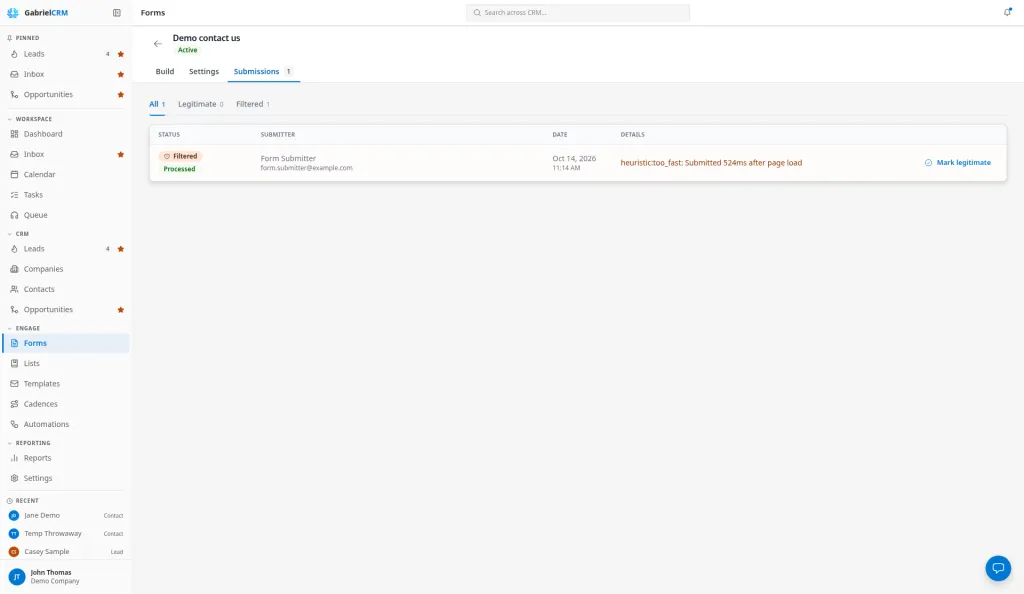
See every submission
Section titled “See every submission”Click All submissions at the top of the Forms page, or the Submissions tile. This lists submissions from every form, newest first, with a Form column. Click Filter to narrow it to one form; each form shows its submission count.
Open a submission
Section titled “Open a submission”Click a row to see:
- Answers: every answer, labelled with the field as it’s named on the form today. Answers to a field you’ve since deleted still show, under the field’s saved name.
- Linked record: the lead or contact, with a link to open it.
- Status and the reason, if it was filtered.
- Processing: Processing, Processed, or Follow-up needs review.
- Submitted from and Referrer: the page the form was on and the page the visitor came from, when the browser shared them.
Review filtered submissions
Section titled “Review filtered submissions”Once anything has been filtered, three tabs appear above the list: All, Legitimate and Filtered, each with its count. Filtered rows are shaded.
- A real enquiry was filtered. Click Mark legitimate. Gabriel matches or creates the lead or contact, adds the submission to their timeline, and saves unmapped answers as a note.
- Spam got through. Click Mark as spam, then choose:
- Flag as spam: moves it to Filtered and unlinks it from the lead or contact. The record itself is kept.
- Flag & delete lead: only offered when this submission created a brand new lead. It deletes that lead, along with the timeline entry and note the submission added. It also needs permission to delete leads.
A lead with any other history (other activity, notes, meetings, calls, other submissions, or a conversion) is kept even when you choose Flag & delete lead. A lead or contact that existed before the submission is never deleted, only unlinked, because a spammer can type a real customer’s email address.
Act on a submission
Section titled “Act on a submission”A submission is also on the person’s record, so most follow-up happens there:
- The timeline shows Form submitted: and the form name.
- Answers that aren’t saved to a CRM field are in a note titled with the form name.
- For a scheduling form, the timeline entry says No meeting booked yet until the visitor books, then Meeting booked.
To act on every submission automatically, click New automation for this form on the form’s Settings tab. A Form answer condition can route by answer, for example creating a task only when someone picks “Ready to buy”. See Automations.
How it works
Section titled “How it works”- Counts include spam. The submission count on the Forms page and the Submissions tile count every submission, filtered ones included. The Legitimate tab count leaves spam out.
- Filtered submissions do nothing in your CRM. They create no lead, change no record and start no automations. Marking one legitimate later creates the record but still doesn’t start automations.
- Automations only run for a lead or contact. A form set to Save a submission only never starts one.
- Submissions stay with the form. Archiving a form keeps every submission. Forms can’t be deleted.
Best practices
Section titled “Best practices”- Check the Filtered tab weekly, especially on High. A High spam filter blocks borderline enquiries, and the visitor sees the normal thank-you, so a missed real lead never complains. A quick scan and Mark legitimate is the only way it reaches a rep.
- Use All submissions for a daily glance across forms. It’s the fastest way to see whether a new form or campaign is producing anything.
- Flag spam instead of deleting leads by hand. Flag & delete lead only removes a lead the spam created and protects any real customer whose email was used.
- Look at Submitted from before you judge a submission. The page address tells you which website or campaign sent it, which often settles whether it’s real.
- Managers: watch for Follow-up needs review. It means the submission was saved but its follow-up didn’t finish cleanly; open the linked record and make sure the person got what they asked for.
- Put the decision in the form, not the review. If reps keep reading answers to decide who calls back, add a dropdown for it and let an automation’s Form answer condition route the lead instead.
Troubleshooting
Section titled “Troubleshooting”The tabs All, Legitimate and Filtered are missing. They only appear once at least one submission has been filtered.
Mark as spam and Mark legitimate aren’t there. Your role doesn’t include reviewing form submissions. Ask an admin.
“You can’t delete this lead.” You can flag the submission but not delete the lead, because your role can’t delete it. Choose Flag as spam instead.