
Automation recipes
These recipes are automations you can build today with the triggers and actions Gabriel has. Each one says what it’s for, what starts it, the Only if conditions, the blocks in order, and what to watch for. Names in quotes, such as “Inbound” or “Proposal sent”, stand for your own team, stage, cadence or template.
You need permission to build automations (sales managers, marketing managers and admins have it by default). Automations explains the builder, testing and the Runs tab; this page only lists what to set. Build each recipe, save it, run a Test run on your own record, then click Turn on.
1. Speed to lead for web form leads
Section titled “1. Speed to lead for web form leads”Goal: every new lead from your website form has an owner and a call task within a minute of submitting.
- Trigger: A form is submitted, Form: “Contact us”.
- Only if: The record is Lead.
- The same record: Once ever for a record.
- Blocks:
- Assign an owner: A team, round robin, Team: “Inbound”.
- Create a task: Title “Call new web lead”, For The record’s owner, Due in working days 0.
- Notify someone: The record’s owner, with a Message that uses Insert field to include the lead’s name and company.
Tips
- The task and notification go to the new owner, because each block sees the record as the block before it left it.
- If your inbound process has several touches, replace the task with Enroll in a cadence and an inbound cadence whose first step is a call with a 0 wait. Don’t do both, or the rep gets the same call twice.
- Submissions caught by the spam filter don’t start the automation, even if you mark them legitimate later. Check Form submissions and follow those people up by hand.
- To treat contacts who fill in the form differently, build a second automation with The record is Contact.
2. Nudge the owner when a deal stalls, then tell the manager
Section titled “2. Nudge the owner when a deal stalls, then tell the manager”Goal: a deal that sits in one stage too long gets a follow-up task, and a manager hears about it if nothing changes.
- Trigger: An opportunity sits in a stage, Stage: “Proposal sent”, For this many days: 10.
- Only if: Value at least 5000, if small deals don’t need it.
- Blocks:
- Create a task: Title “Follow up on stalled proposal”, For The record’s owner, Due in working days 1.
- Wait: 3 working days.
- Decision: Has the opportunity moved to another stage?
- No path: Notify someone: your sales manager, Message “Still stuck in Proposal sent”, with the deal name from Insert field.
Tips
- The stage check runs once a day and counts calendar days. A deal fires once per stay in the stage, so it can fire again if it leaves and comes back.
- Pick the day count from your real sales cycle. If most deals sit in the stage for two weeks, a 5-day nudge is noise the owner learns to ignore.
- Leave the Yes path empty: the deal moved, so there’s nothing to do.
3. Event attendees into a follow-up cadence
Section titled “3. Event attendees into a follow-up cadence”Goal: anyone tagged as an event attendee is worked by a rep with an event-specific cadence.
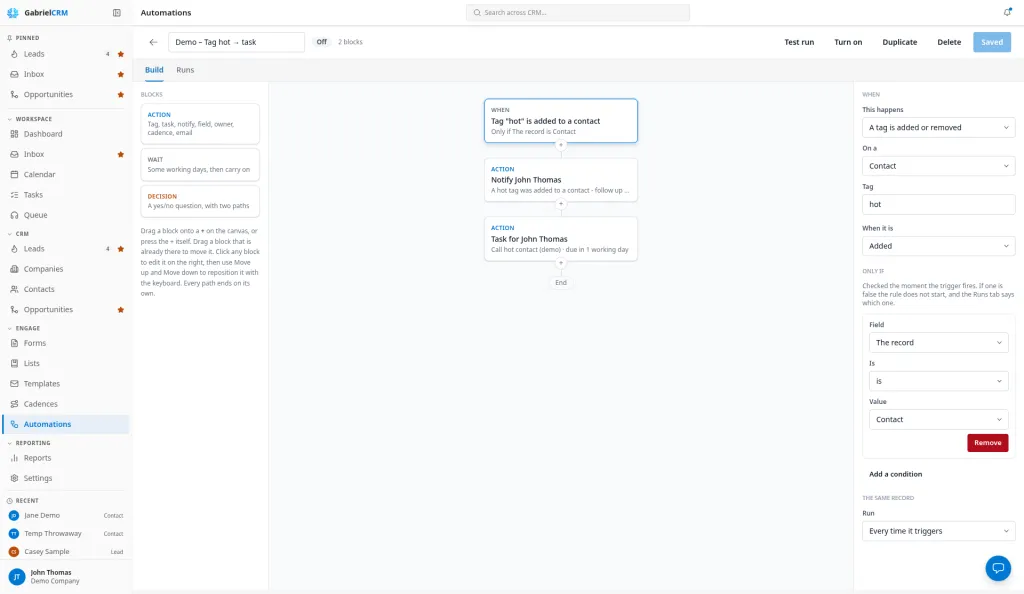
- Trigger: A tag is added or removed, On a Lead, Tag “Event attendee”, When it is Added.
- Only if: none.
- Blocks:
- Enroll in a cadence: Cadence “Event follow-up”.
Tips
- Tags added by an import don’t start automations. If you import the attendee list, enroll them from the Leads page with Enroll in cadence instead. The automation is for attendees tagged one at a time, by a rep or by another automation.
- A rule watches one record type. Build a copy with On a Contact for attendees who are already contacts.
- Someone who has been through “Event follow-up” before isn’t enrolled again by an automation. The run shows Needs attention with the reason. Use a new cadence per event, or enroll returning people by hand.
4. Put high-fit leads straight into outbound
Section titled “4. Put high-fit leads straight into outbound”Goal: when a new lead turns out to be an ICP fit, a rep starts working it without anyone sorting the list.
- Trigger: A field changes on a record, On a Lead, Field ICP fit. Leave Changes to blank.
- Only if: ICP fit is Yes, and Lead status is New.
- The same record: Once ever for a record.
- Blocks:
- Enroll in a cadence: Cadence “Outbound first meeting”.
Tips
- The condition on ICP fit is what limits this to fits; the trigger fires on any change to the field. The Lead status condition keeps leads a rep is already talking to out of the cadence.
- The cadence’s team decides who works the lead. Each enrollment goes to the next included rep in turn.
5. Tell a manager about big new deals
Section titled “5. Tell a manager about big new deals”Goal: a sales manager hears about every large opportunity the day it’s created.
- Trigger: An opportunity is created.
- Only if: Value at least 25000.
- Blocks:
- Notify someone: your sales manager, with the deal name and value from Insert field.
- Create a task: Title “Review new large deal”, For your sales manager, Due in working days 2.
Tips
- The value is checked when the deal is created. A deal created at $0 and updated later doesn’t fire this rule. If your reps fill in the value later, use A field changes on a record on Value instead, with the same condition.
6. Come back to people who said “not now”
Section titled “6. Come back to people who said “not now””Goal: a prospect who wasn’t ready gets a personal check-in in three months instead of being forgotten.
- Trigger: A cadence ends for someone, Reason Interested not now.
- Only if: none.
- Blocks:
- Wait: 3 months.
- Create a task: Title “Check back in: they said not now”, For The record’s owner, Due in working days 0.
Tips
- Nothing else in Gabriel follows up on “not now” for you. This rule is how you make it happen.
- Waits in months are calendar months, moved to the next working day. The task appears on the owner’s Tasks page that morning.
- Build a second rule with Reason Completed to catch people who finished a cadence without booking: add a tag such as “Nurture” and add them to a managed list you email from.
7. Hand a won deal to onboarding
Section titled “7. Hand a won deal to onboarding”Goal: the moment a deal is won, the person who runs onboarding has a task and the owner knows it’s been handed over.
- Trigger: An opportunity moves stage, To stage “Closed won”.
- Only if: none.
- Blocks:
- Create a task: Title “Kick off onboarding”, For your onboarding lead, Due in working days 1.
- Notify someone: The record’s owner, Message “Onboarding has the handoff”.
Tips
- Winning a deal ends every automation run on that person’s lead and contact, marked Became a customer, so prospecting automations stop on their own. Runs on the opportunity itself, like this one, carry on.
8. A monthly email series you start by hand
Section titled “8. A monthly email series you start by hand”Goal: send contacts who asked to hear from you one useful email a month, starting when you decide.
- Trigger: Run by hand, Offered on Contact.
- Only if: Tag is “Newsletter opt-in”.
- The same record: Once ever for a record.
- Blocks:
- Send an email: Template “Tip 1”.
- Wait: 1 month.
- Send an email: Template “Tip 2”.
- Wait: 1 month.
- Send an email: Template “Tip 3”.
Tips
- An admin has to finish Settings > Email sending before this can be turned on.
- Use shared email templates, so another manager can update the series if you’re away.
- Start it from the Contacts page: tick the contacts, click Run automation, and choose it. The condition skips anyone without the opt-in tag, and the Runs tab shows who didn’t start and why.
- Someone who unsubscribes partway through stops getting the series. Their run ends early.
- Build with AI can write this one for you, templates included; see Build with AI.
9. Tag marketing-qualified leads
Section titled “9. Tag marketing-qualified leads”Goal: if your team works with MQLs, every lead that crosses your score line is tagged “MQL” and its owner is told to call, without anyone watching scores.
- Trigger: A field changes on a record, On a Lead, Field Lead score. Leave Changes to blank.
- Only if: Lead score at least 80.
- The same record: Once ever for a record.
- Blocks:
- Add a tag: “MQL”.
- Create a task: Title “New MQL: reach out today”, For The record’s owner, Due in working days 0.
Tips
- 80 matches the Hot Leads tile on the Leads page, so the tile and the tag agree. Use your own number if your team draws the line elsewhere.
- A lead’s score is half how well it fits your Ideal Customer Profile and half its data and recent activity. Gabriel rescores a lead when it’s created or edited and when activity is logged on it, and each rescore can start this rule.
- Once ever for a record tags a lead once. The tag stays if the score drops later, so remove it by hand if you want MQL to mean “right now”.
- Filter the Leads list by the “MQL” tag to see them all. When a rep qualifies one, it’s what your team calls an SQL; see If your team uses MQL and SQL.
Best practices
Section titled “Best practices”- Build one recipe at a time and watch it. Turn it on, then check the Runs tab the next day. Did not start rows tell you whether your conditions are too tight; Needs attention rows tell you a team, cadence or person needs fixing.
- Test recipes with long waits before you trust them. A three-month or monthly wait is slow to show a mistake. Test run cuts each wait to about a minute, so you see recipes 2, 6 and 8 play out in one sitting; it sends real email, so use your own record.
- Keep people work in cadences. Recipes 1, 3 and 4 hand people to a cadence rather than sending a string of automated emails, because a rep reading the reply matters more than the email going out on time.
- Give hand-off tags one job. If you chain automations with tags, remove the tag in the automation that acts on it, so a second tagging starts a fresh run and two rules never pass a record back and forth.
- Name rules after the recipe. “Speed to lead: Contact us form” says when it runs and why, which matters when someone else opens the list in six months.