
Email templates
An email template is a saved subject and message you can reuse: a first outreach email, a meeting follow-up, a renewal reminder. Merge fields such as the person’s first name are filled in for each recipient, so one template reads as a personal email every time.
Open Templates from the Engage group in the sidebar.
Every role except Viewer and Billing Contact can create personal templates by default. Sharing a template with the team, and changing or deleting a shared one, takes a manager or admin.
Create a template
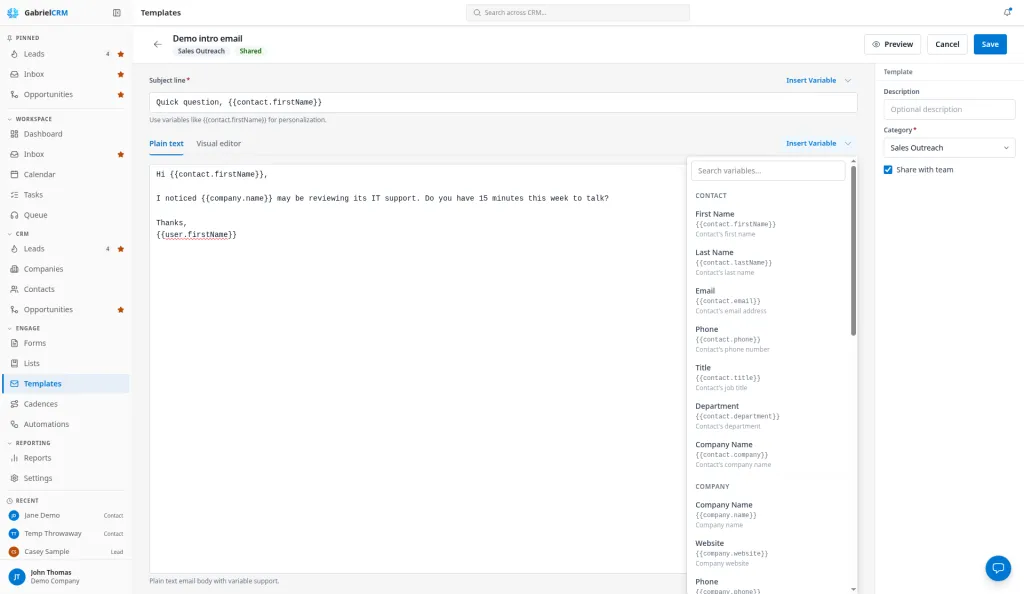
Section titled “Create a template”- Click New template. To start from a ready-made email instead, open the arrow beside it and choose Import from library.
- Replace Untitled template with a name.
- Write the Subject line.
- Write the message on the Plain text tab, or switch to the Visual editor tab to design it (below).
- In the panel on the right, add an optional Description, choose a Category, and tick Share with team if your role allows it.
- Click Preview to see it filled in with sample contact data.
- Click Save.
The categories are Sales Outreach, Follow Up, Meeting Request, Proposal, Customer Success, Onboarding, Renewal, Feedback, Internal, Marketing, Event and Other. Two templates in the same category can’t share a name.
Add merge fields
Section titled “Add merge fields”Click Insert Variable beside the subject, or above a plain-text message, and
pick a field. It’s inserted where your cursor is, as a placeholder such as
{{contact.firstName}}.
| Group | Fields |
|---|---|
| Contact | First Name, Last Name, Email, Phone, Title, Department, Company Name |
| Company | Company Name, Website, Phone, Industry, Employee Count |
| Opportunity | Title, Value, Currency, Stage, Close Date |
| User (Sender) | First Name, Last Name, Email, Signature |
| Tenant | Company Name (your company) |
| Dynamic | Today’s Date, Current Year |
The Contact fields work for leads too. A field the person has no value for comes out blank, so write sentences that still read well without it.
Opportunity fields aren’t filled in when you email from a record, a cadence or a list, or by an automation’s Send an email (which runs on leads and contacts only), so leave them out of your templates.
Add your booking link
Section titled “Add your booking link”Type {{booking_link}} where you want a link to your default scheduling page.
When you send the email yourself, from a record or a cadence email step, Gabriel
replaces it with your link. If you haven’t set up a scheduling page yet, the
placeholder is removed rather than sent. You can also put a booking link in your
signature and insert Signature instead; see
Booking links.
Design with the visual editor
Section titled “Design with the visual editor”On the Visual editor tab, drag blocks from the right-hand panel onto the email and double-click any text to edit it.
- Email blocks: CTA Button, Accent Header and Email Footer.
- Gabriel CRM blocks, already filled with merge fields: Greeting, Contact Card, Company Card, Opportunity Card, Meeting Button and Signature.
Buttons start with a placeholder link. Select the button and set its link before you save.
A template designed in the visual editor is marked HTML. Its Plain text tab holds the plain-text version that goes with it. Saving from the Plain text tab keeps your design.
Share a template with your team
Section titled “Share a template with your team”Templates you create are personal: only you see them. A shared template, marked Shared, is visible to everyone in your company.
- To share one, open it, tick Share with team and click Save. This needs a manager or admin role by default.
- Only the person who created a template can edit or delete it, shared or not.
- To adapt someone else’s shared template, choose Duplicate from its … menu. The copy is yours and starts personal.
- A template imported from the library comes in shared if you can share templates, and personal if you can’t.
Use a template
Section titled “Use a template”- Emailing from a record: when you email a lead, contact or company, or someone in your Queue, click Insert template. Contact, company and sender fields are filled in for the person you’re writing to, and you can edit the email before sending.
- Cadences: an Email step can use a template, which opens for the rep to review and send. The template has to be shared. See Cadences.
- Automations: the Send an email action sends a template on its own. See Automations.
- List emails: Use a template starts a list email from it. See Send email to a list.
Picking a template with Insert template or Use a template, and each email an automation sends from it, adds to the template’s Uses count, so you can see which templates your team relies on.
Find and organize templates
Section titled “Find and organize templates”The Templates page shows totals for Templates, Shared with team, Favourites and Total uses. Use the search box, Filter by category, and Sort by Name, Uses or Updated. Switch between a table and cards with the view buttons.
Each template’s … menu has Open, Duplicate, Add to favourites and Delete. You can favourite your own templates.
How it works
Section titled “How it works”- A template in use can’t be deleted. If a cadence step or an automation sends it, Gabriel names them and stops the delete. Point them at another template first.
- A template a cadence uses has to stay shared. Unsharing it is refused while any cadence step uses it.
- Automations refuse unfinished library templates. Some library templates
have a placeholder for your own link, such as
{{customFields.ctaUrl}}. An automation can’t be saved or turned on with a template that still has one. Replace it with a real link. - Changes reach future emails only. Editing a template changes what’s sent from then on, including by cadences and automations. Emails already sent stay as they were.
Best practices
Section titled “Best practices”- Write it the way you’d type it. Plain text with a first name, one short paragraph and a question reads as a personal email. Save the visual editor for newsletters and announcements, where a designed email is expected.
- Use the first name and one specific detail.
{{contact.firstName}}plus{{contact.company}}in the opening line does more than a long list of merge fields, and is less likely to break when a record is incomplete. - Try it on a messy record. Preview uses clean sample data. Before a template goes into an automation, open a lead with a blank title or company, click Insert template in a new email, and read what really comes out (then discard it).
- Managers: share the templates your cadences need, and keep them tidy. Cadence steps can only use shared templates. Name them by step (“Day 3 - follow-up after voicemail”) so reps and builders pick the right one.
- Duplicate instead of editing a template in use. A change to a template reaches every cadence and automation that sends it. For a one-off variation, duplicate it and change the copy.
- Put your booking link in templates you send yourself.
{{booking_link}}turns a “let’s find a time” email into one click for the prospect, in the emails you and your reps send by hand and from cadence steps. - Replace library placeholders on import. Library templates are a starting
point. Swap in your own wording, and replace any
{{customFields...}}link before the template is used. - Check Uses before you clean up. A template with zero uses in months is safe to delete; a high count means people depend on it.
Troubleshooting
Section titled “Troubleshooting”Saving a shared template fails. Only the person who created a template can change it, and changing a shared one also takes a manager or admin. Duplicate the template to make your own version.
“Email template not found or you do not have permission to delete it.” Only the person who created a template can delete it.
“A template with this name and category already exists in this workspace.” Someone in your company already has a template with that name in that category. Pick another name or category.
Share with team is greyed out. Your role can’t share templates. Ask a manager to share it for you.