
Team
The Team settings are where you add people to Gabriel and manage their access. Teams group people together, which decides who a manager’s records reach and who receives automatically assigned work.
Go to Settings > Team. The Team page has two tabs: Users and Teams. Admins, sales managers and marketing managers see it by default. Managers can invite people and manage teams. Editing, reassigning, resetting and deactivating users is for administrators.
Invite a user
Section titled “Invite a user”- On the Users tab, click Invite user.
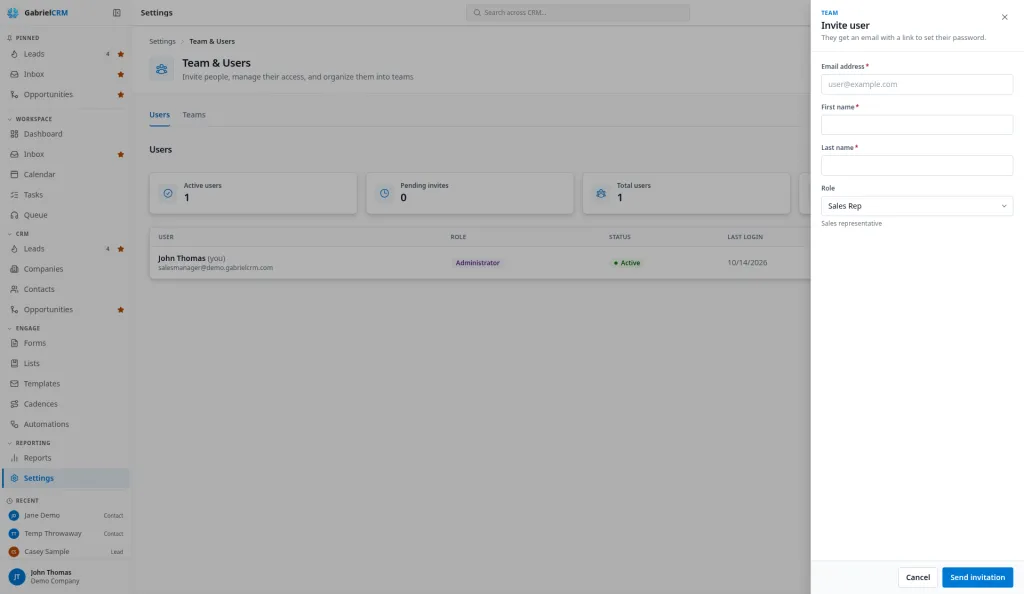
- Enter their Email address, First name and Last name.
- Choose a Role. It starts on Sales Rep; the hint under the picker describes each role.
- Click Send invitation.
Gabriel emails them a link to set their password. The Invitation created panel also shows the Invite link; click Copy link to send it yourself. The link is valid for 7 days.
You can only give a role at or below your own, and only an admin can give the Administrator or Billing Contact role. An email address that already belongs to a Gabriel user can’t be invited.
Manage a pending invitation
Section titled “Manage a pending invitation”Until someone accepts, their Status is Pending (or Expired after 7 days). In their row:
- Copy invite link: creates a new link and copies it. The link in any earlier email stops working.
- Resend invitation: emails a new invitation.
- Cancel invitation: removes the invite. You can invite the same address again later.
Change a user’s details or role
Section titled “Change a user’s details or role”- Find the user on the Users tab and click Edit user (the pencil).
- Change their First name, Last name or Role.
- Click Save changes.
A user’s email address is their sign-in and can’t be changed here. You can’t change your own role; ask another administrator.
If your company has custom roles and you can manage roles, a second picker appears under each user’s role badge. Choose a custom role, or Base role to go back to the built-in role.
Help a user who is locked out
Section titled “Help a user who is locked out”Click Send password reset (the key) in their row, then Send reset email. They get a link to choose a new password; their current password keeps working until they do.
Hand a user’s work to someone else
Section titled “Hand a user’s work to someone else”Click Reassign work (the arrows) in their row. Gabriel lists what they own: Contacts, Companies, Opportunities, Leads, Open activities, Upcoming meetings, Meeting types, Booking links, Forms (scheduling), Cadence enrollments, Phone numbers, Social accounts and Teams managed.
- Pick a person for each category, or use Assign all to to send everything to one person. Leave a category on — skip — to keep it where it is.
- Click Reassign.
Who created or sent something stays as it was; only current ownership moves.
Deactivate or reactivate a user
Section titled “Deactivate or reactivate a user”- Click Deactivate in the user’s row.
- Click Deactivate to confirm.
They lose access straight away and are signed out. Their history is kept, and their connected mailbox and calendar are disconnected; they’ll need to connect them again if you bring them back.
To bring someone back, click Reactivate. They regain access the next time they sign in.
You can’t deactivate yourself, and Gabriel won’t let you deactivate or demote the last active administrator.
Create a team
Section titled “Create a team”- On the Teams tab, click Create team.
- Enter a Team name and, if you like, a Description.
- Pick a Manager.
- Click Create team.
Then add people:
- Click Add member (the plus) on the team.
- Pick the User and a Team role: Team Lead, Senior, Member (the default) or Trainee. The team role is a label for your own reference; it doesn’t change what anyone can do.
- Turn on Include in lead and contact assignment if this person should receive automatically assigned leads, contacts and cadence work.
- Click Add member.
Click a team to see its members. For each member you can turn In assignment on or off, change their team role, or click Remove from team.
Take someone out of assignment
Section titled “Take someone out of assignment”Turning In assignment off for someone who is mid-cadence with people opens Switch [name] off from assigned work:
- Switch off and redistribute hands their cadence journeys to the others on the team who are switched on, in turn.
- Leave their work with them keeps the journeys with them. Nothing comes due for those people until they’re back.
Either way, they get no new work. Nothing moves back on its own when you switch them on again.
Deactivate a team
Section titled “Deactivate a team”Click Deactivate team (the trash can) and confirm. The team is marked Inactive and its history is kept. To turn it back on, edit the team and turn on Team is active.
How it works
Section titled “How it works”- Team reach: a role with Team scope sees records owned by anyone on the teams that person belongs to or manages, including the manager. Inactive teams don’t count. See Roles and permissions.
- The tiles at the top count Active users, Pending invites, Total users and Administrators.
- Seats: you’re billed for active users. A pending invitation isn’t a seat until it’s accepted. For how mid-month changes are billed, see Billing.
Best practices
Section titled “Best practices”- Reassign before you deactivate. Deactivation leaves every lead, deal and cadence journey assigned to someone who can’t sign in.
- Give people the lowest role that lets them do their job. Start reps on Sales Rep and raise a role only when someone needs a specific permission. The manager roles and Administrator can delete and export records; reps can’t.
- Keep at least two administrators. Gabriel won’t let you remove the last one, but a second admin means someone can still manage users when the first is away.
- Build teams around who manages whom. Team reach follows team membership, so a manager placed on the right team sees exactly their reps’ records and no one else’s.
- Use In assignment for availability, not membership. Switch a rep out of assignment when they go on leave, and redistribute their cadence work so a two-week cadence doesn’t quietly become a four-week one.
- Replace leavers in the same month. You’re billed for the most users you had in a month, so deactivating one user and inviting their replacement in the same month doesn’t add to that month’s bill.
Troubleshooting
Section titled “Troubleshooting”“Cannot assign a role higher than your own.” Your role is below the one you picked. Ask an admin to invite the person or change their role.
“This user has not accepted their invitation yet. Resend the invitation instead.” Pending invitations can’t be reactivated. Use Resend invitation.
“This organization must keep at least one active administrator.” Make someone else an administrator before you deactivate or demote this one.