
Contacts
A contact is a person you sell to, usually at a company. Their page shows everything you’ve done with them: calls, emails, meetings, notes, tasks and deals. Contacts are created when you convert a lead, when you add one directly, or when you import them.
Open Contacts from the CRM group in the sidebar.
Add a contact
Section titled “Add a contact”- On Contacts, click New Contact.
- Enter the First name and Last name. They’re the only required fields.
- In Company, search for their company. If it isn’t in Gabriel yet, type its name and choose Create company.
- Add an Email, Job Title, Phone and Mobile if you have them.
- Pick an Owner, or leave it as Unassigned.
- Click Create contact.
You can also click New contact on a company’s page, which links the person to that company for you.
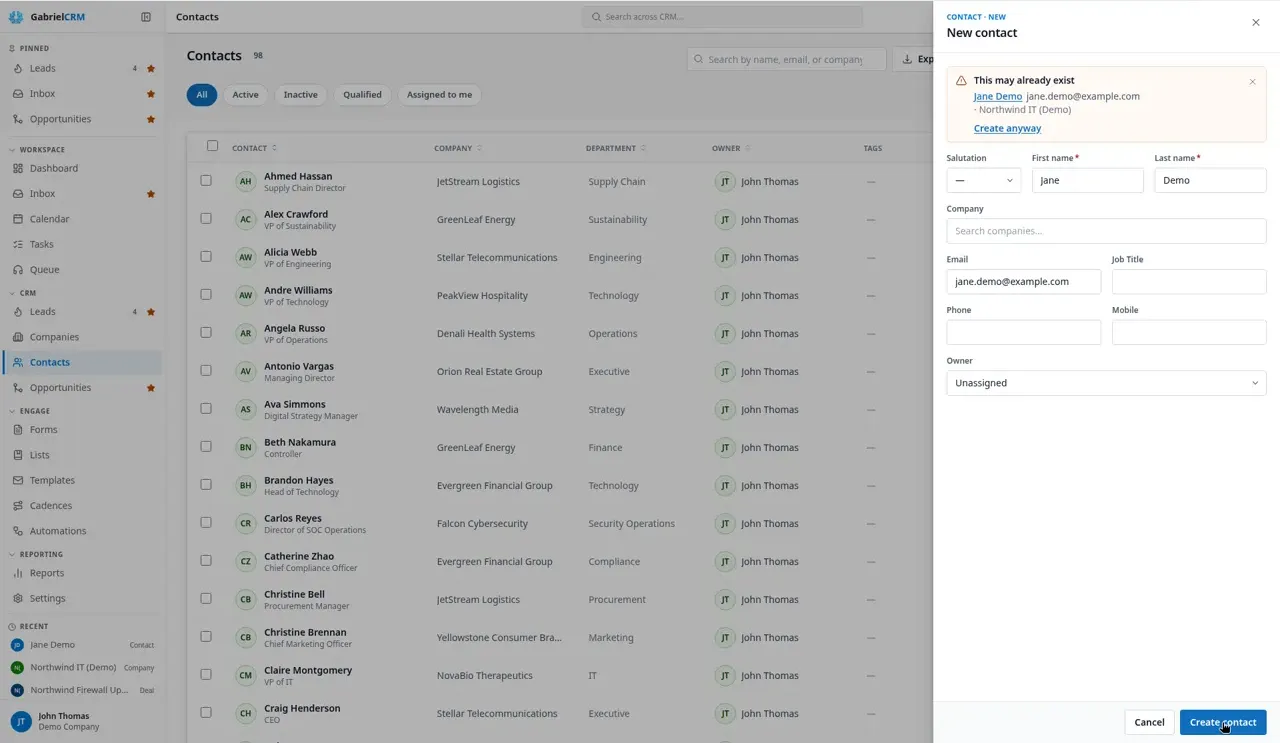
When you click Create contact, Gabriel checks for contacts who may already be in your CRM. Nothing shows while you type; the check runs when you click the button. A contact matches when it has the same email, or the same first name and last name (capitals don’t matter, but each name must match in full). Name matches only include contacts you can see, and leads aren’t checked. This may already exist (or possible duplicates) lists the matches; That email address is already taken means another contact has that exact email. Open a match to check it, or click Create anyway if this really is a different person.
Import contacts
Section titled “Import contacts”Click Import to upload a CSV file. A Company Name column links each person to the company with that name, and creates the company if it doesn’t exist. When an email is already on a contact, you choose to skip the row or update the existing contact. See Import your data for the file format, column mapping and how updates work.
Find contacts
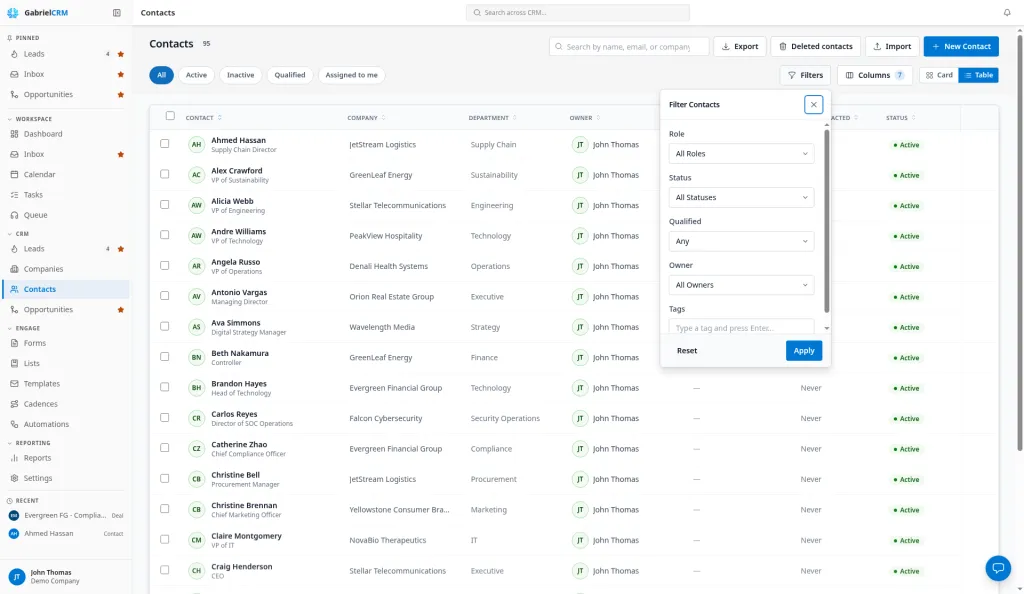
Section titled “Find contacts”The list is searched, filtered and sorted across every contact, not just the page on screen.
- Search by name, email or company.
- Quick filters: All, Active, Inactive, Qualified and Assigned to me.
- Filter adds Role, Status, Qualified, Owner and Tags. Click Clear all to start over.
- Sort by clicking a column header. Every column except Tags can be sorted.
- Columns: show or hide Company, Department, Role, Owner, Tags, Opportunities, Last Contacted, Last Activity and Status, and drag column edges to resize them.
- Table or Card view, and Show 10, 20, 50 or 100 per page.
A red icon next to a name means the person is marked Do not email or Do not call.
Each row’s menu has Edit, Add note, Email, Call, Add to list, Enroll in cadence and Delete. Email and Call are hidden when the contact has no address or number, or is marked Do not email or Do not call. Delete opens the same dialog as on the contact page; without permission to delete permanently it reads Deactivate.
Act on several contacts
Section titled “Act on several contacts”Tick contacts, or tick the header box to select the page. To include every contact that matches your filter, click Select all N matching in the bar that appears. Then:
- Export them to a CSV file.
- Enroll in cadence; see Cadences.
- Add to list, to put them on one or more managed lists. You can also add everyone who matches some rules from the list itself, with Add records > By filter; see Lists.
- Run automation, if you can edit automations; see Automations.
- Delete; see Deleted contacts.
Export at the top of the page exports every contact that matches your current filters.
The contact page
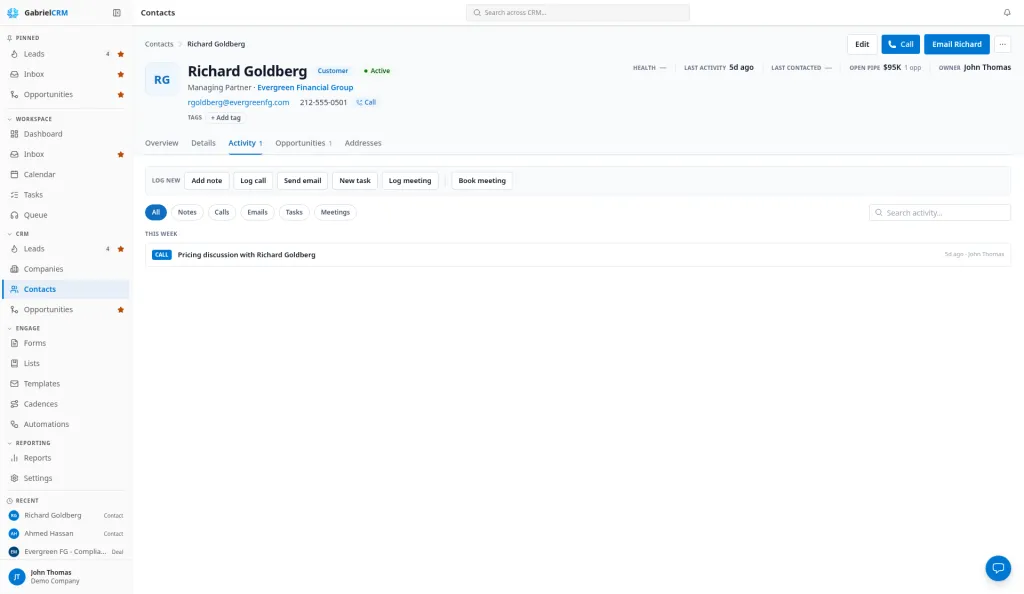
Section titled “The contact page”The header shows the person’s name, type, status, job title, company and location, their email and phone, their local time, and their tags. A red Do not contact badge appears when they’re marked that way.
Along the right:
- Last activity: the last thing logged or synced, including notes and incoming email.
- Last contacted: the last time someone emailed them, completed a call with them or held a meeting with them. Hover to see the date.
- Open pipe: the total of their open opportunities.
- Owner.
At the top are Edit, Enrich (when your company uses Prospecting), a call button, Email followed by their first name, and … (more actions) with Enroll in cadence, Run automation and Delete contact.
| Tab | What’s on it |
|---|---|
| Overview | Log new, Recent activity, Open opportunities, Tasks and their Account |
| Details | Every field, grouped into About, Contact info, Relationships, Classification, Personal, Social, Marketing, Owner and Tags |
| Activity | Everything logged against them; filter by Notes, Calls, Emails, Tasks or Meetings, or search |
| Opportunities | Deals they’re on |
| Addresses | Their addresses |
Log activity
Section titled “Log activity”Under Log new on the Overview tab, click Add note, Log call, Send email, New task or Log meeting, or Book meeting to schedule one. See Log activity.
Edit details
Section titled “Edit details”- Click Edit, or open the Details tab.
- Change any field. Use Search fields to find one quickly.
- Click Save changes, or Discard.
Under Relationships you can set their Company, who they Reports to (someone at the same company) and who Referred by. To move someone to another company, change their Company here.
The Owner, under Owner, is the rep responsible for the contact. Reps find their people with the Assigned to me filter. A contact created without an owner stays Unassigned.
Addresses
Section titled “Addresses”- On the Addresses tab, click Add address.
- Choose the type: Primary, Billing, Shipping, Mailing, Work, Home or Other.
- Fill in Street, Street 2, City, State / Province, Postal code and Country.
- Click Set primary on the address to use as their main one, or Remove to drop one.
- Click Save addresses.
Contact preferences
Section titled “Contact preferences”Under Marketing on the Details tab:
| Field | Effect |
|---|---|
| Do not email | Hides Email on the list. Automation and list emails skip them. |
| Do not call | Hides Call on the list and blocks calling from Gabriel. |
| Do not contact | Shows the Do not contact badge, stops cadence enrollment, and automation and list emails skip them. |
| Email opt-out | Set when someone unsubscribes. Automation and list emails skip them. |
A call outcome of Do not contact sets the flag for you and takes them out of every cadence.
Best practices
Section titled “Best practices”- Search before you add. Gabriel warns about duplicates when you save, but a quick search by email first saves cleaning up later.
- Link every contact to a company. The company’s Contacts tab, Key contacts and Reports to all work from that link, and a contact can only be on deals for their own company.
- Use the contact preferences instead of notes. “Don’t call him” in a note protects nobody; Do not call hides the call button for every rep and Do not contact keeps them out of cadences and automated email.
- Sort by Last Contacted to find people going cold. It only counts real touches (sent email, completed call, held meeting), so it shows who nobody has actually spoken to.
- Deactivate people who leave a company. Inactive keeps their history and takes them out of cadences; set Status back to Active if they return.
- Use Select all matching for bulk work. Without it, a bulk action only covers the page on screen.
- Set Reports to on key accounts. It shows reps the org chart when they plan who to call next.
Troubleshooting
Section titled “Troubleshooting”Email and Call are missing from a contact’s row menu. The contact has no email or phone, or is marked Do not email or Do not call.
Reports to is greyed out. Set the contact’s Company first; Reports to lists people at the same company.
“Some of this contact’s history did not load.” Click Try again. Until it loads, the activity and deals shown may be incomplete.