
Zoom meeting links
Connect your Zoom account and Gabriel creates a Zoom meeting for every meeting you host that’s booked through Gabriel: from a booking link or scheduling page, from the Calendar, or after a call. The join link goes on the invite, shows on the meeting in Gabriel, and follows the meeting if it’s rescheduled or cancelled.
Each person connects their own Zoom account. Nobody can connect on someone else’s behalf.
Connect Zoom
Section titled “Connect Zoom”- Go to Settings > Integrations > Zoom. If you don’t see Integrations, go to Settings > Email & Calendar and click Connect Zoom at the bottom of the page.
- Click Connect Zoom, sign in to Zoom and accept the permissions.
You come back to the Zoom page, which shows Connected and your Zoom account. Gabriel keeps the connection fresh, so you don’t need to reconnect later.
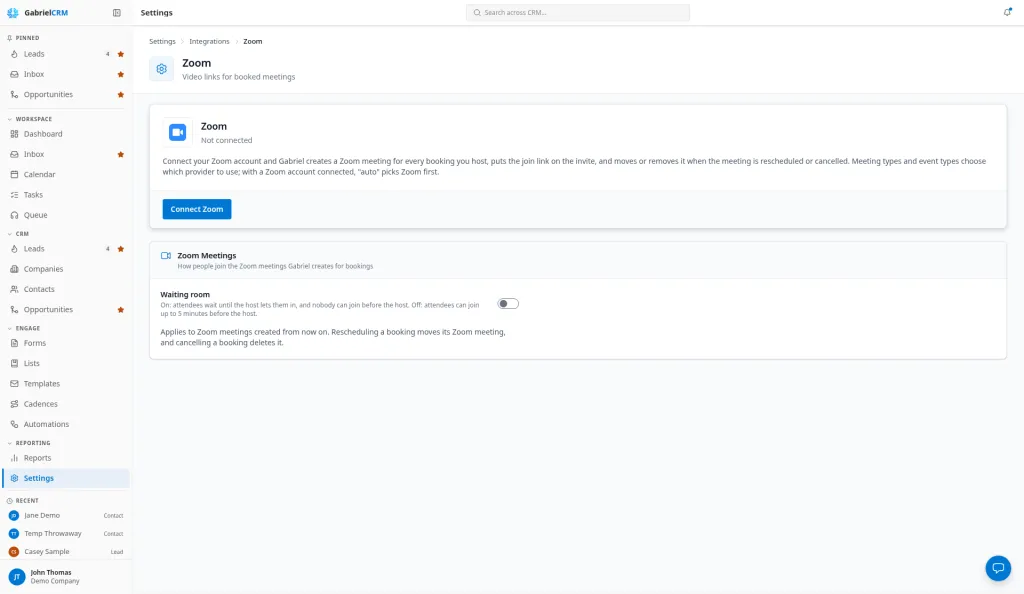
Choose how people join (admins)
Section titled “Choose how people join (admins)”Admins see Zoom Meetings on the Zoom page. Waiting room applies to every Zoom meeting Gabriel creates for your company from then on:
- Off (default): no waiting room. Attendees can join up to 5 minutes before the host.
- On: attendees wait until the host lets them in, and nobody can join before the host.
Disconnect
Section titled “Disconnect”Click Disconnect on the Zoom page and confirm. New meetings you host no longer get a Zoom link. Meetings already booked keep their links, but Gabriel can no longer move or delete them in Zoom.
Removing Gabriel from your Zoom account (in Zoom, App Marketplace → Manage → Added Apps) disconnects it in Gabriel too.
How it works
Section titled “How it works”- Booking links and scheduling pages use the video provider set on the meeting type, or the one a scheduling page overrides it with. With Auto-detect (Auto-select best available on a scheduling page), Gabriel uses Zoom if the host has connected it, then Microsoft Teams, then Google Meet.
- Meetings you schedule in Gabriel, and bookings after a call, offer only the providers the host has connected under Location. With one provider it’s a box such as Create a Zoom link; with several it’s a list.
- The host owns the Zoom meeting. It’s created in the host’s Zoom account, even when a teammate booked it.
- Rescheduling and cancelling stay in step. When a meeting is rescheduled or cancelled from the Calendar, or by the attendee from their invite, Gabriel moves or deletes the Zoom meeting to match.
- Where the link shows. On the Calendar, the meeting’s Conference section has the link and a join button. On a contact, lead or company timeline, the meeting’s Zoom link box shows Join until an hour after the meeting ends. Attendees get the link in their invite.
Attendance
Section titled “Attendance”A few minutes after a Zoom meeting ends, Gabriel reads who joined from Zoom and shows it on the meeting under Attendance · Zoom: each person, their minutes in the meeting, and a link to their contact or lead when Gabriel recognizes their email.
- Someone outside your team joined: Gabriel marks the meeting Completed for you.
- Only your team joined: the meeting stays open, and you get a Did they show? notification. Mark it No-show, or Completed if they joined another way, such as by phone. You can turn this notification off in Settings → Notifications.
- You already marked it: Gabriel keeps your outcome and still shows who joined.
If the meeting says reconnect Zoom, your Zoom connection was made before attendance was available. Disconnect and connect Zoom again; attendance shows on meetings from then on.
Best practices
Section titled “Best practices”- Connect Zoom before you share booking links if Zoom is your company’s tool. With Auto-detect, a host without Zoom gets a Teams or Google Meet link instead, which can surprise a prospect expecting Zoom.
- Admins: set meeting types to Auto-detect unless everyone uses Zoom. A type fixed to Zoom books meetings with no link for any host who hasn’t connected it.
- Turn on the waiting room for demos and discovery calls. It stops an early prospect from sitting alone in the meeting before you arrive.
- Book as the host who’ll run the meeting. The meeting lands in the host’s Zoom account, so a manager booking for a rep should set the rep as host.
- Reschedule in Gabriel, not in Zoom. Gabriel moves the Zoom meeting and the calendar invite together. Changing the time in Zoom leaves the invite and Gabriel showing the old time.
- Before you disconnect, check upcoming meetings. After you disconnect, rescheduling or cancelling them in Gabriel doesn’t update Zoom.
Troubleshooting
Section titled “Troubleshooting”“Meeting scheduled, but the Zoom link could not be created: …” The meeting was booked without a link, and the message says why. The host also gets a notification with the reason. Fix the cause, then book again if the meeting needs a link.
“Zoom was not connected: the Zoom app cannot create meetings.” Zoom didn’t grant permission to create meetings, so Gabriel refused the connection. Contact Gabriel support.
“Zoom OAuth is not configured.” Zoom isn’t available for your account yet. Contact Gabriel support.
The meeting shows “No video link on this meeting.” It was booked without a link, or the link couldn’t be created. Check the host’s notification for that booking.
Zoom isn’t offered under Location. The host hasn’t connected Zoom. The list shows the host’s providers, not yours. Ask the host to connect, or pick another provider.