
Roles and permissions
A role decides two things for everyone who holds it: what they can do (view, create, edit, delete, export and so on), and which records they can do it to (their own, their team’s, or everyone’s). Every user has one built-in role, and can also be given a custom role your company creates.
Go to Settings > Roles & Permissions. Only administrators see it.
The built-in roles
Section titled “The built-in roles”You assign these when you invite or edit a user.
| Role | Who it’s for | What it can do by default |
|---|---|---|
| Administrator | Whoever runs Gabriel for your company | Everything, including settings, billing, users and roles |
| Sales Manager | Sales leaders | Everything a rep can, plus delete and export records, email a whole list, manage pipelines, tags, cadences, automations, call scripts and shared email templates, delete call recordings, remove synced emails, publish landing pages, invite users and manage teams. Sees every record |
| Marketing Manager | Marketing leaders | The same as Sales Manager |
| Sales Rep | Reps | Create and edit leads, contacts, companies and opportunities; build lists; log activities and notes; enroll people in cadences; send email; build forms and draft landing pages; use AI; write personal email templates |
| Marketing Specialist | Marketers | Everything a Sales Rep can, plus publish landing pages and manage social media |
| Customer Success | Account managers | The same as Sales Rep |
| Viewer | Anyone who only needs to look | View only. Can’t send email or use AI |
| Billing Contact | Whoever pays the bill | View only, plus billing and sending email |
Default record reach:
- Administrator, Sales Manager and Marketing Manager reach every record.
- Every other role reaches all companies, contacts and leads, sees the opportunities of everyone on their teams, and edits or deletes only their own opportunities.
Read the permissions grid
Section titled “Read the permissions grid”Click a role in the Roles list to open its grid. Each row is an area of Gabriel and each column an action; a tick means the role has it.
| Row | What it covers |
|---|---|
| Contacts | Contacts and leads. Leads have no row of their own, and meetings, calls and the calling report follow this row’s reach too |
| Companies, Opportunities | Those records. Export downloads them as a file |
| Lists | Lead and contact lists. Send email emails everyone on a list at once |
| Activities, Notes | Tasks, calls and other logged activities, and notes. Which ones a person sees follows the record they’re on |
| Emails | View logged emails; Send email from a connected mailbox; Delete removes a synced email from Gabriel for everyone and stops it syncing again (it stays in the mailbox) |
| Pipelines | View pipelines and stages; Manage creates and edits them |
| Tags | Manage renames, merges, recolors and deletes tags |
| Cadences | View, Enroll people, Manage (build, edit, retire, delete) |
| Automations | View automations and their runs; Manage builds and runs them |
| Scripts | Manage call scripts. Everyone who calls can read them |
| Call recordings | Delete a call’s recording and transcript. The call stays in the history. Settings > Telephony can also let everyone who edits contacts delete them |
| Forms | Build creates, edits and publishes forms; Edit archives them |
| Form submissions | Review marks submissions as spam or legitimate |
| Landing pages | Draft works on unpublished pages; Edit publishes them and changes live ones |
| Email templates | Edit your own templates; Manage shared shares templates with the team and changes the shared ones you created. Only a template’s creator can edit or delete it |
| Social, Social posts | Connect social accounts and create, schedule and publish posts |
| Scheduling pages, Bookings, Booking links | Your own public booking pages and availability, the bookings made on them, and booking links |
| Documents | Linked SharePoint or Google Drive folders: View, and Manage to link, create and upload |
| Products | The product catalog |
| Ai | Use AI drafting, summaries and card scanning |
| Analytics | View the dashboard |
| Users | View, Invite and Edit team members |
| Teams | View, Create, Edit, Delete (deactivate) and Assign members |
| Records | Hard delete permanently deletes contacts and companies |
| Tenant | Settings manages company settings; Billing manages the subscription |
| Roles | Manage this page |
A role’s grid only shows the permissions it can hold, so different roles show different rows.
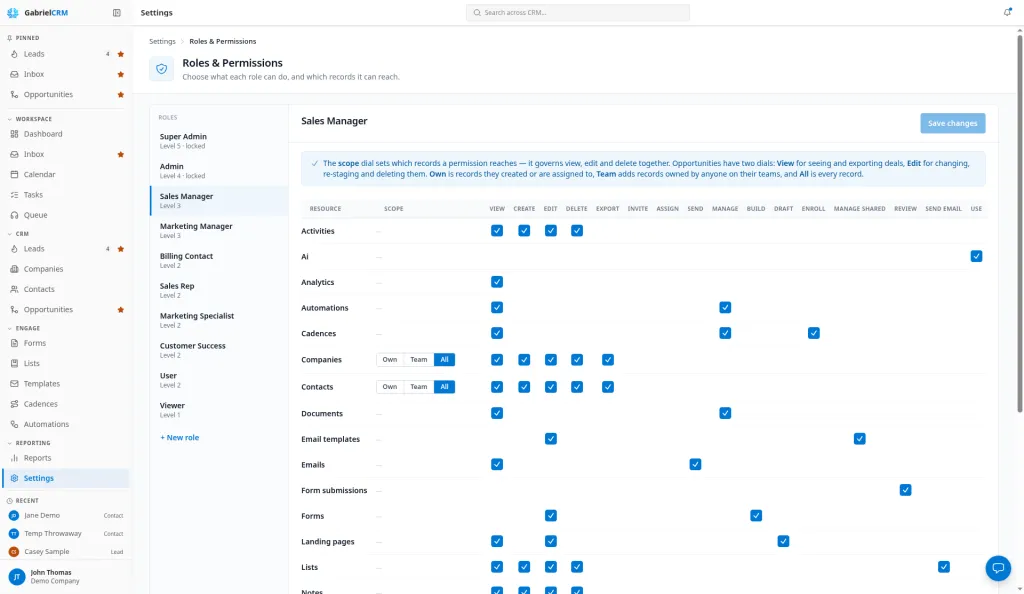
Set which records a role reaches
Section titled “Set which records a role reaches”Companies, Contacts and Opportunities have a Scope dial:
- Own: records they created or are assigned to.
- Team: their own records plus records owned by anyone on their teams. Teams are set up under Team.
- All: every record in your company.
The dial covers every action on that row together. Opportunities has two dials: View for seeing and exporting deals, and Edit for changing, re-staging and deleting them.
Narrow a built-in role
Section titled “Narrow a built-in role”- Click the role in the Roles list.
- Untick the actions it shouldn’t have, and set the Scope dials.
- Click Save changes.
A built-in role can only be narrowed; you can’t add a permission it doesn’t have by default. An edited role shows Edited in the list. To undo your changes, click Revert to default, then Revert.
Administrator is locked and can’t be changed, so your company can’t lock itself out of administration.
Create a custom role
Section titled “Create a custom role”Use a custom role when no built-in role fits, for example a team lead who should see their team’s records but not delete anything.
- Under the Roles list, click + New role.
- Type a Role name and click Add. The role starts with no permissions.
- Tick the actions it should have, and set the Scope dials.
- Click Save changes.
- Assign it to people on Settings > Team, using the picker under each user’s role badge.
A custom role can hold any permission except the ones that manage your account: company settings, billing, roles, inviting and editing users, and managing teams.
To rename a custom role, click its name at the top of the grid, type, and click Save changes. To remove it, click Delete role, then Delete.
How it works
Section titled “How it works”- A custom role replaces the built-in role’s permissions. While someone has a custom role, only its permissions apply. Choose Base role on the Team page, or delete the custom role, and they go back to their built-in role.
- Changes reach everyone within a minute. People don’t need to sign out.
- Reports follow the same reach. The Lead funnel follows Contacts, MSP revenue follows Opportunities view, and the Calling report covers the whole team only when Contacts is set to All. See Reports.
- Someone on no team with Team scope reaches only their own records.
Best practices
Section titled “Best practices”- Start narrow and add. Give people the lowest built-in role that fits, and only widen access when someone hits a real limit. Removing access later is harder than granting it.
- Admins: keep Administrator to two or three people. It’s the only role that can change settings, billing and roles, and it can’t be narrowed.
- Managers who report on calling need All on Contacts. With Team or Own, the Calling report shows only the manager’s own calls.
- Use Team scope for team leads, not Own. A lead on Own can’t see their reps’ records, which defeats the point of the role. Make sure the lead is the team’s manager or a member, or Team reaches nobody else.
- Keep Export and Hard delete with as few people as possible. Export takes your data out of Gabriel, and hard delete can’t be undone.
- Name custom roles for the job, not the person. “Team Lead” or “Contractor” stays useful when people change; “Dana’s role” doesn’t.
- Test a role change with a real user. After saving, ask someone who holds the role to check they can still do their daily work.
Troubleshooting
Section titled “Troubleshooting”A permission is missing from a built-in role’s grid. Built-in roles can only be narrowed. Create a custom role to grant a combination no built-in role has.
Someone still can’t do something after you changed their role. Check whether they have a custom role on the Team page; while they do, their built-in role’s permissions don’t apply.