
Convert a lead
Converting a lead turns it into the records you sell to: a contact, linked to a company, and optionally an opportunity in one of your pipelines. Do it once a lead is qualified and you’re ready to work a deal with them.
You convert from the lead itself. Only a Qualified lead can be converted; see Work your leads for how a lead gets there.
You need permission to edit the lead and to create contacts. Creating a new company or an opportunity during conversion also needs permission to create those.
Convert a lead
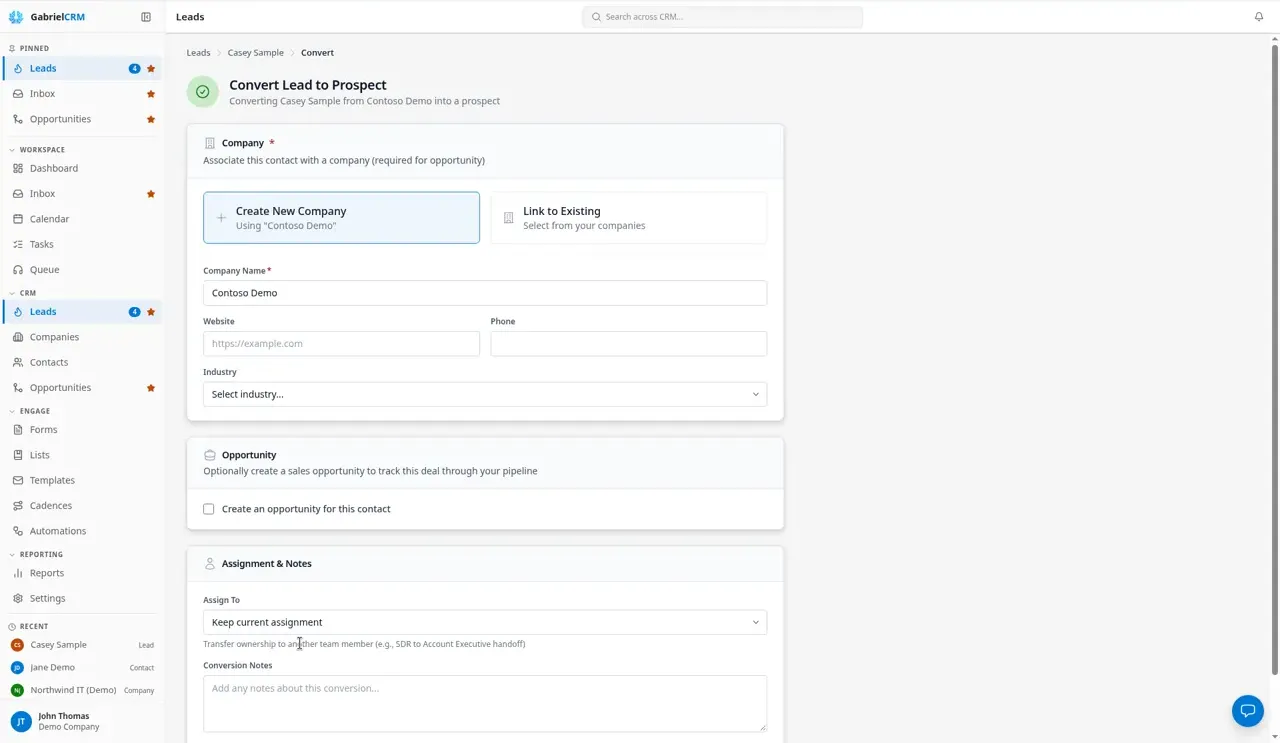
Section titled “Convert a lead”- Open the lead and click Convert to prospect. (The Ready to convert card on the Overview tab has the same button.) Until the lead is qualified, the button reads Convert — qualify first and is turned off. The Convert Lead to Prospect page opens.
- Under Company, choose one:
- Create New Company: the Company Name, Website and Phone are filled in from the lead. Pick an Industry if Gabriel couldn’t match the lead’s industry to one of yours.
- Link to Existing: type in Select Company to search, then pick the company.
- Under Opportunity, tick Create an opportunity for this contact if you
want one, then fill in:
- Opportunity Title (required). Gabriel suggests the lead’s company name (or the lead’s own name) followed by “New Opportunity”.
- Value, optional.
- Pipeline and Stage (both required). Your default pipeline and its first stage are picked for you. Lost stages aren’t offered: a lost deal needs a loss reason, so mark it lost from the deal afterwards.
- Under Assignment & Notes, leave Assign To on Keep current assignment, or pick someone else to hand the deal to.
- Add Conversion Notes if you like.
- Click Convert to Prospect.
Gabriel opens the new contact when it’s done.
What gets created
Section titled “What gets created”The contact gets the lead’s name and salutation, email, phone numbers, job title, LinkedIn, source, tags, description, Do not contact, Do not email and Do not call settings, and the date it was last contacted.
A new company (when you choose Create New Company) gets:
- The name, website, phone and industry from the form.
- The lead’s employee count, annual revenue and address. The form lists these under Also copied from the lead.
- The company type Prospect.
A linked company is left as it is. Nothing from the lead is copied onto it.
The opportunity, if you asked for one, is linked to the new contact and the company, takes the lead’s source, and starts in the stage you picked.
Ownership: the contact, the new company and the opportunity all go to the person in Assign To. With Keep current assignment, that’s the lead’s owner, or you if the lead had none.
How it works
Section titled “How it works”- Activity follows the person. Calls, meetings and tasks logged on the lead move to the new contact and its company. Meetings the lead shared with other people also appear on the contact’s timeline.
- Cadences stop. If the lead was in a cadence, it leaves it. The new contact starts with no cadence.
- Automations carry on. Any automation still running for the lead continues with the new contact.
- The lead is kept, marked Converted. It drops off the Leads list, and a Lead Converted entry, with your conversion notes, is added to its timeline.
- One email, one contact. If a contact already has the lead’s email address, the conversion stops so you don’t end up with two records for one person.
- It can’t be undone. There’s no way to turn a contact back into a lead.
Best practices
Section titled “Best practices”- Convert when there’s a deal to work, not before. Conversion ends the lead’s cadence and moves it off the Leads list. If you’re still trying to get a first conversation, keep it a lead and keep prospecting.
- Search before you create a company. Pick Link to Existing whenever the company is already in Gabriel, so all its people and deals stay on one record. Create New Company always makes a new one, even if the name matches.
- Fix the lead first if the details are wrong. The new company takes the lead’s employee count, revenue and address as they are. Correct them on the lead’s Details tab before converting, so the company’s ICP fit is right from day one.
- Create the opportunity at conversion. Ticking Create an opportunity for this contact links the deal to the contact and company and carries the lead source onto it. That keeps your source reporting intact.
- Use Assign To for the SDR-to-AE handoff. If a different rep works deals, pick them in Assign To. The contact, company and opportunity all move to them in one step.
- Write conversion notes for the next person. A line on what was agreed and what happens next saves the account owner from reading the whole timeline.
Troubleshooting
Section titled “Troubleshooting”This lead must be qualified before it can be converted to a prospect. Go back to the lead and click Qualify. A disqualified lead has to be reopened and then qualified first.
A Contact already uses this email; resolve that identity before converting. The person is already a contact. Open that contact and work from there; you can Disqualify the lead so it leaves your list.
Configure one active Prospect Account type. Creating a new company needs exactly one active company type named Prospect. An admin can add or reactivate it under Settings > Picklists > Companies. Until then, use Link to Existing.
The selected stage must belong to the active pipeline. The pipeline or stage was changed or deactivated while you had the page open. Pick them again.
Lead Already Converted. Someone already converted this lead. Click View contact to open the contact it became.