
Tags
Settings > Tags lists every tag used in your company, with how often each one is used. Use it to fix misspellings, combine duplicates and remove tags nobody needs, so filters find what people expect.
Go to Settings > Tags. Sales managers, marketing managers and admins can use this page by default.
New tags aren’t created here. A tag appears in the list as soon as someone adds it to a lead, contact or company, or an automation adds it. See Tags.
Find a tag
Section titled “Find a tag”Type in Search tags. The Used on column shows how many times each tag is used.
Rename or recolor a tag
Section titled “Rename or recolor a tag”- Click Rename or recolor (the pencil) next to the tag.
- Change the Name, the Color, or both.
- Click Save changes.
Renaming changes the tag on every record that has it.
If the new name matches another tag, Gabriel warns you that saving will merge the two. Click Merge tags to go ahead.
Merge tags
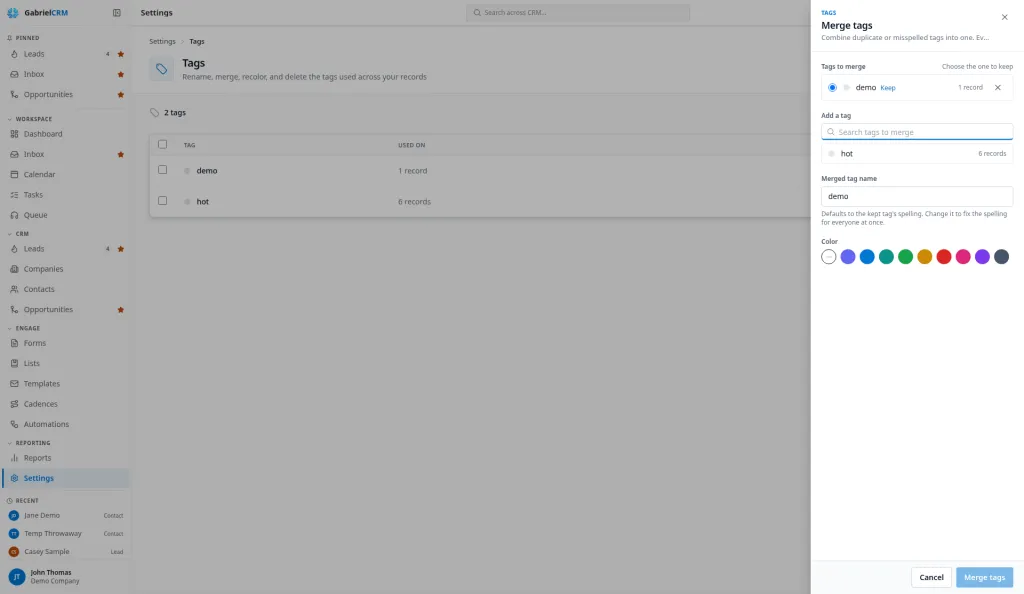
Section titled “Merge tags”Merge tags to combine duplicates and misspellings, such as “VIP” and “V.I.P.”, into one.
- Tick two or more tags and click Merge. Or click Merge on one tag and add the others under Add a tag.
- Under Tags to merge, choose the one to Keep. Gabriel picks the most used one for you.
- Optionally fix the spelling in Merged tag name, and pick a Color.
- Check What will happen, then click Merge N tags.
Every record that had any of the tags ends up with the kept tag, once. The other tags are removed.
Delete a tag
Section titled “Delete a tag”- Click Delete tag (the trash can) next to the tag.
- Click Delete tag to confirm.
The tag is removed from every record that has it.
How it works
Section titled “How it works”- Capitals and spaces don’t count. “VIP”, “vip” and “VIP “ are one tag here, and merge, rename and delete reach every record with any of those spellings.
- Usage counts include tags on activities as well as leads, contacts and companies.
- No automations run when you rename, merge or delete a tag, even ones set to run when A tag is added or removed.
Best practices
Section titled “Best practices”- Review the list once a month. Search for near-duplicates and merge them; the suggestions reps see when tagging come from this list, so a clean list keeps new tags clean.
- Merge rather than delete duplicates. Merging moves every record onto the kept tag; deleting the duplicate would take it off records that need it.
- Fix the spelling while you merge. Set Merged tag name to the spelling you want everyone to use, so filters, which match exactly, find every record.
- Check automations before renaming a tag. Rules that watch or add a tag use its name, so update them to the new name when you rename it.
- Delete campaign tags when the campaign is over. Old tags crowd the suggestions reps pick from.
- Write your tag conventions down for the team. A short list of agreed tags and prefixes stops most duplicates before they happen.