
Log activity
Every contact, lead, company and opportunity record has a Log new bar above its timeline. Use it to record what you did with someone: a call, a meeting, a note. You can also send an email, create a task or book a meeting from the same bar. What you log is what Gabriel uses to work out who has been contacted, which leads are moving and which deals are going cold.
The bar has these buttons:
- Add note
- Log call
- Send email
- New task
- Log meeting
- Book meeting (not on companies)
The record you’re on is linked automatically. Buttons your role isn’t allowed to use don’t appear.
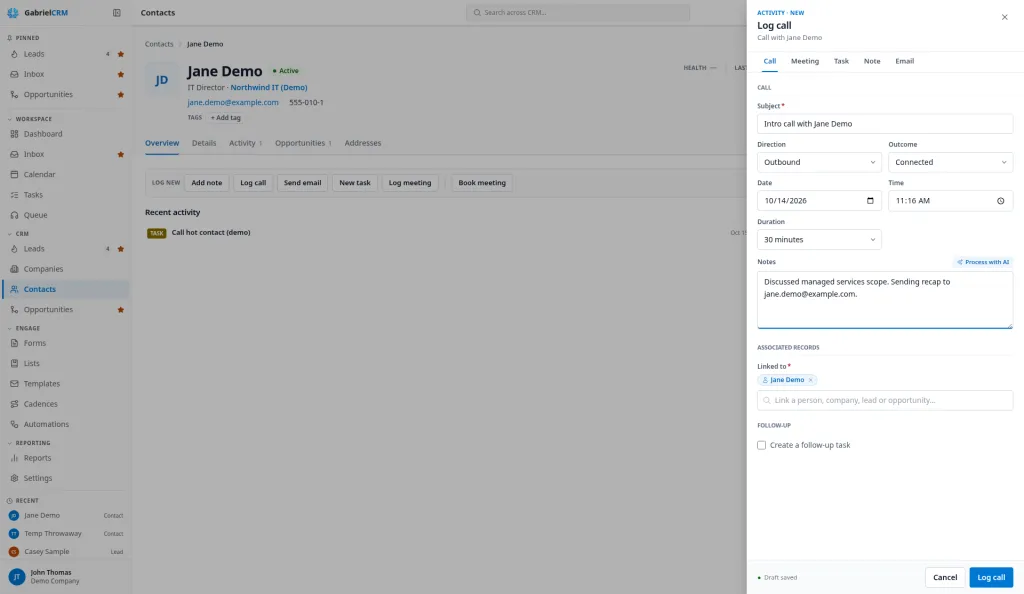
Log a call
Section titled “Log a call”- Click Log call.
- Enter a Subject.
- Choose the Direction: Outbound or Inbound.
- Choose an Outcome: Connected, Reached Gatekeeper, Left Voicemail, No Answer, Busy, Not in Service or Wrong Number.
- Check the Date, Time and Duration.
- Add Notes on what was discussed.
- On a contact, tick Create a follow-up task to set up the next step, and pick its Due date (three days out to start).
- Click Log call.
The call is saved as completed. If you call through the Gabriel dialer, the call is logged for you; see Calls and call outcomes.
Log a meeting that already happened
Section titled “Log a meeting that already happened”- Click Log meeting.
- Enter a Subject, the Date and Time, the Meeting type and the Duration.
- Set the Status to Completed, or Cancelled if it didn’t happen.
- Under Who attended, link the people who were there.
- Add notes in Agenda if you like.
- Click Log meeting.
Logging a meeting sends no invitations and creates no calendar event. If you pick a date in the future, the form switches to scheduling it instead. To schedule a meeting with an invite, use Book meeting; see Calendar.
Add a note
Section titled “Add a note”- Click Add note.
- Write the Note. A Title is optional.
- Tick Pin this note to the top to keep it above the timeline.
- Click Add note.
Use notes for context that isn’t a conversation: background on the account, who the decision makers are, what the customer uses today.
Send an email or create a task
Section titled “Send an email or create a task”- Send email opens a new email to the person, sent from your connected mailbox. It’s filed on the record when it’s sent. See Inbox.
- New task creates a follow-up linked to the record. See Tasks.
Find and change what’s logged
Section titled “Find and change what’s logged”Everything appears on the record’s timeline, grouped into Upcoming, Today, Yesterday, This week and then by month. Use the filters (All, Notes, Calls, Emails, Tasks, Meetings) or Search activity… to find something. Click an entry to expand it, then edit or delete it.
How it works
Section titled “How it works”- Last contacted. A contact’s or lead’s Last contacted date moves when someone at your company reaches them: a completed call, a completed meeting or an email sent to them. Notes, tasks, emails they send you and form submissions don’t change it. The date never moves backward.
- Lead status. The first completed call or meeting with a lead, or the first email sent to them, moves a New lead to Contacted.
- Lead score. Logging a call or meeting on a lead recalculates their score. Calls and meetings both count toward it.
- Engagement on the dashboard. Any call, meeting, task or email on a contact counts as activity for the dashboard’s Engagement card. Notes don’t.
- Stalled deals. A call, email, task, note or meeting logged against an opportunity keeps it off the dashboard’s Stalled Opportunities list.
- Calls you log by hand appear on the timeline and count for last-contacted dates and lead scores. The calling report only counts calls made through the dialer.
- Who sees it. Activity on a record is visible to anyone who can see that record.
Best practices
Section titled “Best practices”- Log every real conversation as a call or meeting, not a note. Notes never move Last contacted or lead status. A conversation saved as a note leaves the lead at New and the contact looking untouched.
- Always pick an Outcome. The outcome shows on the timeline, so the next person to call knows whether they’re following up on a voicemail, a gatekeeper or a conversation.
- Log right after you hang up. Notes are better while the call is fresh, and your teammates see the latest status straight away.
- Tick Create a follow-up task on every call that needs a next step. It puts the next step on your Tasks list with a due date, so it shows as overdue if it slips.
- Log against the opportunity when the conversation is about a deal. Activity on the deal keeps it off the stalled list and shows your manager it’s being worked.
- Use Book meeting for anything in the future. Log meeting is a record of the past. A booked meeting sends the invite, lands on the calendar and asks for an outcome afterward.
- Pin the one note everyone should read. Pinned notes stay at the top of the timeline, so the key facts about an account don’t get buried.