
Work a cadence
When someone is enrolled in a cadence and assigned to you, their steps come to you one at a time. Gabriel tells you what to do and when; you make the call, send the email or do the task. Nothing in a cadence happens without you.
Your due steps are in your Queue, in the Workspace group in the sidebar. To see a cadence’s steps and everyone in it, open Cadences from the Engage group.
See what you owe
Section titled “See what you owe”Open Queue. Ready steps are listed oldest first, held steps below them with the reason and the date they come back, and steps you finished today at the bottom. Each person appears once per cadence, because a step only becomes ready when the one before it is done. For the full layout, see Queue.
Work a step
Section titled “Work a step”Click the button at the end of the row. It’s named after the kind of step.
- Call: the call desk opens with the step’s call script. The result you log decides what happens next: No answer, Left voicemail and Reached gatekeeper finish the step, Wrong number and Not in service hold it until the number is fixed, and many connected results end the cadence. See Work a call step and what each result does.
- Email: the step’s template opens as a draft, or a blank email if the step has no template. Edit it and send it from your connected mailbox. Sending is what finishes the step; there is no Mark done for an email.
- LinkedIn or Task: read the instruction, do the work, add optional Notes (they go on the person’s timeline) and click Mark done.
There is no skip for reps. Only a manager can skip a step.
Hold a step
Section titled “Hold a step”When you can’t do a step yet, click Hold this step, enter Why, optionally set Until, and click Hold. With a date the step comes back by itself; without one it waits until you click Resume. See Hold and resume a step.
If a row says Cadence paused, a manager paused the whole cadence. It comes back when the manager resumes it.
See everyone you’re working
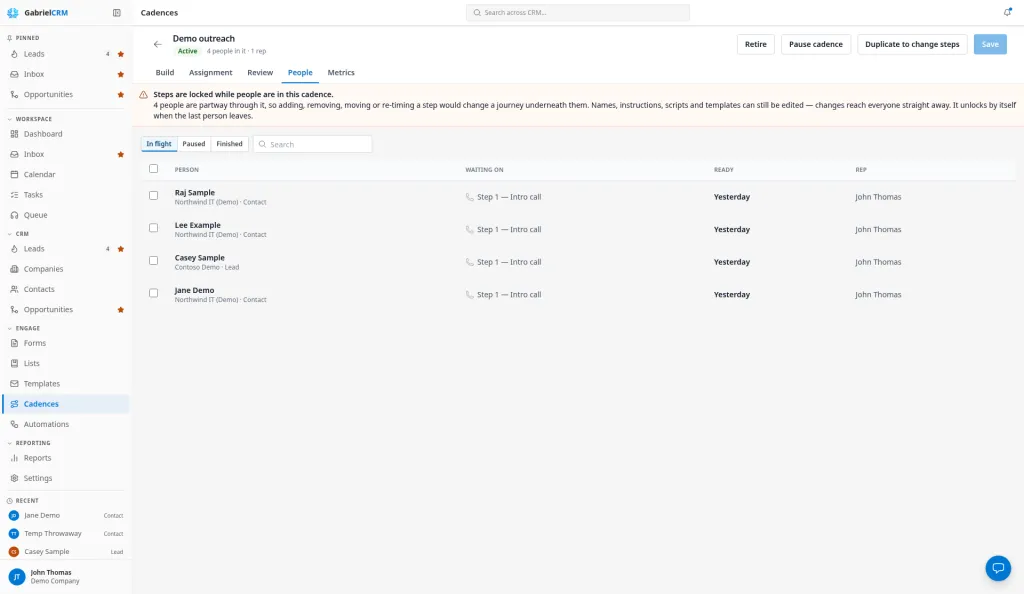
Section titled “See everyone you’re working”- Open Cadences from the Engage group.
- Click a cadence. Without permission to build cadences, you see it read-only, with the Build and People tabs.
- On People, choose In flight, Paused or Finished. The Rep column shows who is working each person.
Enroll someone yourself
Section titled “Enroll someone yourself”On a lead or contact, open More actions (…) and click Enroll in cadence, or tick several on the Leads or Contacts page and click Enroll in cadence. Everyone you enroll is assigned to you, not spread across the team.
Take someone out
Section titled “Take someone out”- To stop for good, open the cadence’s People tab, tick the person and click Remove from cadence. They leave, recorded as removed, and their record isn’t changed.
- To stop for a while, tick them and click Pause, with a reason and an optional Until date.
- If they asked not to be contacted, log Do not contact on the call, or mark the record do not contact. Either one ends every cadence they’re in.
You can pause, resume and remove only the people assigned to you. Ask your manager to reassign someone or skip a step.
What ends a person’s journey
Section titled “What ends a person’s journey”- You finish their last step.
- A meeting is booked with them, if the cadence ends on a booking.
- You log a call result that ends it, such as Not interested or Do not contact.
- Their lead is converted to a contact, or their contact is deleted.
- You or a manager remove them, or an automation takes them out.
A reply to your email doesn’t end the cadence. The full list is in Cadences.
Best practices
Section titled “Best practices”- Clear your Queue oldest first. Each person’s next step is timed from when you finish the current one, so a step done two days late pushes their whole journey back two days.
- Hold, don’t ignore. A held step with a reason and a date leaves your Queue and comes back on its own. An ignored step sits in red and makes the cadence’s timing meaningless.
- Fix a bad number the same day. Wrong number and Not in service hold the step until the record is corrected and the step is resumed, so the person is stuck until someone acts.
- Edit the template, don’t rewrite it. Keep the template’s structure and add one line about the person. Your manager compares click rates per email step, and a rewritten email hides what the template does.
- Remove people who reply. A reply doesn’t stop the cadence, so the next step still comes due. Log the conversation and take them out so they don’t get an email that ignores what they said.
- Write notes on LinkedIn and task steps. They land on the person’s timeline, where whoever picks up the account next will look.
Troubleshooting
Section titled “Troubleshooting”- “This step’s email template isn’t shared, so you can’t open it.” Ask a manager to share the template or choose a shared one for the step.
- “You can only do this to the people assigned to you.” You selected someone another rep is working. Ask a manager.
- “The whole cadence is paused.” A manager paused it. The step comes back when they resume it.
- “You don’t have permission to send email.” Ask an admin. Until then, hold the step.