
Inbox
The Inbox shows the email between you and the people in your CRM, pulled in from your connected Outlook or Gmail mailbox. You can read, reply, forward and write new email without leaving Gabriel, and every message is filed on the contact’s or lead’s timeline for you.
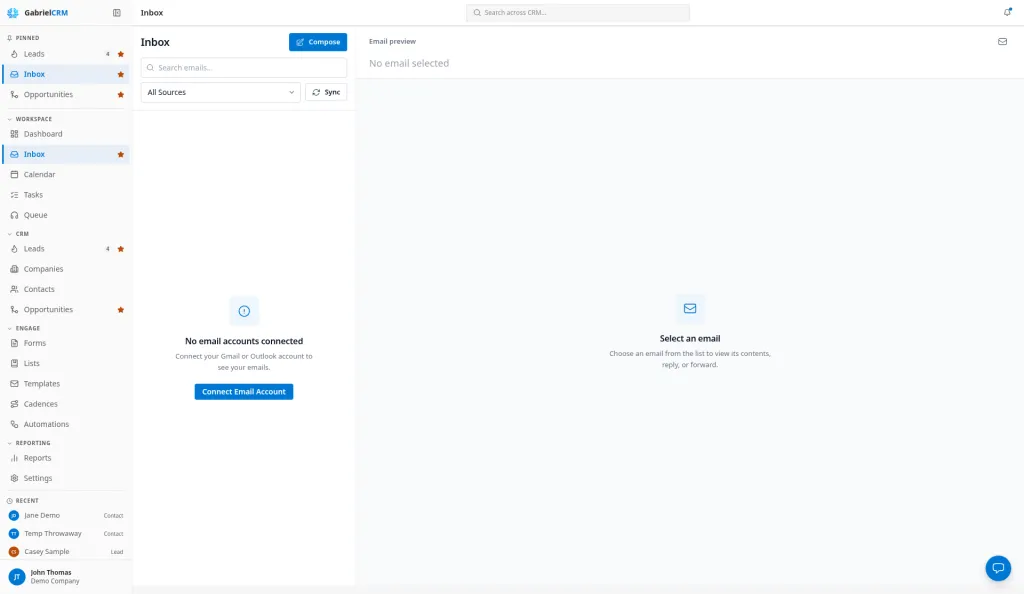
Open Inbox from the Workspace group in the sidebar. The number beside it is how many unread emails you have. The Inbox only shows your own mailbox: your teammates can’t read it, and you can’t read theirs.
Before you start
Section titled “Before you start”Connect your mailbox under Settings > Email & Calendar: either Microsoft 365 (Outlook) or Google (Gmail). Until you do, the Inbox shows No email accounts connected with a Connect Email Account button. See Email & Calendar.
Read your email
Section titled “Read your email”- Click an email in the list. It opens on the right and is marked read.
- To mark it unread again, click the read/unread icon at the top of the email. Gabriel makes the same change in Outlook or Gmail.
- Click the contact or company button on the email to open that record.
Each row shows the sender, subject, a preview and the date. A paperclip means attachments, and a dot means unread. The list shows the newest 50 emails; click Load more for older ones.
To find an email, type in Search emails…. Search looks at the subject, the sender’s name and address, and the start of the message.
Reply or forward
Section titled “Reply or forward”- Open the email.
- Click Reply or Forward at the bottom.
- Write your message above the quoted email and click Send.
Reply goes to the person who sent the email. Add anyone else with Cc or Bcc.
When you reply to one of your contacts, the toolbar also has Insert Booking Link, and you can tick Create a task to follow up so the reply doesn’t fall through the cracks. See Meeting types and booking links.
Write a new email
Section titled “Write a new email”- Click Compose.
- In To, start typing a name or address and pick the person. Click Cc or Bcc to add those lines.
- Add a Subject (required) and your message.
- Optionally use Insert template, Attach file or Generate with AI to draft the message.
- Click Send.
Your email signature is added for you. The email goes out from your connected mailbox and appears in your Outlook or Gmail sent items.
How it works
Section titled “How it works”- Only email with your contacts and leads comes in. Gabriel checks each email’s From, To and Cc addresses against your contacts and leads (including a contact’s secondary and assistant email). Email that doesn’t match anyone, such as newsletters and internal email, is never copied into Gabriel.
- Matched email is filed automatically on the timeline of every matched contact or lead, and on their company. If an address belongs to both a contact and a lead, the contact wins.
- Email you send from Gabriel is always filed, on the record you wrote it from or on whoever it matches.
- Newsletters and automatic email are left out. Even when the sender or a recipient is a contact, Gabriel doesn’t file mailing-list and bulk email (it has an unsubscribe header or is marked bulk), automatic replies such as out-of-office messages, or email from noreply or do-not-reply addresses.
- Keep an email off Gabriel. In Outlook, mark the email Private or Confidential, or give it a category named Gabriel: Don’t log. In Gmail, give it a label named Gabriel: Don’t log (you create the category or label yourself, once). Do it before the next sync, or when you write the email: email that’s already filed stays filed. Email you send from Gabriel is always filed.
- Encrypted email keeps only its envelope. If the sender encrypted an email (Microsoft Purview or Office Message Encryption, an encrypting sensitivity label, or S/MIME), Gabriel files who it was between, the subject and the date, but never its content or attachments. Open it in your mailbox to read it.
- Remove an email from Gabriel. Managers and admins can open a filed email and click Remove from Gabriel. It’s deleted from every timeline and every teammate’s copy in Gabriel, and it’s never synced again. It stays in the mailbox it came from. This can’t be undone.
- Sync runs about every 15 minutes. Click Sync to ask for a check sooner; new mail appears within a few minutes. Hover over Sync to see when it last ran.
- What’s synced. For Outlook, your Inbox and Sent Items folders only, so mail your rules move into other folders isn’t synced. For Gmail, all your mail except spam and trash.
- How far back. When you first connect, Gabriel copies in the last 14 days of matching email. Change it on the Email history tab of Settings > Email & Calendar, under Days of history (1 to 730 days). The change applies the next time you connect or reconnect.
- Attachments you send can be up to 25 MB each, and 25 MB in total through Outlook or 18 MB through Gmail.
- Who sees your email on timelines. On a contact’s or company’s timeline, teammates see your matched email only if their role can see all email and all contacts. Read and unread are always personal.
- Opted-out contacts. If a recipient is marked do not contact or has opted out, Send is blocked until you remove them.
Best practices
Section titled “Best practices”- Add people as contacts or leads before you email them. Gabriel only keeps email with people it knows. If you email someone who isn’t in the CRM yet, that conversation isn’t saved, even after you add them later.
- Pull in history when you add a contact you’ve already been emailing. On the contact’s timeline, use Find earlier email to bring in older email with them.
- Send customer email from Gabriel when you can. It’s filed on the right record every time and updates the contact’s last-contacted date. Email sent from Outlook or Gmail is only filed if the address matches.
- Give each contact every address they use. Add a contact’s secondary or assistant address so email with those addresses is filed on their record too.
- Start from a template for anything you send often. Insert template fills in the contact’s and company’s details, so follow-ups stay consistent across the team.
- Fix a reconnect banner the same day. While Gabriel shows Outlook needs to be reconnected or Gmail needs to be reconnected, no new email comes in and timelines go stale. Click Reconnect.
- Import your contacts and leads before you connect your mailbox. The first sync only keeps email with people already in Gabriel. If you need more than two weeks of history, raise Days of history and reconnect.
Troubleshooting
Section titled “Troubleshooting”An email I expected isn’t in the Inbox. Check that the sender or recipient is a contact or lead with that exact address. With Outlook, check that the email is in your Inbox or Sent Items, not a subfolder. Then click Sync and wait a few minutes.
An email with a contact isn’t on their timeline. Check whether it’s a newsletter, an automatic reply or from a noreply address, or whether it’s marked Private or Confidential or has the Gabriel: Don’t log category or label. Gabriel leaves those out on purpose.
A red banner says my mailbox needs to be reconnected. The connection expired or was paused after repeated failures. Click Reconnect and sign in again. Existing email stays in Gabriel.
Reply and Forward are grayed out. The email came from a mailbox that’s no longer connected. Reconnect it under Settings > Email & Calendar.
I can’t see Compose. Your role doesn’t include sending email. Ask your admin.
“This email cannot be sent.” A recipient is marked do not contact or has opted out. Remove them and send again.