
Admin setup checklist
This is the order we recommend for setting up Gabriel for your company. Each step builds on the ones before it: imports check your picklists and pipelines, invitations need your roles, booking links need connected calendars. Done in this order, nothing has to be redone.
Most steps take minutes. Plan on a few hours across your first week, plus time for your team to accept their invitations.
This checklist is for admins. Most steps are in Settings, and the tiles you need only appear for roles with permission to change company settings.
The Set up your company card
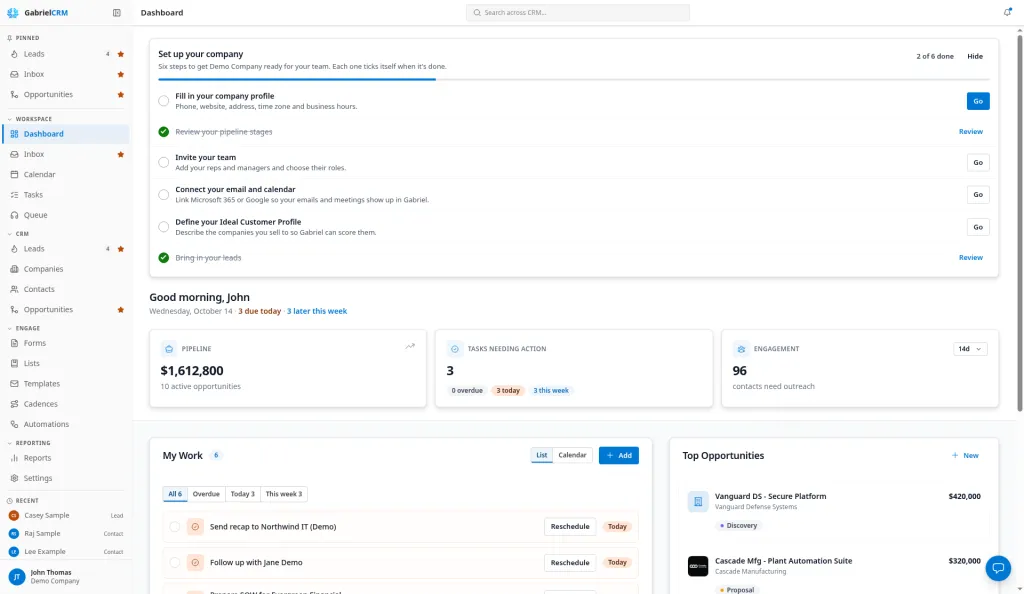
Section titled “The Set up your company card”Admins also see a Set up your company card at the top of the Dashboard. It tracks six of the steps below and ticks each one by itself when it’s done:
| Step on the card | It ticks when |
|---|---|
| Fill in your company profile | An admin saves Settings > Company |
| Review your pipeline stages | Someone saves a pipeline, or your company already has an opportunity |
| Invite your team | There’s at least one other active user or pending invitation |
| Connect your email and calendar | You have connected Google or Microsoft |
| Define your Ideal Customer Profile | Your ICP has at least one active criterion |
| Bring in your leads | Your company has at least one lead, contact or company |
Only admins see the card: people whose role can change company settings. Nothing on it is ticked by hand.
- Go opens the page that completes a step. The first step that isn’t done has the highlighted Go button.
- Review replaces Go on a finished step, which is struck through. Use it to check or change what you set.
- Hide removes the card for every admin in the company.
- When all six steps are done, the card is replaced by a green message, “Acme Inc. is set up.” with your company name, with a Dismiss button. Dismiss also hides it for every admin.
Bring the card back any time with Company setup in your user menu.
1. Fill in your company details
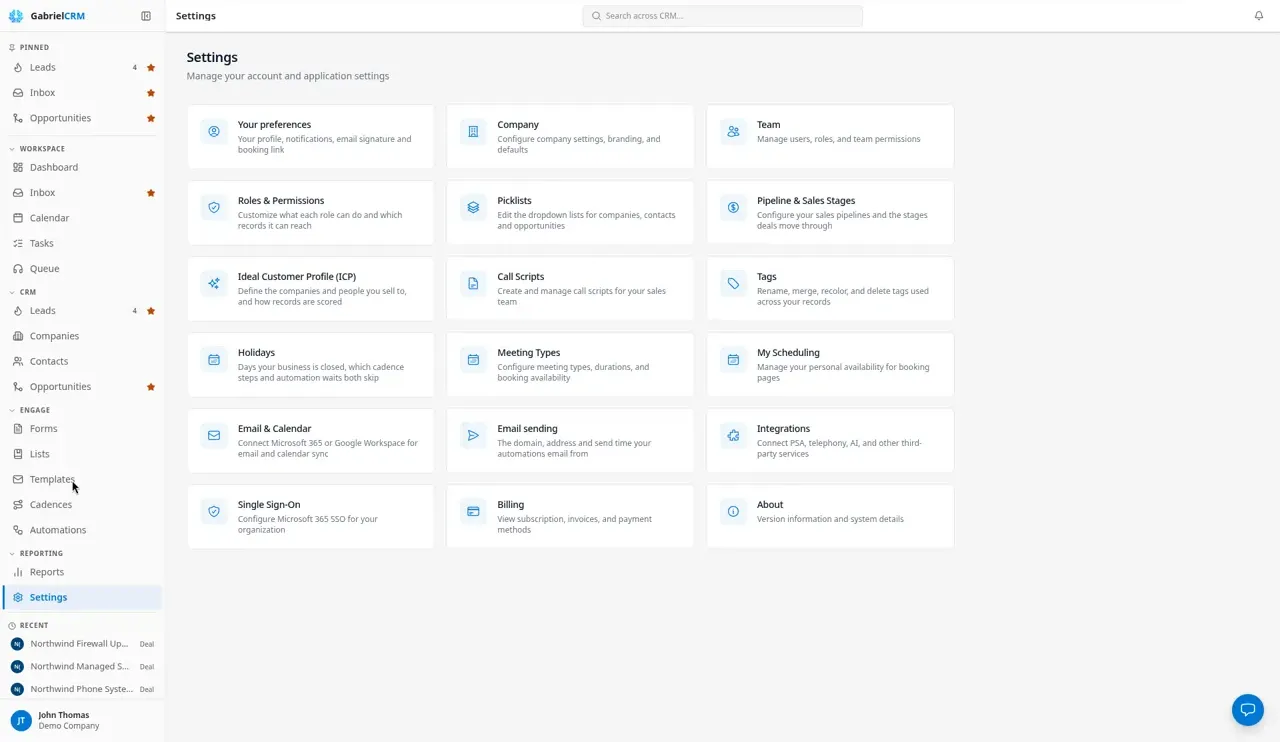
Section titled “1. Fill in your company details”Settings > Company. Add your phone, website and address, then set the Work Schedule (the days and hours you work) and Timezone.
Why it matters: the company time zone is used for anyone who hasn’t set their own, and saving this page ticks the first step on the setup card. See Company.
2. Start your email sending domain
Section titled “2. Start your email sending domain”Settings > Email sending. Enter your Domain, add the DNS records it shows at your domain registrar, then click Check DNS.
Why it matters: emails sent by automations come from this domain, and none go out until it’s verified. DNS changes usually show up in minutes but can take up to 48 hours, so start now and let it finish while you do the rest. See Email sending.
3. Add your holidays
Section titled “3. Add your holidays”Settings > Holidays. Add each day your business is closed this year.
Why it matters: cadence steps and automation waits count working days and skip these dates. A missing holiday makes steps come due on a day nobody is working. See Holidays.
4. Set up your pipeline and stages
Section titled “4. Set up your pipeline and stages”Settings > Pipeline & Sales Stages. Gabriel starts you with a pipeline; rename, add and reorder stages to match how you actually sell.
Why it matters: every opportunity sits in a stage, reports group by stage, and an opportunity import must name stages exactly as you set them here. See Pipeline and stages.
5. Tidy your picklists
Section titled “5. Tidy your picklists”Settings > Picklists. Review the dropdown values on the Companies, Contacts and Leads tabs: company types, industries, customer tiers, contact roles, salutations and lead sources.
Why it matters: a company import only accepts industry, type, tier and source values that already exist here, and reps pick from these lists every day. Fix them before people start choosing. See Picklists.
6. Decide roles and permissions
Section titled “6. Decide roles and permissions”Settings > Roles & Permissions. Check what each role can do and which records it can see, and create any custom roles you need.
Why it matters: you choose a role for each person when you invite them, so the roles should be right first. See Roles and permissions.
7. Invite your team
Section titled “7. Invite your team”Settings > Team. Click Invite user for each person and choose their role. If you’ll run cadences, set up your Teams on the same page.
Why it matters: invitations last 7 days, and imports can only assign records to people who have accepted. Send these early in the week. See Team and Accept an invitation.
8. Define your Ideal Customer Profile
Section titled “8. Define your Ideal Customer Profile”Settings > Ideal Customer Profile (ICP). Describe the companies and people you sell to.
Why it matters: Gabriel scores companies against it, so your team can see at a glance which accounts are worth their time. See Ideal customer profile.
9. Connect your email and calendar
Section titled “9. Connect your email and calendar”Settings > Email & Calendar. Connect Microsoft 365 or Google Workspace. Every user does this for their own mailbox; ask your team to do it on their first sign-in.
Why it matters: it puts emails and meetings on your records, lets people send from their own mailbox, and lets booking links offer free times. See Email & Calendar.
10. Set up meeting types and scheduling
Section titled “10. Set up meeting types and scheduling”Settings > Meeting Types for the kinds of meetings your company books and how long they run. Then each person sets their hours and booking page in Settings > My Scheduling.
Why it matters: booking links only offer times from a connected calendar, so do this after step 9. See Meeting types and My scheduling.
11. Connect your other tools
Section titled “11. Connect your other tools”Settings > Integrations. Connect what you use:
- Zoom, so meetings get a Zoom link. Each person connects their own Zoom account. See Zoom.
- Twilio, to call from Gabriel. See Telephony.
- PSA, to sync with Autotask. Your account manager turns this on for your company. See Autotask.
12. Import your data
Section titled “12. Import your data”From the Leads, Companies, Contacts or Opportunities page, click Import. Bring in companies first, then contacts, then opportunities; leads can come in at any point.
Why it matters: this is last because it depends on everything above. Picklist values, pipeline and stage names and owners’ email addresses in your file must already exist in Gabriel. See Import your data.
Also worth setting up
Section titled “Also worth setting up”- Call scripts for your callers. See Call scripts.
- Tags to mark accounts for campaigns. See Tags.
- Single sign-on, if your company signs in with Microsoft or Google. See Single sign-on.
- Billing, before your trial ends. See Billing.
Best practices
Section titled “Best practices”- Finish steps 1 to 6 before anyone else signs in. People start creating records on their first day, and records made with the wrong stages or picklist values have to be fixed by hand later.
- Do a 20-row test import first. Import a small slice of each file, check the records look right, then import the rest. It’s much easier than cleaning up a thousand records.
- Connect your own email and calendar before your team does. You’ll see exactly what they’ll see and can answer their questions.
- Add next year’s holidays in December. Cadences already running reach into the new year, and their timing is only right if the dates are there.
- Turn on single sign-on last. Once it’s on, nobody can sign in with a password. Do it after everyone has accepted their invitation and you’ve tested your own sign-in with Microsoft or Google.
- Hide the setup card when you’re done. It hides for every admin, and you can always bring it back from Company setup in your user menu.