
Cadences
A cadence is a set path of touches that a rep works through with each person in it: a call, then an email two days later, then a LinkedIn request, and so on. Every step is done by a person. Gabriel makes each step due at the right time and puts the script or template in front of the rep, but it never sends an email or makes a call on its own. For rules that act on their own when something happens, use an automation instead.
Open Cadences from the Engage group in the sidebar. Sales managers, marketing managers and admins build cadences. Reps can open any cadence to read its steps and see who is in it, and they enroll people and work the steps. An admin can change who does what under Roles & Permissions.
This article is for the people who build and run cadences. If you work the steps, see Work a cadence.
Build a cadence
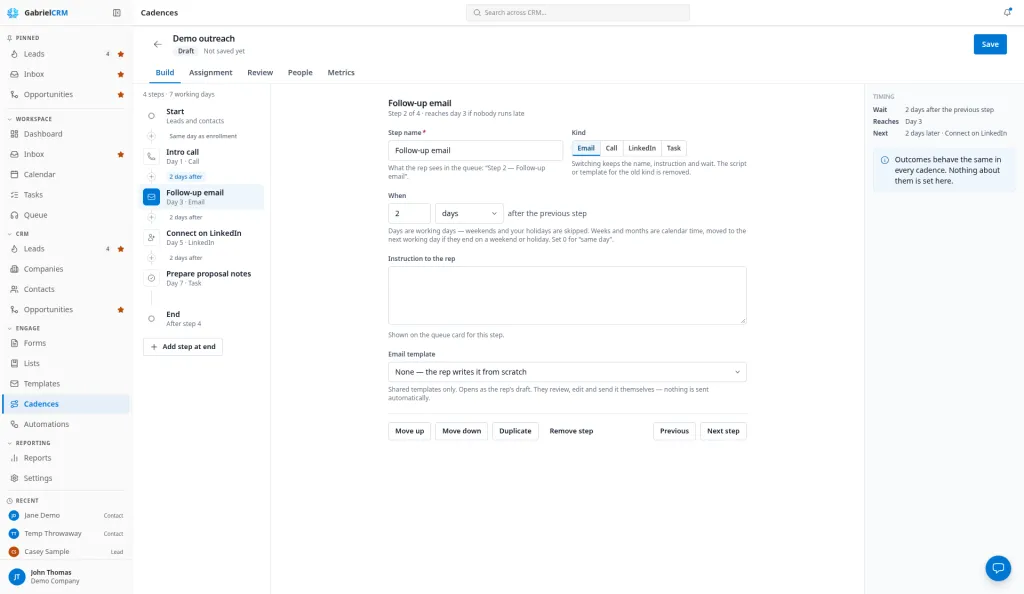
Section titled “Build a cadence”- Click New cadence.
- On the Build tab, click Start and enter a Cadence name and, if you like, a Description.
- Click Add step at end, or the + between two steps, and pick the kind of
step:
- Email: choose an Email template, or None — the rep writes it from scratch. Only shared templates are offered, because reps can’t open your private ones.
- Call: choose a Call script and a Voicemail script. The voicemail script replaces the call script when the rep logs a voicemail.
- LinkedIn: say what to do (connect, message, view the profile) in the Instruction to the rep.
- Task: anything else, described in the Instruction to the rep.
- Give each step a Step name. Reps see it in their Queue as “Step 2 — Intro email”.
- Set When each step comes: a number of days, weeks or months after the previous step (after enrollment, for the first step). Use 0 for the same day.
- Click End and decide whether to keep End the cadence when a meeting is booked turned on.
- On the Assignment tab, choose the Team that works the cadence.
- Click Save.
Use Move up, Move down, Duplicate and Remove step under a step to rearrange it. Changing a step’s kind keeps its name, instruction and wait but drops the script or template that belonged to the old kind. A cadence can have up to 100 steps.
Save stops you if the cadence has no name or team, a step has no name, or an email step uses a template that isn’t shared. Share the template under Templates (see Email templates), or pick a shared one.
To start from a draft instead, click Build with AI. Gabriel writes the steps, emails and call scripts for you to review; see Build with AI.
Choose the team
Section titled “Choose the team”A cadence is always worked by a team. The Assignment tab shows every member, whether they are Included or Not included, and who the Next enrollments go to.
- Who is included is set once per team, with the In assignment switch for each member under Settings > Team > Teams > the team’s name. Someone switched off is off for every cadence the team runs.
- The turn order is shared by all of the team’s cadences, so two cadences never both land on the same rep.
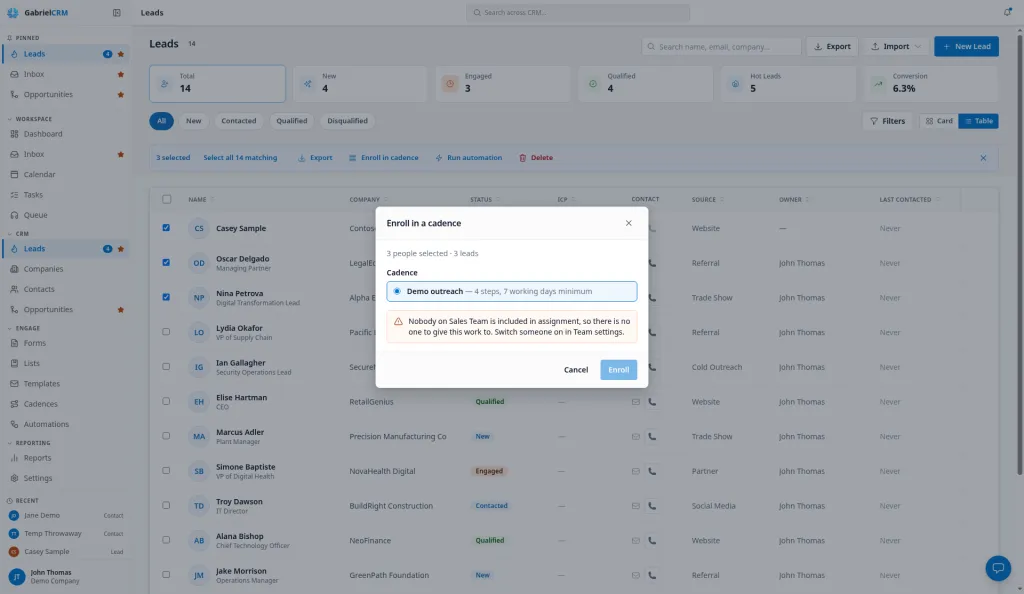
- If nobody on the team is included, enrollment is refused. Nothing falls back to the manager.
- If your company has no teams yet, click Create team (if you can manage teams) or ask an admin.
Check it before you launch
Section titled “Check it before you launch”The Review tab shows the date each step would be ready for someone enrolled today, with weekends and your holidays skipped, and a list of Checks: email steps without a template, call steps without a script, and whether the team has anyone included. Checks are advice and don’t stop you saving.
Enroll people
Section titled “Enroll people”Leads and contacts can be in the same cadence. There are three ways in:
- From a record: on a lead or contact, open More actions (…) and click Enroll in cadence.
- From a list: tick leads or contacts on the Leads or Contacts page and click Enroll in cadence in the selection bar, or use Enroll in cadence in a row’s menu.
- By an automation: the Enroll in a cadence action in an automation.
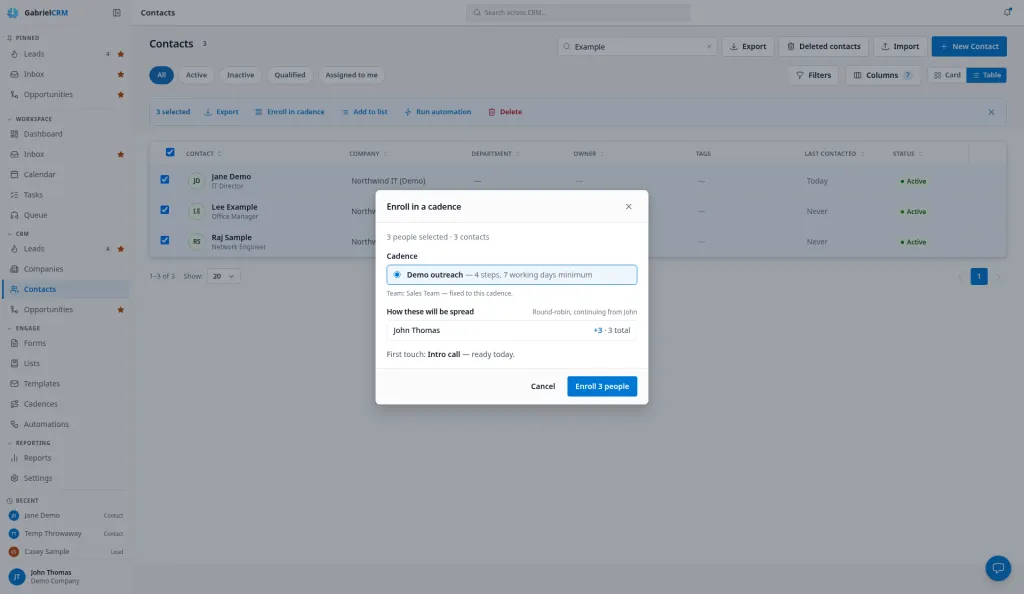
In the dialog, pick the Cadence. Only cadences that are not paused or retired and have at least one step are offered. Before you click Enroll, the dialog shows who will be skipped and why, who is coming back for a second time, and when the first touch is ready.
Who works each person depends on who enrolls them:
- A manager enrolling one person picks from Assign to. The next person in the team’s turn order is selected for you.
- A manager enrolling several people spreads them across the team’s included members in turn. The dialog shows how many each rep gains.
- A rep works everyone they enroll themselves, outside the team’s turn order.
- An automation gives each person to the next rep in turn.
Who can’t be enrolled:
- Anyone marked Do not contact.
- Anyone already in that cadence.
- A lead that has been converted (enroll the contact instead) or a deleted contact.
- Anyone who has been through the cadence before can only be put back by a person, and starts again at step 1. Automations never re-enroll anyone.
Change a live cadence
Section titled “Change a live cadence”While anyone is in a cadence, its steps are locked: you can’t add, remove, move or re-time a step, change its kind, or change the team. You can still edit names, instructions, scripts and templates, and those edits reach everyone in the cadence straight away. The lock lifts by itself when the last person leaves.
To change the steps, click Duplicate to change steps. The copy is named “(copy)”, has nobody in it, and can be edited freely. Enroll new people into the copy and retire the original when you’re ready; the people in the original finish the journey they started.
Pause, resume, retire or delete
Section titled “Pause, resume, retire or delete”- Pause cadence appears once someone is in the cadence. Give a reason. Every open step leaves every rep’s Queue at once and nobody new can be enrolled. People who were already held on their own stay held.
- Resume cadence asks for a reason, then times every stopped step again from that day, so the gaps you designed survive the pause.
- Retire stops anyone new being enrolled. Everyone already in it finishes normally. Retiring can’t be undone.
- Delete removes a cadence nobody has ever been enrolled in, such as a test or an unused draft, along with its steps. Click Delete, then Delete to confirm. It can’t be undone.
Once anyone has been enrolled, even if they’ve all finished, the cadence keeps its history (steps worked, calls, emails and metrics) and can only be retired. A cadence that an automation enrolls people in can’t be deleted either: change the automation’s Enroll in a cadence action first.
Manage the people in a cadence
Section titled “Manage the people in a cadence”The People tab lists everyone in the cadence, 50 at a time. Switch between In flight, Paused and Finished, or search by name. In flight shows the step each person is Waiting on, when it’s Ready, and their Rep. Finished shows How it ended and when they Left.
Tick one or more people to:
- Reassign them to another included rep on the team (managers only). The whole journey moves, including the notes and attempts behind it.
- Pause them, with a reason and an optional Until date. With a date they come back by themselves.
- Resume them, with a reason. Their current step is timed again from today.
- Skip current step, with a reason (managers only). The step is recorded as skipped and they move on to the next one.
- Remove from cadence. They leave, recorded as removed. Their record isn’t changed.
Reps can pause, resume and remove only the people assigned to them. While the whole cadence is paused, only Reassign and Remove from cadence are offered.
When a rep is away
Section titled “When a rep is away”When a manager switches a rep off under Settings > Team, Gabriel shows how many people the rep holds mid-cadence and asks what to do:
- Switch off and redistribute hands their people to the rest of the team, in turn.
- Leave their work with them keeps their people where they are. Nothing is due for those people until the rep is back.
Work that was handed on doesn’t come back by itself when the rep is switched on again; reassign specific people from the People tab if you want that.
Read the metrics
Section titled “Read the metrics”The Metrics tab (managers only) shows whether a cadence is working and where it falls apart. Choose All time or 90 days.
- Enrolled, In flight, Finished all steps and Meetings booked, with meetings as a share of everyone enrolled.
- How people left: a bar for each way people exited.
- Per step: how many people Reached and Completed each step, the connect rate for call steps or click rate for email steps, and Meetings. Rates show a dash until at least 10 people have been through the step.
A meeting is credited to the last step the person completed before it was booked, whatever kind of step that was. The step that books the most meetings is highlighted.
How it works
Section titled “How it works”Cadence states
Section titled “Cadence states”The cadence list shows each cadence’s Steps, its Span (the shortest time the whole cadence can take), the Team that works it, how many people are Enrolled, and its State:
| State | Meaning |
|---|---|
| Draft | Nobody is in it yet. |
| Active | At least one person is in it. |
| Paused | A manager paused it. Nothing is due and nobody new can be enrolled. |
| Retired | Nobody new can be enrolled. Anyone already in it finishes. |
Timing
Section titled “Timing”- Days are working days: Monday to Friday, minus your company’s holidays. “2 days after” a Friday step lands on Tuesday. The work week set under Settings > Company doesn’t change this.
- Weeks and months are calendar time, moved to the next working day if they end on a weekend or holiday.
- A step waits for the one before it. It becomes due only when the previous step is done and its own wait has passed, counted from when the previous step was done. A rep has one step per person waiting at a time, and a late step pushes the rest back rather than making them overdue.
- Steps are due from the start of the day in your company’s time zone.
After a call
Section titled “After a call”The result a rep logs on a call step decides what happens to the person’s cadence, the same way in every cadence. No answer, Left voicemail and Reached gatekeeper finish the step. A callback time, or a best time to call from a gatekeeper, holds the step until then. Wrong number and Not in service hold it until someone fixes the number and resumes it. Most connected results end the cadence, and Do not contact ends every cadence the person is in. The full table is in Queue.
When a cadence ends for someone
Section titled “When a cadence ends for someone”Someone leaves a cadence when:
- They finish the last step.
- A meeting is booked with them, on a call, from their record or by them through a booking link, and the cadence ends on a booking.
- A call result ends it.
- Their record is flagged Do not contact. This ends every cadence they’re in.
- A lead is converted to a contact. The cadence doesn’t carry over to the new contact.
- A contact is deleted.
- A manager, or the rep working them, removes them, or an automation’s Remove from every cadence action does.
An email reply doesn’t end a cadence by itself. When someone replies, the rep logs the outcome or removes them.
Pausing, reassigning and retiring never end anyone’s journey. Nothing else starts automatically when someone leaves, unless an automation is set to run when A cadence ends for someone.
Best practices
Section titled “Best practices”- Set up holidays before you launch. Cadence waits count working days against Settings > Holidays. A missing holiday makes steps come due on a day nobody is working, and they pile up as overdue the next morning.
- Keep an outbound cadence to 8 to 12 steps over 3 to 4 weeks. Steps are strictly in order, so a long cadence with tight waits stalls the moment a rep falls behind. Check the Span on the list and the dates on the Review tab before you enroll anyone.
- Lead with calls and put emails between them. Use 0 or 1 working day between a call and the email that follows it, and 2 to 3 working days between call attempts. Each call result already moves the person on, so a no-answer doesn’t need its own step.
- Use templates for every email step unless the email has to be personal. A template step opens a ready-made draft for the rep, gets you a click rate on the Metrics tab, and can be improved later for everyone at once. Save “None” for a breakup email or a reply that only the rep can write.
- Write the instruction as if the rep has never seen the account. It’s shown on the Queue card. “Comment on a recent post before you connect” is more useful than “LinkedIn”.
- Duplicate to change the steps; edit in place to fix the words. Wording fixes reach everyone in the cadence at once. Structural changes need a copy, and a copy also keeps the metrics of the old and new versions apart, so you can compare them.
- Managers: keep the team’s In assignment switches current. Round robin skips anyone switched off, and redistributing when someone leaves for a week keeps their people from going quiet for that week.
- Turn off End the cadence when a meeting is booked only for nurture. For any outbound cadence, carrying on after someone agreed to meet is the mistake this setting prevents.
Troubleshooting
Section titled “Troubleshooting”- “Nobody on [team] is included in assignment.” Turn on In assignment for at least one member under Settings > Team.
- “This cadence is paused. Resume it before enrolling anyone.” Open the cadence and click Resume cadence.
- A cadence isn’t offered when enrolling. It’s paused, retired, or has no steps.
- “Steps are locked while people are in this cadence.” Your save tried to add, remove, move or re-time a step, or change the team. Click Duplicate to change steps.
- “Step 3 needs a shared email template.” The template is private. Share it under Templates, or pick a shared one.
- A template can’t be made private. A cadence step uses it. Choose a different template on that step first.