
Branding
Put your own logo and brand color on:
- Gabriel itself: your logo at the top of the navigation, and your color inside the app, as far as you choose.
- Email Gabriel sends for you: automated emails, list emails and meeting reminders.
- Your public pages: booking pages, forms and landing pages.
Go to Settings > Company and open the Branding tab, or click Brand guide on the Settings page, which opens that tab. You need the Manage organization settings permission, which admins have.
Import your brand from your website
Section titled “Import your brand from your website”When the Bring in your brand section is shown, Gabriel can look up your logo and colors for you:
- Check the Company website box. It’s filled in from your company website on the General tab, or from your email address.
- Click Import brand.
- Review what was found:
- Pick a Main logo and a Square icon, or choose Keep current or Don’t use.
- Pick a Brand color.
- If fonts or a company description were found, tick Add these to my default Brand Guide to save them to a brand guide (see below).
- Click Use these. Your choices fill in the page.
- Click Save changes in the bar at the bottom of the screen. Nothing changes until you save.
You can import up to 5 times a day. If no brand is found, set it by hand.
Set your brand by hand
Section titled “Set your brand by hand”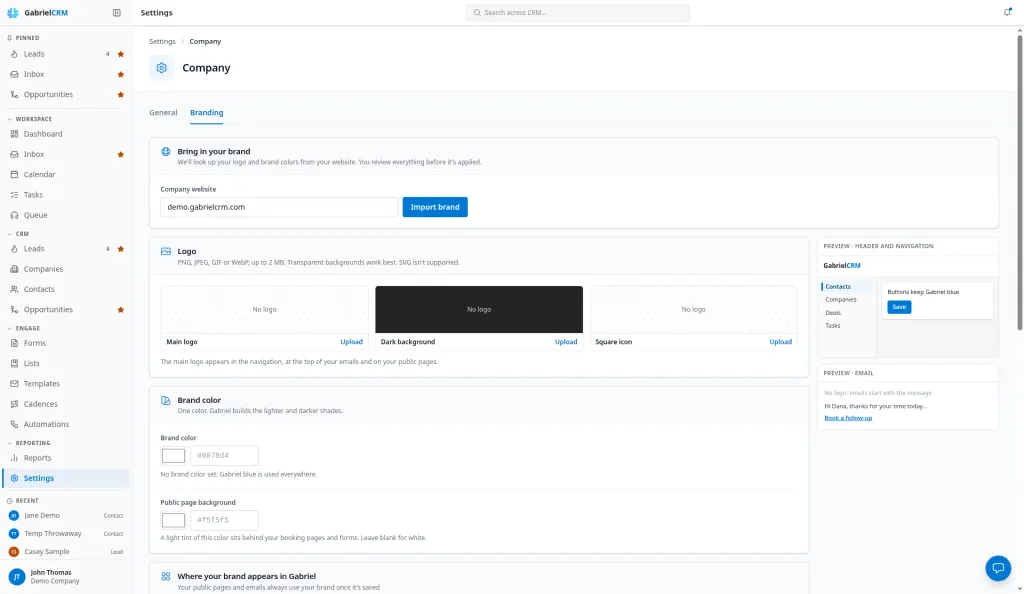
Click Upload (or Replace) under a slot and choose a PNG, JPEG, GIF or WebP file up to 2 MB. A transparent background works best. SVG files aren’t supported.
The Main logo shows in the navigation, at the top of your emails, and on your booking pages and forms. The Square icon is the browser tab icon of your landing pages and sits beside your name on your booking page.
Brand color
Section titled “Brand color”Enter one Brand color. Gabriel builds the lighter and darker shades from it.
Two badges show whether white text on your color is readable for Buttons and Links on white. If your color is too light, such as a yellow, Gabriel uses a darker shade for buttons and links and tells you which. Your own color is still used for highlights and the line under the logo in emails. To use the darker shade as your color, click Use … as my color.
With no brand color, Gabriel blue is used everywhere.
Public page background
Section titled “Public page background”Optional. A light tint of this color sits behind your booking pages and forms. Leave it blank for white.
Where your brand appears in Gabriel
Section titled “Where your brand appears in Gabriel”- Header and navigation (default): your logo in the navigation, and your color on the selected menu item. Buttons stay Gabriel blue.
- Everywhere: also buttons, links, tabs and focus outlines.
- Customer-facing only: Gabriel looks the same for your team. Only your emails, booking pages and forms are branded.
Emails and public pages always use your brand once it’s saved, whichever you choose.
Email footer
Section titled “Email footer”Footer text is added to the footer of every automated email, above your company name and address. It’s the same setting as Footer line in Email sending.
The preview on the right shows the navigation and an email before you save. Click Save changes in the bar at the bottom, or Discard to undo. The bar appears once you change something.
Brand guides for landing pages
Section titled “Brand guides for landing pages”A brand guide holds your colors, fonts, logo and tone. Your landing pages use its colors and fonts, and AI uses its Brand tone and Additional brand notes when it writes or rewrites page copy (see Templates and AI for pages). AI writes the copy as page sections; it never writes the page’s code or styling. Brand guides are listed under Landing Page Brand Guides on the same tab.
- Click Create Brand Guide.
- Enter a Brand guide name.
- Either:
- On Upload PDF, upload your brand guidelines PDF and click Extract brand data with AI, then check the values on Enter manually.
- On Enter manually, fill in the colors (Primary, Secondary, Accent, Background, Text), Heading font, Body font, Logo URL, Brand tone and any Additional brand notes.
- Click Create brand guide.
A page without its own brand guide uses the guide set as default, marked (Default) in the list. When you generate a page with AI, you can pick a different guide under Brand guide.
Going back to the default look
Section titled “Going back to the default look”Click Reset to Gabriel default, then Save changes. This removes your logos and colors, and Gabriel goes back to its standard blue.
New accounts
Section titled “New accounts”When you sign up with a company email address, Gabriel looks up your brand in the background. On your first login, an admin sees We found your brand on …. Click Review to see what was found, or Not now to hide the message. Nothing is applied until you save it.
Best practices
Section titled “Best practices”- Set your brand before your first automation or booking link goes out. Every automated email, reminder and booking page uses it from the moment you save, so prospects see one consistent look from the first touch.
- Upload a wide logo with a transparent background as the Main logo. It sits on white in emails and on your page background on booking pages, so a logo with a white box around it looks out of place.
- Check the contrast badges before you save. If your color fails, buttons and links use the darker shade. Accept it with Use … as my color so your emails and pages show exactly the color you approved.
- Start with Header and navigation. Your team sees your brand without every button changing color. Switch to Everywhere only if your color reads well on buttons and links.
- Keep the footer text to one line. It appears on every automated email. Say why people are hearing from you, such as “You’re receiving this because you asked about managed IT.”
- Set a default brand guide with a tone and notes. Every page without its own guide uses the default, and AI writes in its tone, so pages match your brand without picking a guide each time.
Troubleshooting
Section titled “Troubleshooting”The Bring in your brand section isn’t shown. Brand import isn’t available for your account. Upload your logo and pick a color by hand.
“You have used today’s brand imports.” You’ve imported 5 times today. Try again tomorrow, or set your brand by hand.
My logo won’t upload. Use a PNG, JPEG, GIF or WebP file under 2 MB. Save an SVG as a PNG first.
My color looks different on buttons. Your color is too light for white text, so Gabriel uses a darker shade. Pick a darker brand color, or accept the suggested shade.