
Twilio calling
Gabriel places calls through your company’s own Twilio account. Once it’s connected, reps call from the Queue and from any lead, contact, company or opportunity, and every call is logged with its duration and, if you choose, a recording and transcript. Twilio bills your account directly for calls and numbers.
Go to Settings > Integrations > Twilio. You need the Manage organization settings permission, which admins have.
Before you start
Section titled “Before you start”You need a Twilio account with:
- At least one phone number that can make voice calls. You can buy one in Twilio, or verify a number you already own as a caller ID in Twilio.
- An API key. Create one in the Twilio Console under Account > API keys and copy its SID and secret. The secret is only shown once.
You don’t need to make a TwiML App. Gabriel creates one in your Twilio account, named Gabriel CRM followed by Gabriel’s web address, and points it at Gabriel.
Connect Twilio
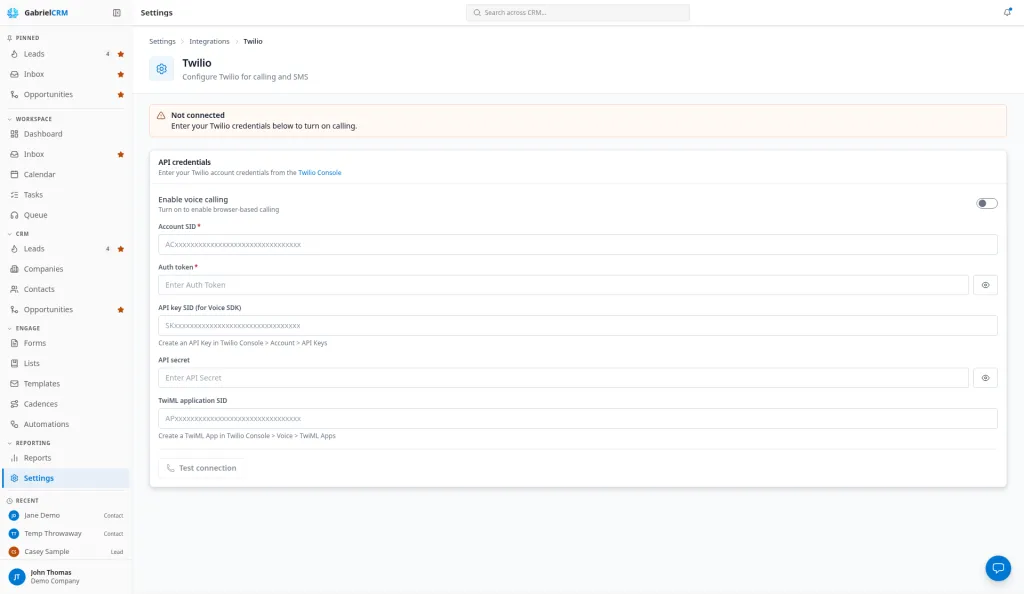
Section titled “Connect Twilio”- Under API credentials, turn on Enable voice calling.
- Enter the Account SID and Auth token from your Twilio Console.
- Enter the API key SID (for Voice SDK) and API secret.
- Leave TwiML application SID blank. Gabriel fills it in when it creates the TwiML App.
- Click Save changes in the bar at the bottom of the screen.
- Click Test connection.
To use a TwiML App you made yourself, enter its SID in step 4 and set its voice request URL (method POST) to the Voice request URL shown under the TwiML application SID. Click Copy to copy it.
The test checks your saved credentials, connects to Twilio, validates the API key, and creates the TwiML App if there isn’t one yet. For a TwiML App you entered yourself, it checks that the app sends calls to Gabriel’s voice request URL. Connection successful shows your Twilio account name. The top of the page then shows a Connected status line with your masked Account SID, how many phone numbers you have and when it was last tested. The rest of the settings are split into three tabs:
- Calling: Call desk and Phone numbers.
- Recording: Recording and retention, Recording consent and Transcription and analysis.
- Connection: API credentials.
Each tab saves on its own. When you change a setting, a bar appears at the bottom of the screen. Save changes saves only the tab you’re on, and Discard throws away only that tab’s changes. A tab with unsaved changes shows a dot beside its name, and its changes stay there while you work on another tab. If you try to leave the page with unsaved changes on any tab, Gabriel asks first.
To change credentials later, open the Connection tab. The Auth token and API secret fields show as hidden. Leave them blank to keep what’s saved, or type a new value to replace it.
Set your caller ID
Section titled “Set your caller ID”- On the Calling tab, under Phone numbers, click Sync from Twilio. Gabriel imports the numbers you’ve bought in Twilio and the caller IDs you’ve verified there.
- Click Set as default next to the number reps’ calls should show. Only numbers marked Voice can be the default.
The first number Gabriel imports becomes the default automatically. Sync again whenever you buy or release a number in Twilio: a number that’s gone from Twilio is no longer used for calls.
Check that it works
Section titled “Check that it works”- Open the Queue from the sidebar.
- Check the badge in the top right reads Twilio · Connected. If the browser asks for microphone access, allow it.
- Open a lead with your own mobile number on it and click Call.
You should see your default number on your phone. If you’ve turned on recording, the recording appears on the lead’s timeline shortly after you hang up.
Recording, transcription and consent
Section titled “Recording, transcription and consent”These are on the Recording tab once Twilio is connected. Click Save changes in the bar at the bottom when you’re done.
Recording and retention
Section titled “Recording and retention”- Enable call recording: records every call placed from Gabriel, starting when the call is answered. On by default.
- Recording channels: Dual (separate tracks) records you and the other person on separate tracks, which gives better transcripts. Mono (combined) records one track.
- Recording retention: Keep forever, or delete recordings after 30, 60, 90, 180 or 365 days. Old recordings are deleted overnight. The call log and its numbers stay.
- Also delete the transcript when a recording is auto-deleted: off by default.
- Delete the recording when the call is deleted: on by default.
- Allow reps to delete recordings (otherwise managers/admins only): when off, only managers and admins can delete a recording. To let others delete, give a custom role Delete on the Call recordings row.
Transcription
Section titled “Transcription”- Under Transcription and analysis, turn on Enable transcription.
- Choose the Transcription provider: Deepgram or AssemblyAI.
- Paste your API key from that provider.
- Click Save changes.
Each recorded call is transcribed after it ends, and the transcript appears under the recording. You bring your own key, so the provider bills you directly.
Answering machine detection
Section titled “Answering machine detection”On the Calling tab, under Call desk, turn on Detect answering machines, then click Save changes. Twilio listens for a voicemail greeting, and the call desk switches to the step’s voicemail script by itself and suggests Left voicemail as the result. Twilio charges for this on every call.
Recording consent
Section titled “Recording consent”Under Recording consent, choose a Recording consent mode:
- None (one-party consent): nothing is played.
- Beep at start: the person you call hears a tone when they answer.
- Voice announcement: the person you call hears your Announcement message when they answer, up to 500 characters. Left blank, it says “This call may be recorded for quality and training purposes.”
The notice only plays while call recording is on. It’s played to the person you call and is captured on the recording.
How it works
Section titled “How it works”- Outgoing only. Reps make calls from Gabriel; calls to your Twilio numbers don’t ring in Gabriel.
- US and Canadian numbers only. Gabriel dials 10-digit North American numbers and refuses anything else, so a mistyped or international number can’t run up charges.
- Who can call. Anyone who can edit contacts can call. Read-only users can’t.
- Turning off Enable voice calling stops calling for everyone. The Call buttons fall back to opening the computer’s phone app, and those calls aren’t logged.
Best practices
Section titled “Best practices”- Make the default a number people can call back. Every rep’s calls show the default number, so choose one with an area code your prospects recognize and route it in Twilio to a line someone answers, since return calls don’t ring in Gabriel.
- Choose a consent mode before you turn recording on for a team that calls across state lines. Some states require everyone on a call to agree to recording; Voice announcement puts the notice on the recording itself as proof. Check with your legal team.
- Use Dual (separate tracks) if you transcribe. Transcripts can tell the rep from the prospect, which makes coaching and searching for objections easier.
- Set a retention period that matches your policy. Recordings are deleted overnight once they pass it, and the call history and reports stay intact, so you keep the numbers without storing audio forever.
- Leave Allow reps to delete recordings off unless you have a reason. A rep deleting a call you need for coaching or a dispute can’t be undone.
- Turn on answering machine detection only if reps use voicemail scripts or drops. It costs extra on every call, and its value is switching the desk to voicemail mode automatically.
- Sync numbers after every change in Twilio. A number released in Twilio stops being used once you sync, so reps never call out on a dead number.
Troubleshooting
Section titled “Troubleshooting”Connection failed: “Invalid Account SID or Auth Token”. Copy both again from the Twilio Console into the Connection tab, then click Save changes before testing again.
Validating API Key: “API Key not found in account”. The key was created in a different Twilio account or subaccount, or it was deleted. Create a new key in the same account as the Account SID.
Validating TwiML Application: “sends calls to …”. The TwiML App you entered points somewhere else. Set its voice request URL to the one the message names, or clear TwiML application SID and click Save changes so Gabriel creates its own.
Reps see Twilio · Not connected. Enable voice calling is off, or the settings weren’t saved. Turn it on (on the Connection tab once connected) and click Save changes.
Reps see Twilio · Connecting and it never connects. Check that the API key, API secret and TwiML application SID are filled in, and that the rep has allowed microphone access in the browser.
The call says “No caller ID configured”. No voice-enabled number has been synced. Click Sync from Twilio and set a default.
“No phone numbers found”. Click Sync from Twilio. If the list is still empty, buy a number or verify a caller ID in Twilio first.