
Queue
The Queue is your to-do list for cadences: every call, email, LinkedIn step and task that is due for the people assigned to you, oldest first. For call steps it becomes your dialer, with the script, the call controls and the wrap-up on one screen.
Click Queue in the Workspace group of the sidebar. It opens in its own window so you can keep it beside the rest of Gabriel; clicking Queue again brings that window to the front without reloading it, so a live call is never cut off. If your browser blocks pop-ups, it opens in the main window instead. The Queue isn’t available on phones.
Calling needs Twilio calling set up by an admin. The badge at the top right of the window shows Twilio · Connected when this browser is ready to dial.
What’s in your Queue
Section titled “What’s in your Queue”The Queue tab shows four numbers across the top: due, done today, overdue and held. Below them is one row per step, with the Person (click the name to open their record in a new tab), the Phone the dialer offers first, the Journey (the cadence and where this person is in it), the Step, when it was Due, and one Action button for the step’s kind.
Rows are in a fixed order:
- Steps that are ready, oldest due first. Anything due before today is overdue and shows in red.
- Held steps, each with its reason.
- Steps you finished today, greyed out, with what happened and when the person’s next step is ready.
Each person appears once per cadence, because a step only becomes ready when the one before it is done. Use Search people to find someone by name, company or cadence, and Filter by kind to show one kind of step. The list refreshes every minute. With more than 200 ready steps, the Queue shows the oldest 200 and the total.
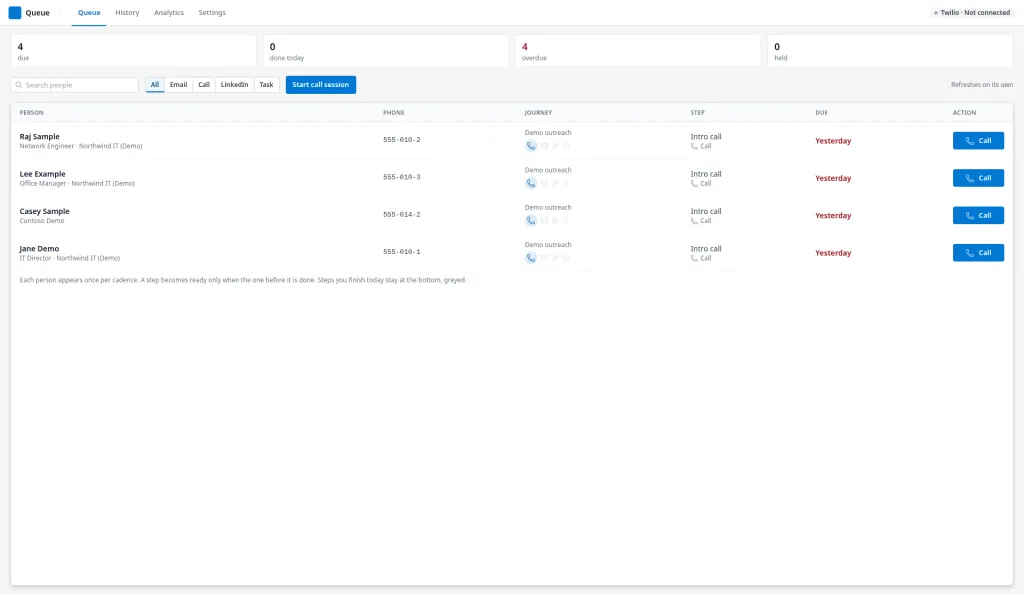
Work a call step
Section titled “Work a call step”Click Call on a row, or Start call session to open the first call that is due. The window becomes the call desk:
- Left: Call session, the steps up next. Click another call step to jump to it. Email, LinkedIn and task steps are dimmed and stay in your Queue for later.
- Middle: who you’re calling, their local time when their record has a time zone, and their prior attempts. Below that are the step’s Instruction to the rep, the Script tab and the History tab of earlier calls with their result, notes and caller.
- Right: the call controls and the Log this call card.
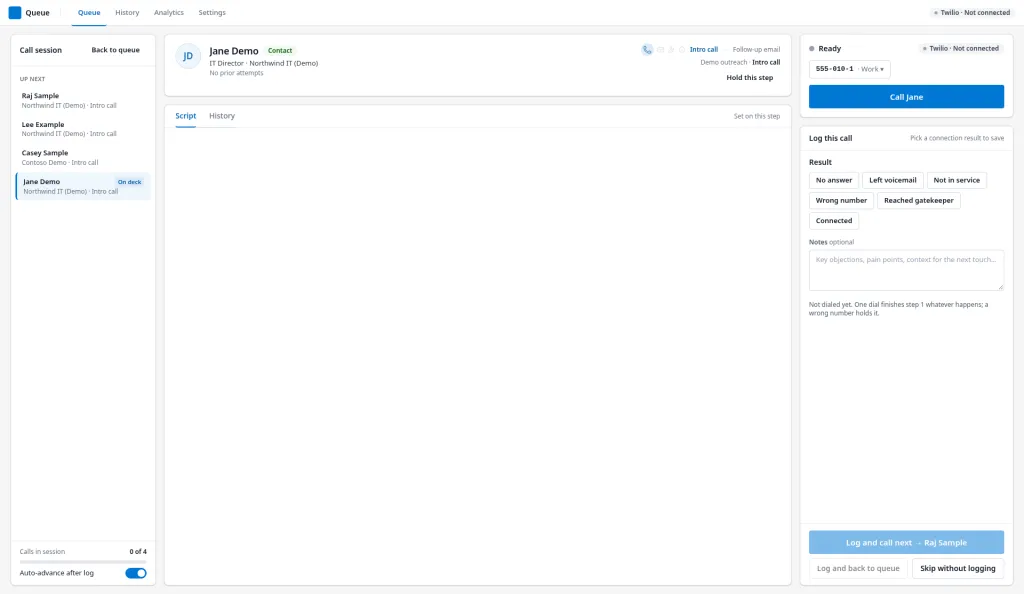
- If the person has more than one number, click the number to choose another line. Gabriel offers a direct line first, then the work, mobile and other numbers on the record, then the company’s main number.
- Click Call followed by their first name.
- While the call is live, use Mute, Keypad (for phone menus), Drop VM and Hang up.
Gabriel dials 10-digit US and Canadian numbers only. Any other number shows an error instead of dialing.
Read the script
Section titled “Read the script”The Script tab shows the call script attached to this step, with the person’s first name, company and title filled in. The opening is on top. Under If they say, click an objection to see the answer. Discovery and close folds open to show the discovery questions and the close. When you choose Left voicemail, the tab switches to the step’s voicemail script, if it has one.
Drop a voicemail
Section titled “Drop a voicemail”With voicemail recordings added (see Queue settings), click Drop VM when you reach a greeting and pick a recording. Gabriel plays it onto the voicemail and takes you off the call straight away, sets the result to Left voicemail and notes which recording was used. If your admin has turned on answering machine detection, Gabriel switches to the voicemail script by itself when it hears a greeting.
Log the call
Section titled “Log the call”The Log this call card unlocks once you dial. When the call ends, Gabriel suggests a Result from what happened on the line; check it.
- Pick the Result: No answer, Left voicemail, Not in service, Wrong number, Reached gatekeeper or Connected.
- If you reached a gatekeeper, pick what you got:
- Got direct line: enter the number and whether it’s Direct, Mobile or Office. It’s saved to the record and dialed first next time.
- Got best time to call: enter the time. The step comes back then.
- Left message with gatekeeper, Gatekeeper will transfer / intro, Gatekeeper blocked or No useful info.
- If you connected, pick a Sentiment (see the table below).
- Add Notes. They’re required for Interested.
- Read the line under the notes. It says what saving will do, such as which step finishes and when the next one is ready.
- Click Log and call next, or Log and back to queue.
Skip without logging closes the call desk without saving; the step stays in your Queue. Gabriel asks first if you’ve entered a result or notes.
What each result does to the cadence
Section titled “What each result does to the cadence”These rules are the same in every cadence.
| Result or sentiment | What happens |
|---|---|
| No answer, Left voicemail | The step is done; the person moves to their next step |
| Reached gatekeeper | The step is done, unless you entered a best time to call, which holds the step until then |
| Not in service, Wrong number | Holds the step with no end date until someone fixes the number and resumes it |
| Connected, Book meeting | Opens the booking screen; saving sends the invitation. The cadence ends if it’s set to end when a meeting is booked; otherwise the step is done |
| Connected, Interested | With a Callback time or a Timeline, holds the step until then. With neither, ends the cadence |
| Connected, Not now, Not interested, Company not a fit, Already a customer | Ends the cadence |
| Connected, Contact not a fit | Ends the cadence for this person; the company isn’t changed |
| Connected, Referred | Ends the cadence. Add the person they named yourself |
| Connected, Do not contact | Ends every cadence the person is in and marks their record do not contact and do not call |
For a lead, Book meeting, Interested and Not now also move a New or Contacted lead to Engaged. See lead stages.
The Timeline choices for Interested bring the step back at 9:00 AM: This quarter in 30 days, < 6 months in 90 days, 6–12 months in 180 days. Unknown sets no date. A specific Callback time wins over the timeline.
Book a meeting during the call
Section titled “Book a meeting during the call”- While the call is live, click Book meeting (or choose Book meeting under Sentiment).
- Check the Account Executive. It starts on the record owner.
- Pick the Meeting Type, Meeting Title and Duration (15, 30, 45 or 60 minutes).
- Offer one of the Suggested Times, or pick a slot on the calendar. Times are in the prospect’s time zone when their record has one, and the screen names the zone so you can read it out.
- Choose the Video Conference, or No video link. Only services the account executive has connected can be picked.
- Optionally add an Attendee Agenda (goes in the invitation) and Internal AE Handoff Notes (stay in Gabriel).
- Click Confirm Booking, then log the call.
The invitation goes out when you save the call, not when you confirm the slot.
Work email, LinkedIn and task steps
Section titled “Work email, LinkedIn and task steps”- Email: click Email and the step’s template opens as a draft to the person. Edit it and send it from your connected mailbox; sending is what finishes the step. Gabriel won’t open the draft for someone with no email address, or who is marked do not contact, has unsubscribed, bounced or is marked do not email. If an email went out but the step wasn’t recorded, reopening the step offers Record the send instead of a new draft.
- LinkedIn and Task: click the button, do the work, add optional Notes (they go on the person’s timeline), and click Mark done.
Hold and resume a step
Section titled “Hold and resume a step”- Open the step and click Hold this step.
- Enter Why, and optionally Until. With a time, the step comes back by itself; without one, it waits until someone resumes it.
- Click Hold.
To bring it back early, click Resume on its row, enter Why now, and click Resume. A row marked Cadence paused comes back only when a manager resumes the cadence. You can’t skip a step from the Queue; a manager can, from the cadence’s People tab. See Work a cadence.
History and Analytics
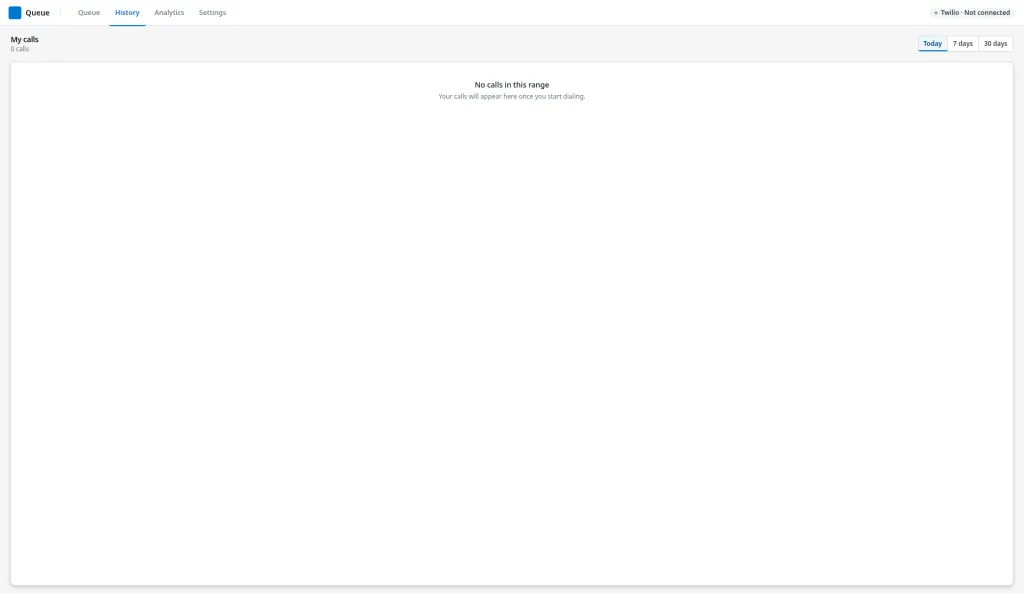
Section titled “History and Analytics”- History lists your own calls for Today, 7 days or 30 days, with result, sentiment and duration. Click a call to play its recording and read the transcript, when your company records and transcribes calls.
- Analytics shows today’s Dials, Connects, Connect rate and Talk time, and where today’s calls landed.
Queue settings
Section titled “Queue settings”The Settings tab holds your personal preferences. They’re saved in this browser, so set them again on another computer.
- Auto-advance to next touch: on by default. After you log a call, the next call step opens instead of the list. Auto-advance after log at the bottom of the call session toggles it too.
- Microphone and Speaker: pick your headset. Your browser must allow microphone access to list devices; some browsers can’t choose a speaker.
- Voicemail recordings: give a recording a Name, choose an MP3 or WAV file up to two minutes long, and click Add recording. These are what Drop VM plays.
- Remember my filters: open the Queue on the kind filter you last used.
Best practices
Section titled “Best practices”- Start with Start call session and leave auto-advance on. Calls chain in due order, so you spend the hour dialing instead of picking rows. Turn auto-advance off only when you need to research between calls.
- Clear overdue rows first. Each person’s next step is timed from when you finish the current one, so a late step pushes the rest of their cadence back.
- Batch by kind. Use Filter by kind to do all your calls in one block and your emails and LinkedIn steps in another.
- Record a voicemail drop for each cadence’s voicemail step. Drop VM frees you for the next dial the moment you hit a greeting, which is where most of a call block goes.
- Always ask a gatekeeper for the direct line or a best time. Got direct line makes the next attempt ring the person, and Got best time to call brings the step back at exactly that time.
- Give Interested a callback or a timeline. Interested with no date ends the cadence, so a warm prospect drops out of your Queue.
- Fix bad numbers the same day. Wrong number and Not in service hold the step with no end date. Update the number on the record, then Resume the row.
- Read the line above the save button before you save. It states what saving will do to the cadence, so a wrong sentiment is caught before it ends someone’s journey.
Troubleshooting
Section titled “Troubleshooting”The badge says Twilio · Not connected. Calling isn’t set up or turned on for your company. Ask an admin to finish Twilio calling. You can still log a call made on another phone: with calling off, the Log this call card is unlocked without dialing.
The badge stays on Twilio · Connecting. Allow microphone access for Gabriel in your browser, then reopen the Queue.
A row shows Do not contact and has no button. The person is marked do not contact, so the step can’t be worked. A manager can remove them from the cadence.
“Pick a connection result to save” or another hint blocks saving. Each choice needs the detail behind it: a sentiment when connected, the gatekeeper’s answer, the number or time they gave, a booked slot, or a note for Interested. The hint names what’s missing.
“No call script” on a call step. The step has no script attached, or its script was deleted. A manager can attach one in the cadence builder.