
Pipeline and stages
A pipeline is the path a deal follows from first conversation to won or lost. Each pipeline has stages, and each stage has a win probability and an outcome. Together they drive the Opportunities board, weighted totals and the revenue reports.
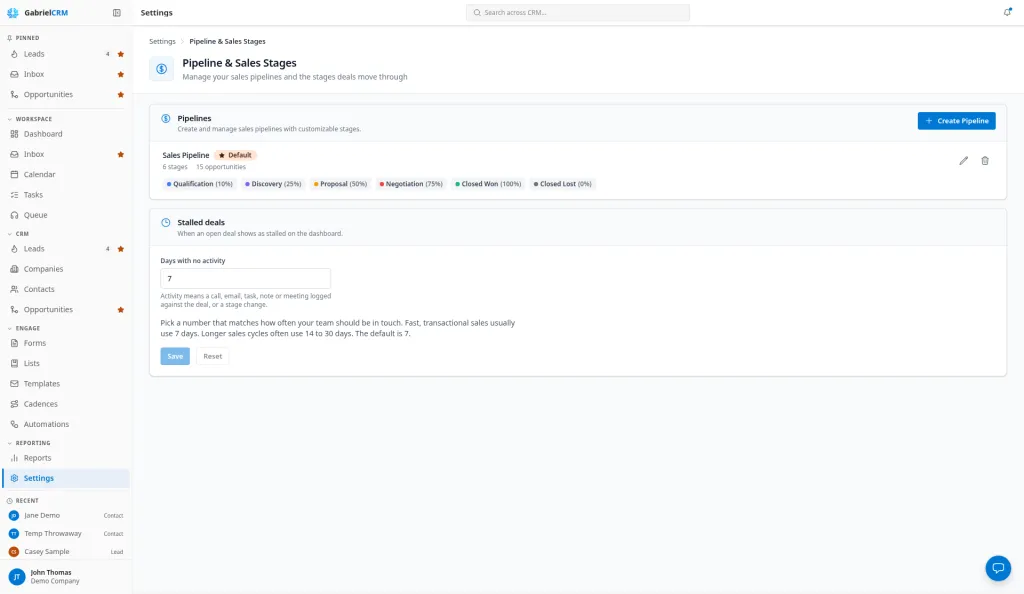
Go to Settings > Pipeline & Sales Stages. Admins, sales managers and marketing managers can change pipelines; everyone else can see them on the Opportunities page.
Every new account starts with a Sales Pipeline: Qualification (10%), Discovery (25%), Proposal (50%), Negotiation (75%), Closed Won (100%, Won) and Closed Lost (0%, Lost). Edit it to match how you sell.
Create a pipeline
Section titled “Create a pipeline”- Click Create Pipeline.
- Under Pipeline Details, enter a Pipeline Name and, if you like, a Description.
- Tick Default Pipeline if new opportunities should use it.
- Under Pipeline Stages, adjust the starting stages. For each stage set:
- Stage Name
- Outcome: Open, Won or Lost
- Win Probability, from 0 to 100
- Color, used on the board
- Click Add Stage for more stages, and drag a stage by its handle to reorder.
- Click Create Pipeline.
Every pipeline needs at least one stage with the Won outcome and one with the Lost outcome, and stage names must be unique within it.
Edit a pipeline
Section titled “Edit a pipeline”- Click Edit pipeline (the pencil) on the pipeline.
- Change details or stages, reorder by dragging, or remove a stage with Remove stage (the trash can).
- Click Save Changes.
You can’t remove a stage that deals are in, or one that deals have ever passed through. Move current deals to another stage first. A stage with deal history has to stay, so that history stays intact; rename it instead if it no longer fits.
Change the default pipeline
Section titled “Change the default pipeline”Click Set as default (the star) on a pipeline. The default is marked Default, and new opportunities use it unless someone picks another.
Delete a pipeline
Section titled “Delete a pipeline”Click Delete pipeline (the trash can), then Delete. You can’t delete the default pipeline or a pipeline that still has opportunities. Deleting a pipeline deletes its stages and can’t be undone.
Decide when a deal is stalled
Section titled “Decide when a deal is stalled”Only administrators can change this.
- Under Stalled deals, set Days with no activity, from 1 to 365. The default is 7.
- Click Save.
An open deal with no activity for that many days appears in the Stalled Opportunities card on the Dashboard. Activity means a call, email, task, note or meeting logged against the deal, or a stage change.
How it works
Section titled “How it works”- Outcome decides won and lost. A deal is won when it’s in a Won stage and lost when it’s in a Lost stage, whatever the stage is called. The Won, Lost and Open filters on Opportunities and the reports read the outcome, not the probability.
- Win Probability is a forecasting weight. When a deal moves into a stage, it takes that stage’s probability. The Weighted total on Opportunities and the MSP revenue report’s weighted figures use each deal’s probability.
- Changing a stage’s probability doesn’t change deals already in it. It applies to deals that move into the stage afterward.
- Stage order is the order of the columns on the Opportunities board.
Best practices
Section titled “Best practices”- Write an exit criterion for every open stage. Put it in the stage name or agree it with your team: “Discovery: budget, timeline and decision maker confirmed”. Stages without exit criteria drift, and the weighted forecast drifts with them.
- Set probabilities from what actually closes. Look at how many deals that reached each stage went on to win, and use that. Each quarter, review recent deals on Opportunities with the Won and Lost filters and adjust any stage that’s far off. The weighted totals are only as good as these numbers.
- Keep five to seven open stages. More stages means more drag-and-drop and more deals sitting in the wrong place. Fewer means the board can’t show where deals get stuck.
- Use one pipeline per sales motion, not per rep. Managed-services contracts and one-off projects can deserve separate pipelines; individual reps don’t.
- Keep one Lost stage and use loss reasons. Moving a deal to a lost stage asks why it was lost, from the Loss Reasons list under Picklists, so you don’t need a lost stage per reason.
- Set Stalled deals to your expected contact rhythm. Fast, transactional sales usually use 7 days; longer cycles often use 14 to 30. Too short, and every deal shows as stalled and people stop looking.
- Rename stages rather than replacing them. A stage deals have passed through can’t be removed, and renaming keeps every deal’s history readable.
Troubleshooting
Section titled “Troubleshooting”“Add a stage with the Won outcome” or “Add a stage with the Lost outcome.” Set the Outcome on at least one stage to each.
“Can’t remove this stage because deals use it.” Move the deals to another stage, then save again. If the message says “in deal history”, the stage has to stay.
The delete button is grayed out. Hover over it for the reason: the pipeline is the default, or it still has opportunities.