
My Scheduling
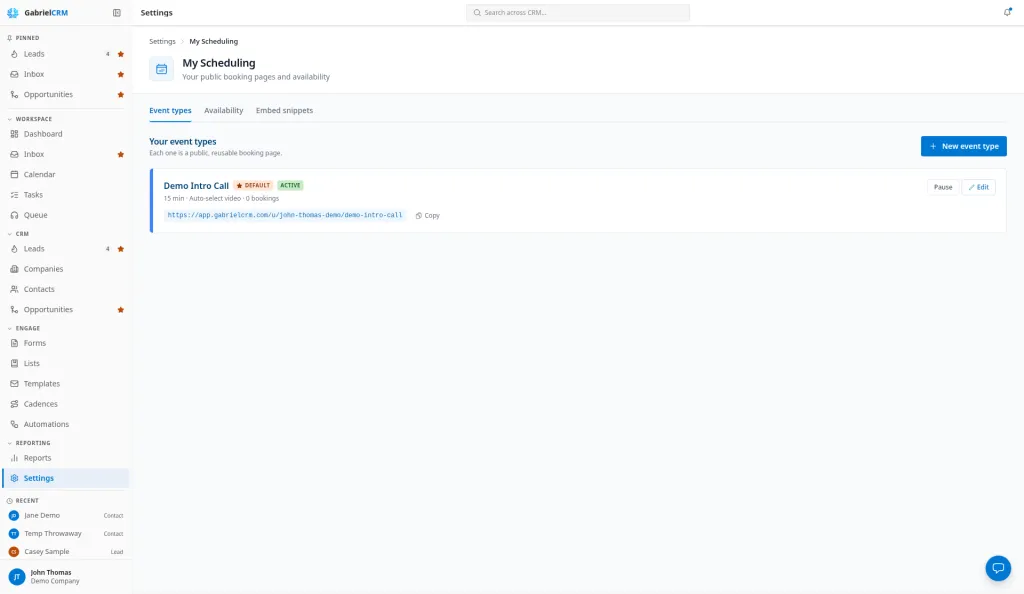
My Scheduling is where you set the hours you can be booked and publish your own booking pages. Each page, called an event type, is a reusable link anyone can use to book time with you.
Go to Settings > My Scheduling, which has the tabs Event types, Availability and Embed snippets. Every built-in role except Viewer and Billing Contact can use it, through the Manage permission on the Scheduling pages row in Roles and permissions.
Before you start
Section titled “Before you start”- Connect your calendar. Gabriel checks it for busy times and puts booked meetings on it, which sends the invite. See Email & Calendar.
- Set your booking slug, your part of the page address, such as dana-lee. In Settings > Your preferences > Public Scheduling Page, type 3 to 40 lowercase letters, numbers and hyphens and click Save. Common words such as “admin” are reserved. Until it’s set, Copy doesn’t work.
- An admin needs at least one active meeting type.
Create an event type
Section titled “Create an event type”- On the Event types tab, click New event type.
- Enter a Name. Gabriel suggests a URL slug from it; check that it shows Available.
- Pick the Meeting type. It supplies the duration, buffers and video link until you change them.
- Click Create.
The page is live straight away; Copy on its card copies the link. Your first event type is your Default. To change that, click another one’s star (Set as default).
Change an event type
Section titled “Change an event type”Click Edit on the event type. Each of its five sections has its own save button, so save one before moving on.
General
Section titled “General”Name, URL slug and Description show on the booking page. Backing meeting type supplies the defaults, Color marks the page, and Active (public booking page is live) turns it on or off. Click Save general.
Scheduling rules
Section titled “Scheduling rules”Leave a field blank to use the meeting type’s value.
| Setting | What it does |
|---|---|
| Duration | 15 to 120 minutes, or Inherit from meeting type. |
| Availability schedule | Which of your schedules the page uses. My default schedule to start. |
| Buffer before (min) / Buffer after (min) | Free time kept around each meeting, up to 240 minutes. |
| Minimum notice (hours) | How soon a time can be booked, up to 720 hours. |
| Lookahead window (days) | How far ahead people can book, 1 to 365 days. |
| Slot interval | How often start times are offered: every 10, 15, 20, 30 or 60 minutes. 15 to start. |
| Video conferencing | Inherit from meeting type, Auto-select best available, Zoom, Microsoft Teams, Google Meet or No conferencing. |
Click Save scheduling.
Assignment
Section titled “Assignment”Under Assign bookings to, choose:
- Individual (just me): every booking is yours.
- Round robin (a pool of teammates): tick at least two Pool members, including yourself if you take these meetings too.
Click Save assignment. Round robin offers every time at least one pool member is free and books someone free then, preferring the same person for a repeat booker.
Custom questions
Section titled “Custom questions”The booking page always asks for Your name and Email, with an optional Phone. To ask more:
- Click Add question and enter the Label and any Help text.
- Pick a Type: Short text, Long text, Phone number, Dropdown, Multi-select, Number, URL or Checkbox. Choice types need Options (one per line).
- Tick Required if the person must answer.
- Optional: pick a Map to CRM field (phone, mobile, title, LinkedIn URL, or company name for leads) to copy the answer onto the record.
- Reorder with the arrows, then click Save questions.
Branding & copy
Section titled “Branding & copy”Welcome message replaces the page description, and Confirmation message the standard confirmation line. Redirect URL (starting http:// or https://) sends people to your own page, such as a thank-you page, instead. Click Save branding. Your logo and colors come from Branding.
Pause or delete an event type
Section titled “Pause or delete an event type”- Pause takes the page offline and keeps everything. Resume brings it back.
- The trash icon deletes it, and its links stop working. You can’t delete your only event type. Deleting your default makes another one the default.
Set your availability
Section titled “Set your availability”The Availability tab starts you with a schedule called Working hours: Monday to Friday, in your company’s business hours and time zone. To change it:
- Pick the schedule under Schedules and check its Timezone.
- Set each day’s start and end time. Click + Add for a second window, such as after lunch. Remove every window to make a day Unavailable.
- Click Save changes.
For a second set of hours, click the plus next to Schedules, enter a Name and click Create (it starts at weekdays 9 to 5). Make default uses it wherever you haven’t chosen a schedule; or pick it under Availability schedule on one event type.
Block a day or change its hours
Section titled “Block a day or change its hours”- Under Date overrides, click the plus and pick the Date.
- Choose Unavailable, or Different hours and set the times.
- Add a Note if you like, then click Add override.
Remove an override with its x.
Put a booking page on your website
Section titled “Put a booking page on your website”- On the Embed snippets tab, pick an active event type under Embed which page.
- Choose an Embed mode:
- Inline: the scheduler sits in the page.
- Popup button: a floating button opens the scheduler in a window.
- Popup from any link: any link or button you mark opens it.
- Click Copy and give the snippet to whoever edits your website.
To limit where it can appear, add your site under Allowed embed origins, such as https://*.yourcompany.com, and click Add. Other sites then show a notice instead of the calendar. An empty list allows any site.
What people see
Section titled “What people see”Your personal page lists your active event types. On one, the person picks a date and a time (in their own time zone), answers the questions and clicks Schedule event. The meeting, invite, reminders and your notification then work as for any booking link.
Until the meeting starts, the link in the invite lets them Reschedule (the meeting, your calendar event and its video link all move) or Cancel, with an optional Reason. You get an email either way.
How it works
Section titled “How it works”- Who the booking is with. Gabriel matches the email to a contact, then a lead. With no match, it creates a lead with the source “Scheduling page” and the event type’s name.
- Answers only fill new records. Map to CRM field fills an empty field on a lead the booking created, never an existing contact or lead. Every answer is kept with the booking.
- Times offered fit your schedule, the meeting type’s working hours and your calendar’s free time, after buffers and notice.
- Your signature’s booking link goes to your default event type. With no default, or a paused one, the link is left out of the email.
Best practices
Section titled “Best practices”- Set your slug once and keep it. It’s in every link you share. Use your name so prospects recognize it.
- Make your most-used page the default. Your signature’s booking link points to it, and a paused default drops the link from your emails without warning.
- Add date overrides for vacations and conferences. Your calendar blocks only the times it shows as busy. An override blocks the whole day.
- Keep custom questions to two or three. Every required question is one more reason not to book. Ask only what you need before the call.
- Map phone and title questions to CRM fields. A first-time booker becomes a new lead, and mapped answers fill it in so reps can call them.
- Use round robin for inbound pages. A round robin page on your website shares new inquiries across the team. Keep individual pages for people you’re already talking to.
- Pause a page instead of deleting it. Pausing keeps its settings, questions and link; deleting breaks every link you’ve shared.
Troubleshooting
Section titled “Troubleshooting”“Set your booking slug in Preferences” on the Event types tab. Set your slug (see Before you start).
New event type is greyed out. No active meeting types exist. Ask an admin to add one in Settings > Meeting Types.
“Pick at least two people to share bookings between” Round robin needs two or more pool members.
The page shows no times. Check the schedule’s hours, your date overrides and the meeting type’s working hours. Times are only offered where they overlap.
The booking page says scheduling is unavailable. Gabriel couldn’t read your calendar, so it won’t offer a time that might clash. Reconnect it in Settings > Email & Calendar.