
Reports
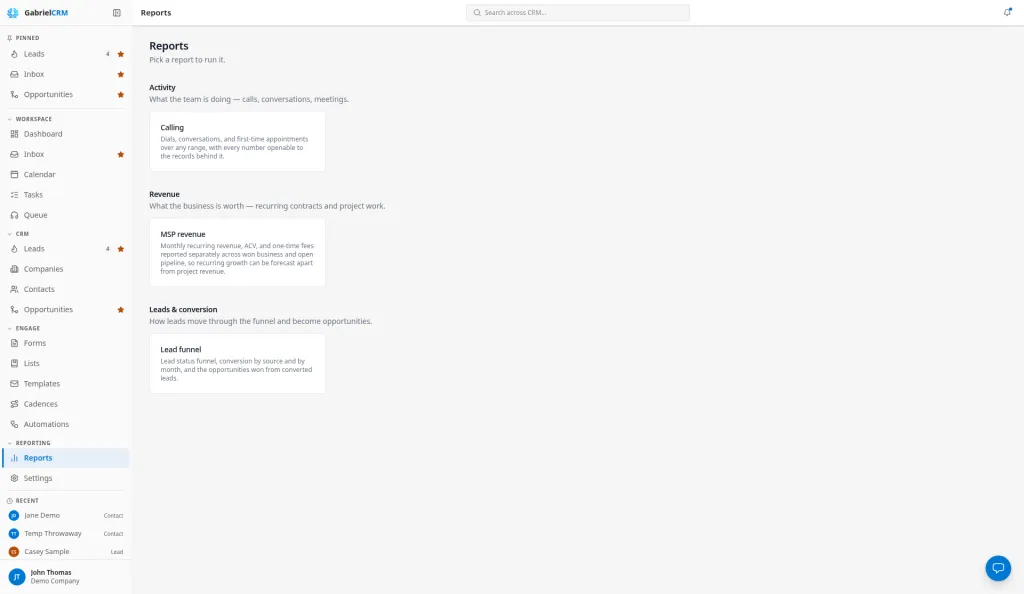
Reports turn the calls, meetings, leads and deals in Gabriel into numbers you can act on. Each report answers one question, and nothing runs until you open it.
Open Reports from the Reporting group in the sidebar. The page lists every report by category; click a card to run it.
The reports
Section titled “The reports”| Category | Report | What it answers |
|---|---|---|
| Activity | Calling | How many dials, conversations and first meetings the team produced, and where calls are lost |
| Revenue | MSP revenue | How much recurring revenue (MRR and ACV) and one-time revenue you’ve won and have in the pipeline, kept apart |
| Leads & conversion | Lead funnel | Where your leads sit, which sources convert, and what converted leads turned into |
Each report has its own page. Click Reports in the trail at the top of a report to come back to the list.
Whose numbers you see
Section titled “Whose numbers you see”Every report shows the records your role can see, the same records your lists show you. Your admin sets this under Settings > Roles & Permissions (see Roles and permissions):
- Calling follows how far your role can see Contacts. If your role sees all contacts, the report covers the whole team and you can narrow it to one rep. Otherwise it shows only your own calls and the meetings you booked.
- Lead funnel follows your Contacts reach, because leads share the contact permissions.
- MSP revenue follows your Opportunities view reach.
Two people can open the same report and see different totals. That’s expected when their roles reach different records.
Get the records behind a number
Section titled “Get the records behind a number”Reports can’t be exported. To get the rows behind a number, open the list it comes from (Leads, Contacts or Opportunities) and export from there, if your role has export permission. On the Calling report, click any number to see the calls or meetings behind it.
How it works
Section titled “How it works”- Every number is counted live when you open the report. There’s no overnight delay.
- Calling has its own date range and grouping controls. Lead funnel and MSP revenue cover all time, apart from the Monthly Trends table on the Lead funnel, which shows the last six months.
- A deal counts as won or lost by its stage’s Outcome (Won, Lost or Open), set under Settings > Pipeline & Sales Stages. The stage name doesn’t matter. See Pipeline and stages.
Best practices
Section titled “Best practices”- Managers: open Calling weekly and the others monthly. Calling compares each range with the period before it, so a weekly look catches a slipping rep early. Lead funnel and MSP revenue cover all time and move slowly. The Calling report has a weekly coaching routine.
- Review MSP revenue monthly and plan on Weighted pipeline MRR. The open pipeline total assumes every deal closes. The weighted figure scales each deal by its win probability, so it’s only as good as the probabilities on your stages. Set them from your real close rates.
- Read Conversion by Source before you spend on a channel. A source with many leads and a low rate is costing reps time. Keep source names consistent in Picklists, because the report groups leads by the exact source name they were saved with.
- Make sure reps mark meetings as held or no-show. Nothing marks a past meeting as held on its own, so FTAs held and the show rate undercount until someone updates the meeting.
- Admins: give managers the reach they report on. A manager whose role sees only their own or their team’s contacts gets a Calling report of their own calls only. For team-wide calling numbers, their role needs All on Contacts.
Troubleshooting
Section titled “Troubleshooting”A manager sees only their own calls on the Calling report. Their role’s Contacts reach is Own or Team. The team-wide view and the rep picker need All.
A rate shows a dash instead of a percentage. Fewer than 10 dials are behind it, too few for the rate to mean anything.
Won deals are missing from MSP revenue. The deal’s stage needs the Won outcome. A stage named “Closed Won” with the Open outcome counts as open pipeline.