
Call scripts
A call script is what a rep sees while they dial: an opener, discovery questions, answers to common objections and a close. Attach scripts to the call steps of a cadence and they appear on the call desk in the Queue; reps can also pick one when they call a lead from its record.
Go to Settings > Call Scripts. Scripts are shared by your whole company. Managers and admins create and edit them; everyone else sees them only on calls.
Create a script
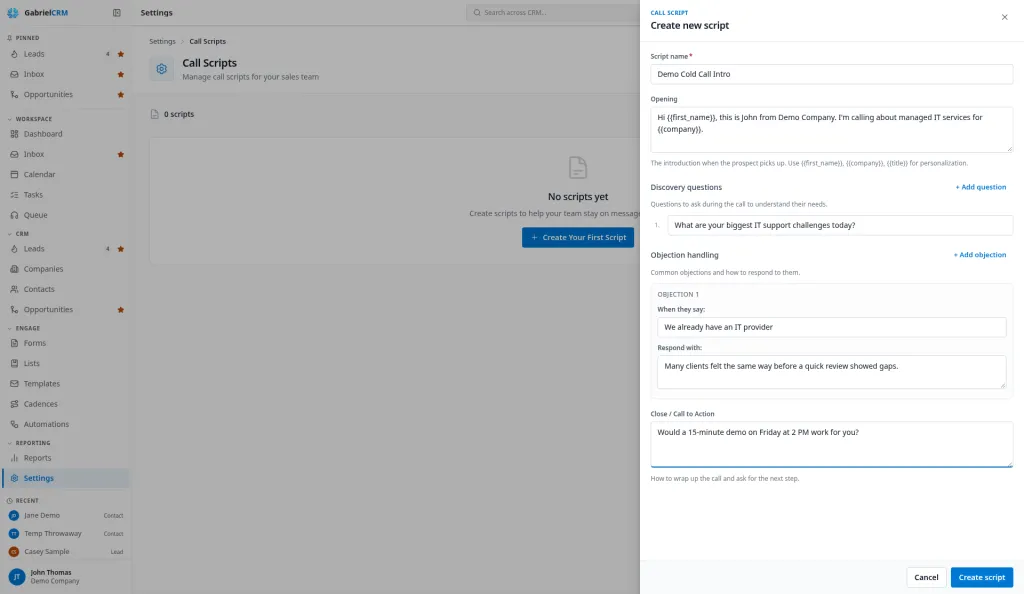
Section titled “Create a script”- Click Add Script (or Create Your First Script if you have none yet).
- Enter a Script name. Reps see this name in the script picker, so make it say when to use it, such as “Cold call: IT director”.
- Write the Opening: what the rep says when the prospect picks up.
- Under Discovery questions, add the questions to ask. Click + Add question for each one.
- Under Objection handling, fill in When they say: with what the prospect says and Respond with: with the answer. Click + Add objection for more.
- Write the Close / Call to Action: how to ask for the next step.
- Click Create script.
Only the name is required. Leave out any section you don’t need.
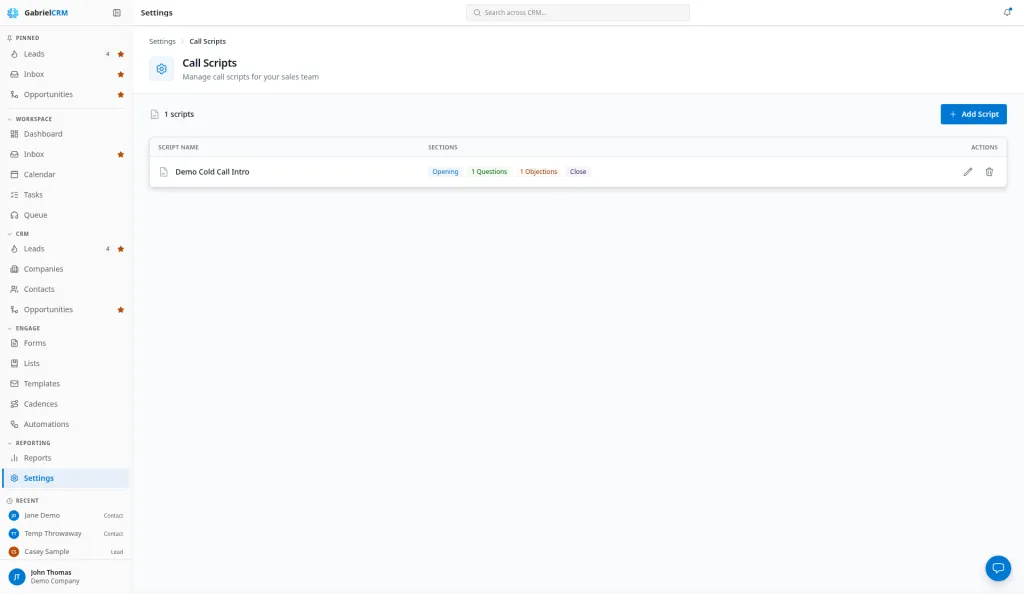
The list shows each script’s Sections, such as Opening, 3 Questions, 2 Objections and Close, so you can spot scripts that are missing a part.
Personalize with merge fields
Section titled “Personalize with merge fields”Type these anywhere in a script and Gabriel fills them in from the record when the rep opens the call:
| Merge field | Filled with | If the record has none |
|---|---|---|
{{first_name}} |
The person’s first name | there |
{{company}} |
Their company name | your company |
{{title}} |
Their job title | your role |
So “Hi {{first_name}}, I’m calling about {{company}}” reads “Hi Dana, I’m calling about Acme” on the call, or “Hi there, I’m calling about your company” when the record is blank. These are the only merge fields scripts support.
Write a voicemail script
Section titled “Write a voicemail script”There’s no separate voicemail type: a voicemail script is a script you attach as the Voicemail script on a cadence step. Write the whole message in the Opening, short enough to say in under 30 seconds, and leave the other sections empty.
When the rep picks Left voicemail as the result, or Gabriel detects an answering machine, the call desk swaps the call script for the voicemail script.
Use scripts in a cadence
Section titled “Use scripts in a cadence”On each call step of a cadence, choose a Call script and a Voicemail script (or None). You can change them while people are in the cadence. See Cadences.
Edit or delete a script
Section titled “Edit or delete a script”- Click Edit script on a script’s row, make your changes and click Save changes. The change shows on the next call that opens it, including on every cadence step that uses the script.
- Click Delete script on the row and confirm with Delete script.
How it works
Section titled “How it works”- Opening is shown to the rep first, in full.
- Objections appear under If they say as short buttons showing the When they say: text. One click shows the answer.
- Discovery and Close are folded under Discovery and close, so the wrap-up stays in view during the call. See Queue.
- On a lead call from a record, the rep picks a script from a list of all your scripts, and Gabriel remembers their choice for their next call in that browser.
Best practices
Section titled “Best practices”- Write the Opening as two or three sentences a rep can say naturally. It’s the only part shown in full when the call connects; everything else is a click away.
- Keep When they say: short, in the prospect’s words. It’s the button label the rep scans while the prospect is talking, so “Send me an email” beats “Prospect asks for information by email”.
- Order objections by how often you hear them. They appear left to right in the order you add them.
- Use merge fields only in places where the fallback still reads well. A lead
with no title reads “your role”, so “As {{title}} you…” becomes “As your role
you…”. Put
{{title}}where that still makes sense, or leave it out. - Write one script per cadence call step instead of one long master script. The step decides which script appears, so a second-attempt call can open differently from a first, and you can see which steps book meetings on the cadence’s Metrics tab.
- Pair every call step with a voicemail script. Most dials reach voicemail, and the desk switches to it automatically, so reps leave the same tight message every time.
- Edit in place rather than delete and recreate. Editing keeps the script on every cadence step that uses it; deleting quietly leaves those steps with no script.
- Name scripts so reps can pick the right one. On record calls, reps choose from the full list by name.
Troubleshooting
Section titled “Troubleshooting”Settings > Call Scripts isn’t in my settings. You need permission to manage call scripts, which managers and admins have. Ask an admin.
A merge field shows as “there” or “your company”. The record is missing a first name or company. Fill it in on the record.
A cadence step shows “Attached script (inactive or not visible to you)”. The script it used was deleted. Choose another Call script or Voicemail script for the step.